TeamWork Features FAQ
You can only activate, take off hold or make ready to post records with a pending workflow through the TeamWork app or the Extender Workflow console.
Most Extender approval workflow templates set the record status to OnHold (for O/E Sales Orders or P/O Purchase Orders), or to Inactive (for master files). If a user tries to change the status or the Active field on the standard Sage 300 screen, the workflow will trigger and the users are warned that the workflow is in porgress. They cannot update the field outside of the workflow.
For batches, the control is on the Ready to Post flag. Users cannot make the batch ready to post (and therefore cannot post) outside of the workflow.
If using TeamWork, users can chat about the record, add supporting documents such as quotes in the chat. Such documents can be opened in the Notes Panel on the Sage 300 Purchase Requisitions screen.
Signature example
To capture a signature as part of the workflow, enable the signature field in the A/C Chat template.
Users with "Edit" rights in A/C Chat can capture a signature in the A/C Chat App.
Currently, you can only capture 1 signature per record. A/C Chat assumes that the signing action closes the optional fields entries.
TeamWork can only capture the signature of the final approver.
If a user cannot sign in the chat:
-
Check that the Signature optional field is enabled in the Workflow Fields Tab on the A/C Chat template configured in the Workflow Rule
-
Check that the user has "Edit" rights in the chat.
If AutoPost = Yes on the Workflow Rules > Options, the requisition is converted to a Purchase Order automatically.
Only use this option if you select a vendor when you create a purchase requisition.
If you create the requisition in the A/C Chat App and don't select a vendor, do not select AutoPost on the Workflow Rules > Options.
Per workflow rule, you can choose to send email messages and A/C Chat messages when the workflow starts and progresses.
: if using TeamWork, select Yes and a A/C Chat template to enable notifications in A/C Chat
Note: The EvaluateConditions workflow action sets a workflow value SENDACCHAT that you can use in the workflow templates when creating your own templates.
Note: Send A/C Chat message is only displayed if A/C Chat is activated in the database.
Note: You can only send A/C Chat messages if the workflow rule applies to a Sage 300 record with a link type in A/C Chat. See list of available templates: What is included?
: Select Yes to enable email messages in the standard workflow templates.
Note: The EvaluateConditions workflow action sets a workflow value SENDEMAIL that you can use in the workflow templates when creating your own templates.
By default, TeamWork workflow includes all preset users in the chats created by the workflows, with their configured security rights.
If you don't want to include preset users, do not add preset users to the A/C Chat template.
The workflow starts when you add or update records in Sage 300.
The workflow starts when using the Sage 300 desktop screens, the web screens, the TeamWork app or other processes that use the Sage 300 SDK and views to insert or update records.
Substitution and escalation
In this release, there are no out of the box functionality for automatic substitution or escalations of workflow.
You can reassign workflow to other users if you have rights to Modify all workflow" in Sage security in Admin services.
You can also assign workflow to groups and any users in the group can approve, depending on availability, thus reducing potential delays in approving.
Viewing additional information in the chat
In the chat, users can run Custom Inquiries (if configured for the chat type). Refer to A/C Chat documentation for details.
For most transactions, chat users can view details by selecting the ? icon in the chat.
For example, users can see the details (Item, Quantity, cost) of a Purchase Order or a Sales Order.
Users can also print a summary of the document, for example an Order Confirmation, a Delivery note for a shipment or a purchase Order.
Users with sufficient security rigts can also update optional fields.
If the Signature field is configured on the chat template, users can also sign the record in the A/C Chat app.
See example in O/E New Shipment Notification
When the Workflow Rules are configured with an A/C Chat template, a chat is created, based on the A/C Chat template selected. Preset users are included in the chat.
Approvers defined in the Workflow Rules are added to the chat, with rights to amend optional fields (Edit rights in A/C Chat) and rights to add and remove members (Admin rights in A/C Chat) to the chat.
The user who started the workflow is added to the chat, with no Admin or Edit rights in the chat.
Installing TeamWork FAQ
TeamWork is available for Android, iOS and Windows devices. Refer to A/C Chat documentation for details.
You can contact Orchid or AutoSimply to get NFR codes and setup TeamWork on your demo servers.
Overview
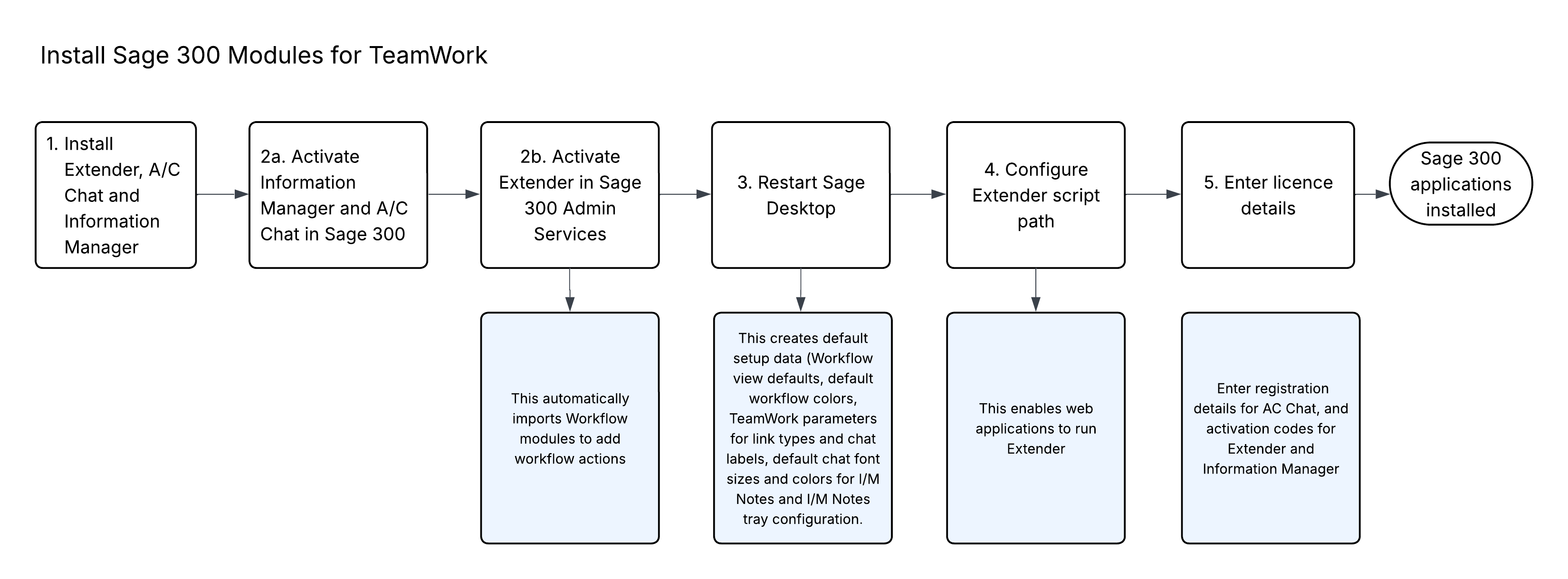
You install and activate Sage 300 modules (AC Chat, Extender and Information Manager).
You can then setup A/C Chat, Extender and TeamWork.
You can then import TeamWork workflow modules and configure the workflow rules (What, How, Who) in Extender.
This is the minimum setup required to use Extender with TeamWork
Step 1: Setup Email SMTP details in Extender options. Extender Email Tab
Step 2: Add workflow users to the Extender Licence screen. Workflow users are only used for approvers. Understanding Workflow Users

Step 3: Optionally, create user groups so you can assign approvals to groups of users. Workflow User Groups
Step 4: Optionally, add workflow colours for use in the workflow rules and the workflow console. Workflow Colours
Users configured as workflow users in the ExtenderLicence screen can view the records they are assigned to or records assigned to a group they are in.
There is no special Sage 300 Security requirements for the Extender module.
A Workflow User license is required for each user who needs to access Extender Workflow functionality to approve and progress workflow.
Sage 300 security requirements
Users who approve need to have Read/Write access in Sage 300 security > Administrative Services to the record type they approve.
TeamWork User setup
The TeamWork app is available for Android, iOS and Windows devices.
Refer to A/C Chat documentation for details on installing the App from the appropriate store.
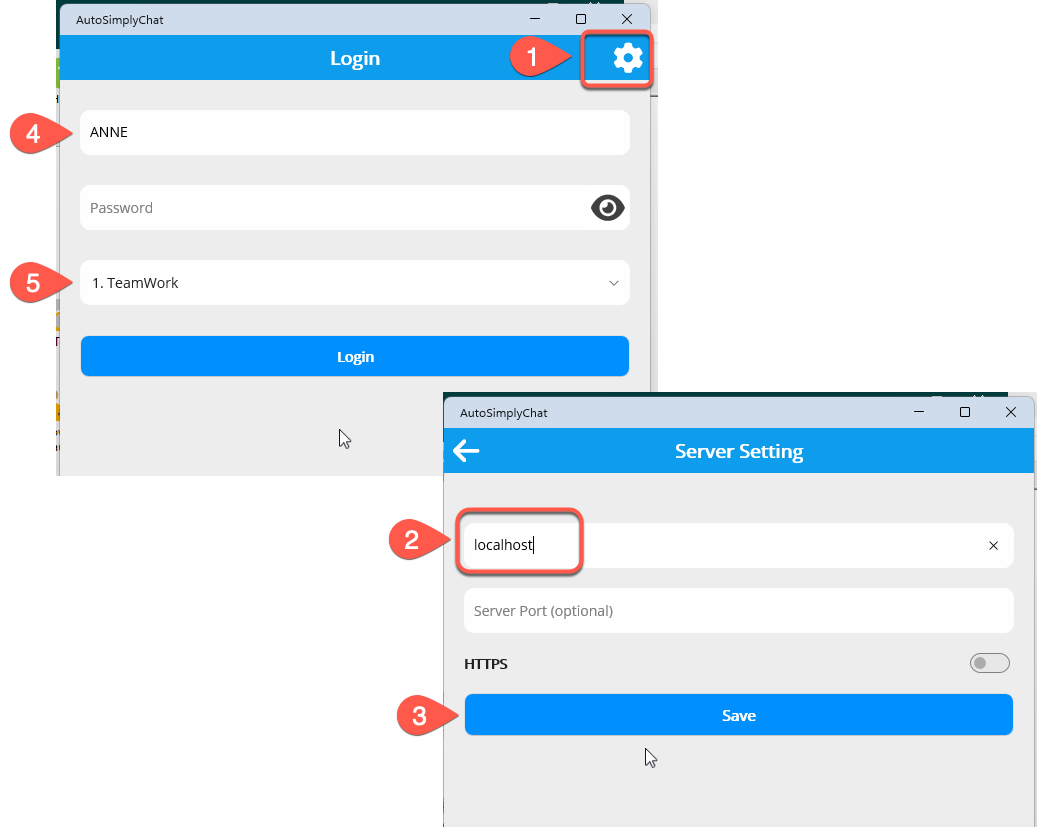
Step 1: Download A/C Chat app for app users.
Step 2: In the App settings, enter the IP Address of your server, provided by your administrator and your user name and password.
Step 3: Save and go back to the login screen
Step 4: Enter a username and password for a user configured in A/C Chat.
Step 5: Select the Sage 300 database where A/C Chat is activated that you want to use.
Users need to be setup in A/C Chat Users.
Users who approve records (in the TeamWork A/C Chat app or in the Extender Workflow Console) need to have a Workflow User licence in the Extender License screen.
This is the minimum setup required to use Extender with TeamWork
Step 1: Setup Email SMTP details in Extender options. Extender Email Tab
Step 2: Add workflow users to the Extender Licence screen. Workflow users are only used for approvers. Understanding Workflow Users
Step 3: Optionally, create user groups so you can assign approvals to groups of users. Workflow User Groups
Step 4: Optionally, add workflow colours for use in the workflow rules and the workflow console. Workflow Colours
Step 1. Installation Steps
A/C Chat, Extender and Information Manager are installed by executing the EXE program downloaded for installation.
Step 2. Activate Modules
-
Activate A/C Chat and Information Manager in Sage 300 Administrative Services > Data Activation.
-
Activate Extender (in a separate step)
Purchasing TeamWork FAQ
Extender Editions
TeamWork works with both ExtenderRuntime and Developer Editions.
-
Edition if you only need the standard TeamWork functionality
-
Edition if you need other Extender functionality such as logging, scripts to validate data, automate processes in Sage 300 or customise Sage 300 screens.
If you want to validate that an O/E Sales Order is approved before adding it to an O/E Shipment or Invoice, you need Extender Developer Edition and a custom script.
To validate that a P/O Receipt is not greater than the approved purchase order, you also need Extender Developer Edition.
TeamWork includes Sage 300 modules from AutoSimply and Orchid:
From AutoSimply
: core module, including chat features, leave application, expense claim and timesheet entry.
: for all users who use the mobile app.
From Orchid
: core module for workflow functionality, including TeamWork workflow templates and scripts.
: for all approvers, in addition to the chat users.
: to display the chats in the Notes panel on the Sage 300 screens
In the current release, TeamWork includes more than twenty approval and notification templates for the following records described in the table below.
| Application | Description | Type | Can approve in individual chat | Can Start in A/C Chat app |
| A/P | New Vendor approval | Entry | Yes | No |
| A/P | Change of vendor payment terms approval | Entry | Yes | No |
| A/P | A/P Invoice batch approval | Batch | Yes | No |
| A/P | A/P Payment batch approval | Batch | No | No |
| A/R | A/R Invoice batch approval | Batch | No | No |
| A/R | New customer approval | Entry | Yes | No |
| A/R | Customer Credit Limit change approval | Entry | Yes | No |
| A/R | New customer notification | Header | Chat only, no approval | No |
| G/L | New General Ledger account approval | Entry | No | No |
| G/L | G/L Journal Batch approval | Batch | Yes | No |
| I/C | New Inventory item approval | Entry | Yes | No |
| I/C | New I/C Location approval | Entry | Yes | No |
| I/C | I/C Internal Usage approval | Header | Yes | Yes |
| I/C | I/C Stock Transfer approval | Header | Yes | Yes |
| I/C | I/C Shipments approval | Header | No | No |
| I/C | I/C Receipts approval | Header | No | No |
| I/C | I/C Adjustments approval | Header | No | No |
| O/E | New Sales Order and new quote approval | Header | Yes | No |
| O/E | O/E Shipment notification | Header | No, chat only, no approval | No (*) |
| P/O | Purchase Requisition approval | Header | Yes | Yes |
| P/O | Purchase Order approval | Header | Yes | No |
| R/A | Return Material Authorization Approval | Header | Yes | No |
| P/M | PJC (Project & Job Costing) Contract Approval | Header | Yes | No |
| M/F | Manufacturing Order approval | Header | Yes | No |
| A/C | A/C Chat Leave multi-level approval | Header |
Yes |
Yes (#) |
| A/C | A/C Chat Time Entry and Time Attendance multi-level approval | Header | Yes | Yes (#) |
| A/C | A/C Chat Expenses multi-level approval | Header | Yes | Yes (#) |