Installing TeamWork App
Before you start
Install and Configure the modules in Sage 300.
TeamWork User setup
The TeamWork app is available for Android, iOS and Windows devices.
Refer to A/C Chat documentation for details on installing the App from the appropriate store.
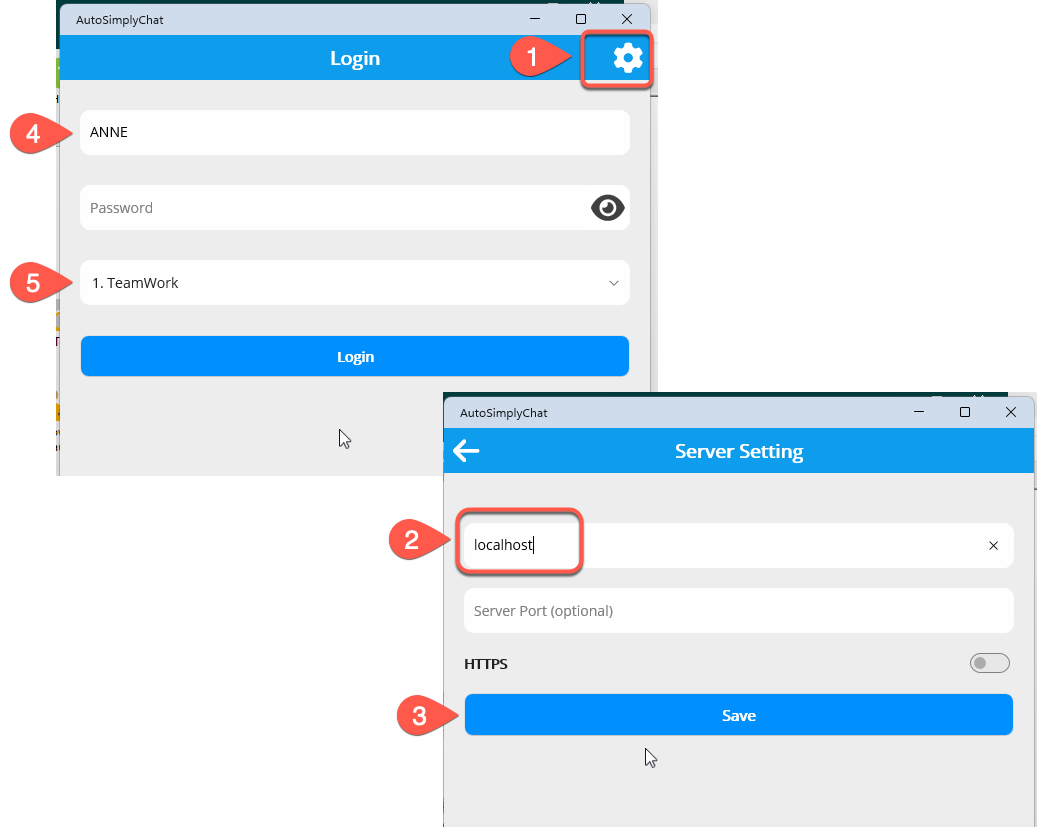
Step 1: Download A/C Chat app for app users.
Step 2: In the App settings, enter the IP Address of your server, provided by your administrator and your user name and password.
Step 3: Save and go back to the login screen
Step 4: Enter a username and password for a user configured in A/C Chat.
Step 5: Select the Sage 300 database where A/C Chat is activated that you want to use.
Users need to be setup in A/C Chat Users.
Users who approve records (in the TeamWork A/C Chat app or in the Extender Workflow Console) need to have a Workflow User licence in the Extender License screen.