EFT Processing FAQ
Browse some common support questions
Daily processing with EFT Processing for Sage Intacct.
Users can subscribe to Orchid's SFTP service. You can then configure EFT Banks to SFTP the file directly from the EFT File list.
Users can then generate an EFT File (for AP Payments, AR Payments or Employee Expenses payments). On the EFT File list, users with the necessary permissions can upload to SFTP directly instead of downloading the file to their browser.
For details, see Upload EFT files to SFTP
There are two ways to send the file to the bank:
-
You can download the EFT File and log into the bank portal to upload the file to the bank's application.
-
If using the SFTP option, you can upload it directly to the bank's SFTP site. Depending on the bank, you may have to log on to the bank for a final approval, but you don't need to log into the bank to upload the file.
The EFT Quick Tip video presents an overview and tips on using filters in EFT Processing for Sage Intacct.
This applies to the following Orchid EFT Processing screens to select records and to view EFT Files.
-
EFT File List
-
AP Payment Request
-
AR Payment Request
-
Employee Expense Payment Request
-
Create AR Payment
View on the EFT File list allows you to see all the payment records included in the file.
Always activeYou can use the action to check the details before uploading the file to the bank or to review completed files.
In the bottom right corner of the screen, you can view the number of records and the running total of the selected records to assist in validating the records selected against control total.
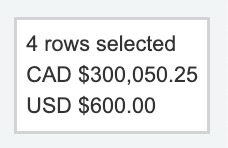
Tip: If you cannot see all the selected records, check the filters. If the column heading is in italic, it means there is an active filter.
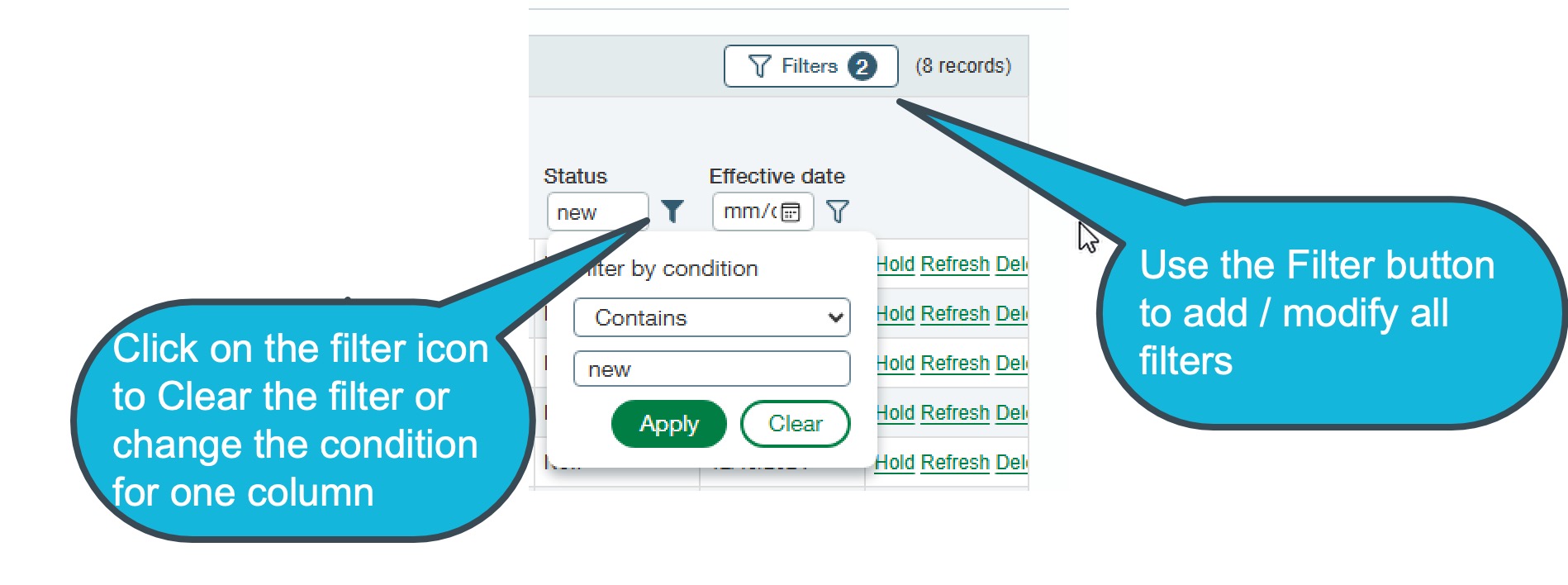
Clearing filters on one column
To clear a filter on one field only, select the icon next to the column name and choose Clear.
Hold updates the EFT file status to on the EFT File list.
For example if the file is rejected by the bank, you can set the file to on-hold, update the relevant details, refresh the file and download again.
Only available if the status is New or Exported.
Step 1: Install the Cloud Service application on the workstation to map to the cloud service platform
Step 2: Configure the cloud service tool (e.g. Google Drive) on the appropriate workstation
Step 3: Configure the "downloads" directory for the required browser profile to be the EFT File Folder (e.g. using Microsoft Edge)
Step 4: Use the EFT Profile to log on to Sage Intacct
Step 5: When you download the EFT File using the EFT Profile, the file will automatically be saved on the cloud service drive.
Step 6: The Cloud service application will sync the file to the Cloud Service platform, using the Cloud Service platform security settings.
The EFT Quick Tip video demonstrates using EFT Processing with Cloud Services and the setup required.
Quick Tip Video: Using Cloud Services with EFT Processing for Sage Intacct
You can resize column width to fit your data.
Move the cursor on the top line, between two column labels and drag to change the size.
Tip: Column sizes are saved from a prior session in the browser.

On the EFT File List screen, you can download or upload EFT files.
If you have an active subscription for the SFTP service, you can configure the EFT Bank to upload directly to SFTP.
For details, refer to:Upload EFT files to SFTP
If you don't have an SFTP subscription or you choose Download destination type in EFT Bank, the files are downloaded on your local machine, based on your browser's configuration.
If the browser is configured to prompt for a file location for each download, Download in EFT Processing will prompt the user.
Paying vendors with EFT Processing
You can select what payment methods to show on the Payment Request screen in the EFT Bank setup screen.
If a vendor is configured with an EFT File Format on the Orchid EFT Tab, completed payments for that vendor will appear on the EFT Payment Request screen if the payment method is selected in the EFT Bank setup.
For details, refer to:Selecting Payment Method
Note: If you cannot see a payment on the EFT Payment Request screen, check the filters and check that the payment method on the AP Payment is selected for the bank and format record in EFT bank.
PROCESSING POSITIVE PAY FILES
The setup and process is very similar for Positive Pay files and for standard EFT files.
Step 1: Configure the appropriate bank in EFT Banks to be linked to the positive pay EFT File Format.
Step 2: On the Orchid EFT Tab for the Vendor, select the required Positive Pay format.
Step 3: Create, approve, print, and post the required Check payments.
Step 4: When you have a Printed Check payments in your AP Posted Payment list, Use EFT AP Payment Request to select the payments required and Generate an EFT File
Step 5: Use EFT File List to download the EFT File
Step 6: Upload the EFT File to the bank, and when confirmed by the bank, click Confirm on the EFT File List.
Creating a prenote file
Prenote (prenotification) is a process that creates a zero-dollar transaction (prenote transaction type) file for the bank as a test that the vendor's and employee's EFT details are setup correctly. The ACH prenote file can be generated in one of two ways, depending on how you control the process:
-
Control the process from the EFT Vendor(s) record - Method 1
-
Control the process from the EFT Bank record - Method 2
The EFT Spotlight video demonstrates how to create prenote ACH files using Orchid EFT Processing for Sage Intacct.
EFT Spotlight Video: Creating ACH prenotes in Sage Intacct
View Payments included in an EFT File
Select Included in an EFT File in the field on the screen to view and search for payments included in an EFT File.
This shows the payment details, including the File ID where the payment is included.
To view file details, select the File Id and search for it in the EFT files. Refer to EFT File List
You need to create the AP Payments using the standard Sage Intacct processes. EFT Processing can include completed posted payments for any payment methods (Record Transfers, Checks/Cheques, cash and Advances).
The AP Payment Request screen shows AP payments and advances that have already been entered, approved, and completed in Sage IntacctAccounts Payable.
Only payments that meet the following conditions are included:
-
The Vendor has an EFT File Format set up on the Orchid EFT tab
-
An EFT Bank record must exist:
-
of type “payment”,
-
match the bank used for the payment, and
-
match the EFT File Format set on the Vendor’s Orchid EFT tab.
-
-
The payment method is enabled on the EFT bank record for the bank , the EFT File Format and payment type.
A payment won’t show up in the AP Payment Request screen if the system can’t find a matching EFT Bank setup. In earlier versions, the payment showed up, but the format was crossed out.
Payments made using Credit Card or Savings bank accounts are not shown.
Processing customer direct debit with EFT Processing
Step 1: The Create AR Payments process will create one AR Payment per invoice selected on a one-to-one basis, using the Payment method, bank and Receipt date entered on the screen.
Tip: If you require the functionality to apply multiple AR Invoices and AR Credit Notes to the same AR Receipt - you need to use the inbuilt Sage Intacct "Receive a payment" screen to create AR Receipts a) applied to many invoices and b) applied to credit notes.
In Sage Intacct, you can only create AR Payments at the same entity level as the related AR Invoice.
If you select Top Level, invoices listed on the Create AR Payments screen are invoices created at top level. Likewise if you select a specific entity, only invoices created at that entity level are listed.
EFT Processing creates the AR Payment at the selected level (and the same as the AR Invoice level).
The Create AR Payments screen displays all approved AR Invoices.
The EFT Spotlight video demonstrates how to create AR Payments for a range of invoices using Orchid EFT Processing for Sage Intacct.
Spotlight Video: Creating AR Payments with Orchid EFT Processing in Sage Intacct
Select Included in an EFT File in the field on the screen to view customer payments included in an EFT File.
Change the date filter to match the payments you are looking for.
This shows the customer payment details, including the EFT File where the payment is included.
Paying employee expenses with EFT Processing
Select Included in an EFT File in the field on the screen to view payments included in an EFT File.