Upload EFT files to SFTP
How does it work?
When you use Orchid's EFT Processing with a SFTP licence, you can configure a bank to upload directly to SFTP.
When you create an EFT File for a bank configured for SFTP upload, the file is automatically uploaded to the configured SFTP server instead of downloaded in the browser.
EFT Processing supports SFTP with Key file and SFTP with a username and password. You can use both if your bank's SFTP server uses 2 factor authentication.
EFT Processing includes an extra option to upload EFT files directly to a SFTP server.
Licensing Requirements
Requirement! To upload a file directly to SFTP, users require a subscription to the SFTP module, in addition to the subscription to EFT Processing for AP, AR or employee expenses. Contact your Sage partner or Orchid for details.
Supported authentication methods
Orchid's SFTP functionality supports several authentication methods. Check the requirements with your bank.
-
Username and password
-
Username and RSA private key file
-
Combination of both (for banks requiring two-factor authentication)
configuration steps
In EFT Banks, select a bank, go to the SFTP Tab.
In the field, select SFTP Upload and enter the required field details.
The other steps to configure and use EFT Processing are the same for all output destinations.
Detailed description of all setup fields are below:
Field list
|
Select Download to download the file in your browser. Select SFTP Upload to upload the file to an SFTP site. Note:
If you select SFTP Upload without a valid SFTP licence, you will see a warning message on the EFT Bank screen. You need a current subscription to SFTP to upload to SFTP. Although you can save the setup details, in EFT File list, the file will be downloaded in the browser until you get a valid SFTP licence. |
|
|
IP Address or name of the SFTP Server Example: 123.123.70.70 Append :port if not using default port 22 Example: 123.123.70.70:2222 |
|
|
Enter the User Name |
|
| Enter the password
|
|
|
Upload the Private key file in the RSA format. (if using) Browse to upload the key file. See details of key file format below. |
|
|
: Enter the Password applied to the key file. This is recommended to protect the file, but is optional. |
|
|
Target folder on the SFTP server : "/" if you are uploading to the root directory, or "/xxx" if uploading to a folder on the SFTP server. Example: enter "/EFTFiles" to upload to the folder EFTFiles on the FTP server |
|
Key file Setup Tips
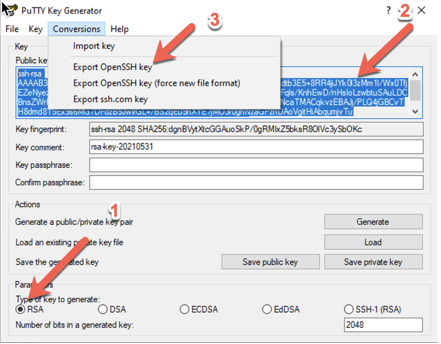
SFTP key authentication requires an OpenSSH RSA private key.
SSH keys consist of:
-
A public key (*.pub) uploaded to the SFTP server (e.g. the bank's or your SFTP server)
-
A private key uploaded to EFT Processing (generally *.ppk)
Important: EFT Processing requires the private key file.
If using a key file, you upload the private key in EFT Banks for Sage Intacct.
Key format
The private key file must contain a header and footer similar to:
-----BEGIN RSA PRIVATE KEY-----
MIIEoQIBAAKCAQEAo962U1qVeERjyfoMIwam3h+17Ei9Ddetm8UysRNOHv3ZI3YF
....
AUx+RYObNhAZ7z54RqyOMO+YXIRob0b7JXv/XpusA+BBA1eE/w==
-----END RSA PRIVATE KEY-----
Using PuTTY Key Generator to generate the private key
Troubleshooting
Refer to Tips & Troubleshooting SFTP