Install EFT Processing Application
To get started with EFT Processing, you need to install the EFT Processing XML application.
Download the installation files
Installation files are available to Sage partners registered on the Orchid Systems website. Log on to the website with the partner details and navigate to Product downloads page. Endusers can contact their partner to organize updates.
Installation file Overview
Choosing the installation file
There are two installation XML files available on the Orchid website. You only need to install one of the XML files.
The Orchid EFT menus are in the language of the installation program, regardless of the user's language preference.
-
To have the menus in English, install the English XML file.
-
To have the menus in French, install the French XML file.
Installing the French language
Installing an update
If you have previously installed the Orchid application and need to install the latest update, you generally only require to perform steps 1 and 2 (install the application in Platform Services) and step 5 (restart the Sage Intacct session).
In some cases, you may need to reselect the EFT Roles and permissions.
Steps to install
Step 1. Log in to Sage Intacct
Select a user with required security rights.
The installing user needs security rights to Platform Services.
You can log in to Sage Intacct as an internal user or an external user to perform the installation.
Step 2. Go to Platform Services > Install Application
Unzip the downloaded file and save the Orchid_EFT.xml application file to your desktop.
In Sage Intacct, go to Platform Services > Install Application >
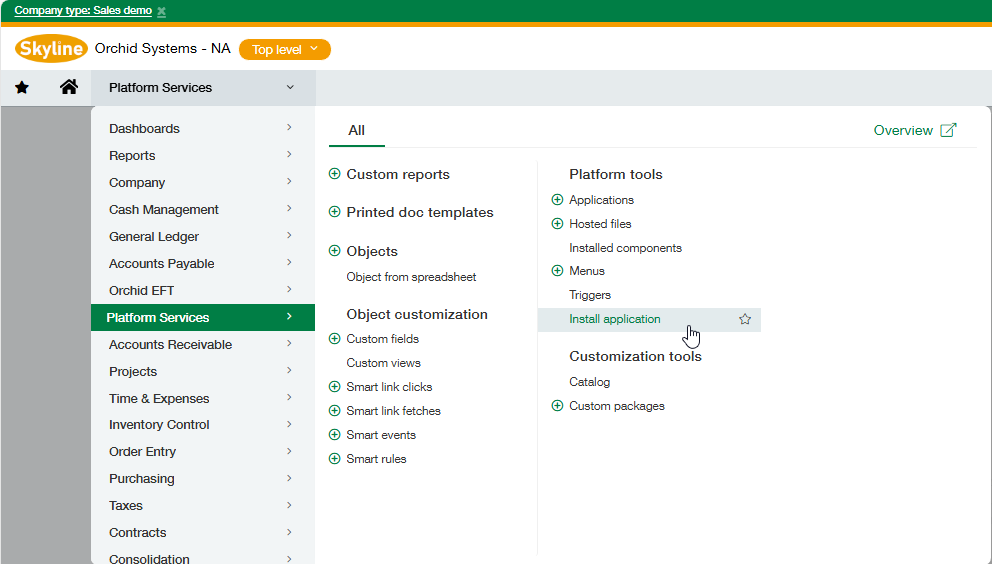
Tip: If you do not see Platform Services in the list of modules, ask the Sage Intacct Admistrator to Enable Platform Services in Company \ Admin \ Subscriptions
Note: You must not use Platform Services > Custom packages to install the ORCHID_EFT.XML file. If you receive an Internal error received / Uncaught exception error, check that you are using Platform Services > Install Application.
Step 3. Install the application
-
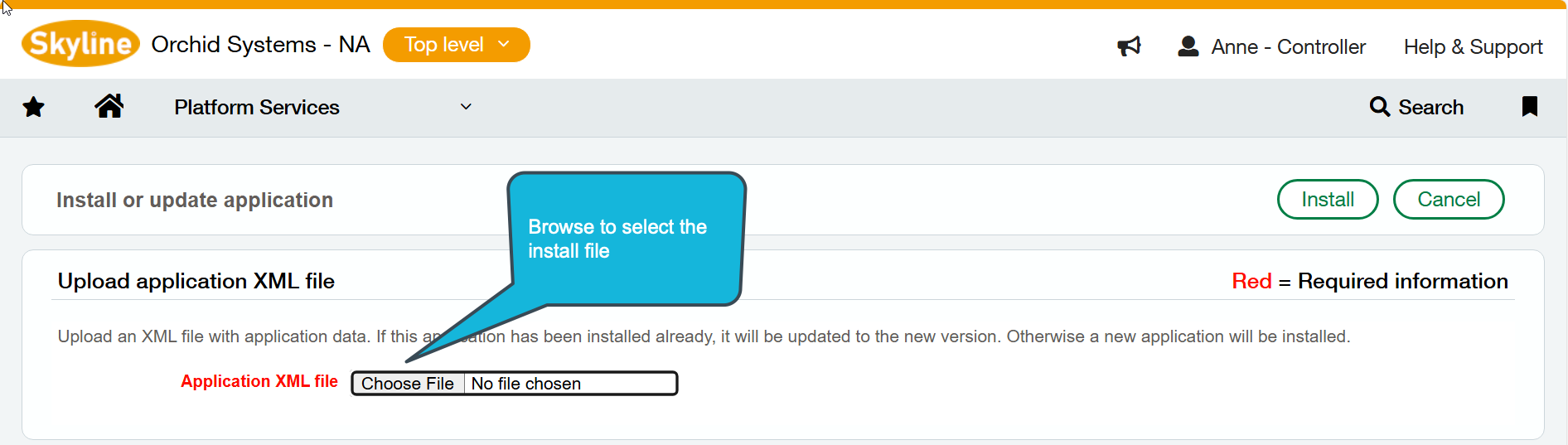
Select Install from XML
-
Choose the Orchid_EFT.xml file saved on your desktop
-
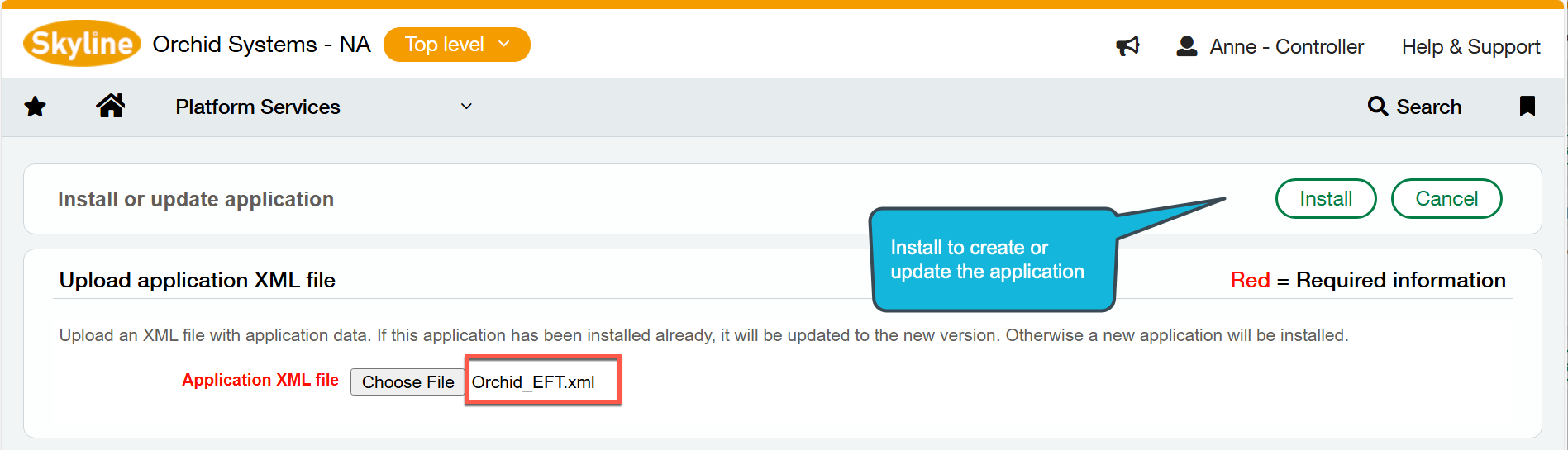
Click Install. The installation may take a few minutes to complete.
-
The import creates custom tables, menu items, custom screens and adds user-defined fields to AP Vendor, AR Customer and Time and Expenses Employees.
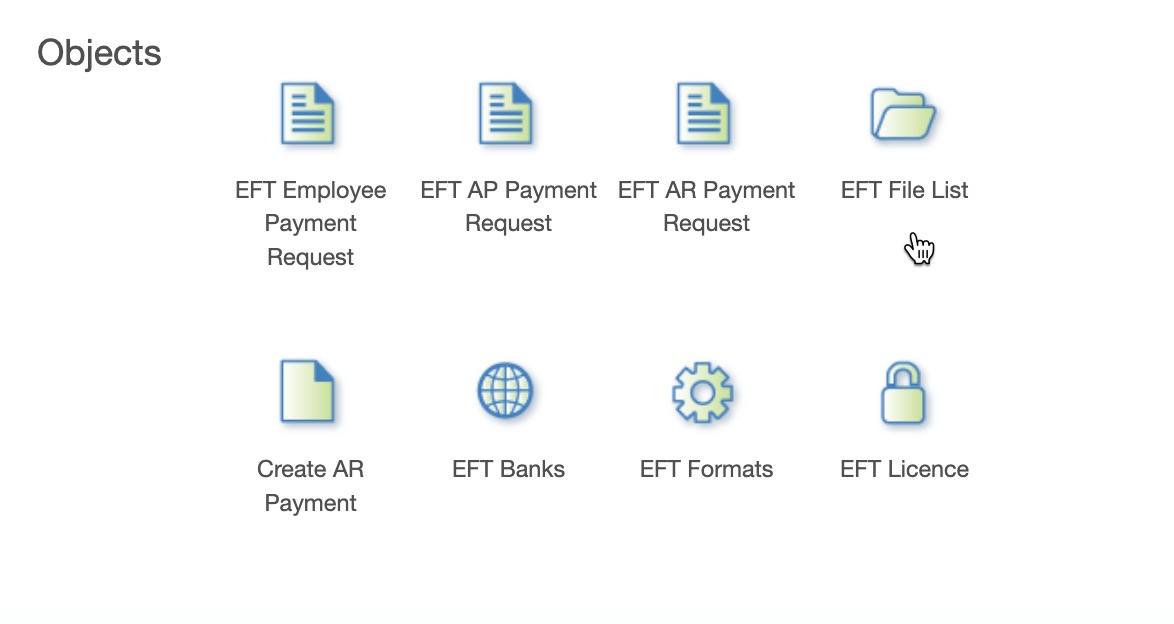
The following objects are created:
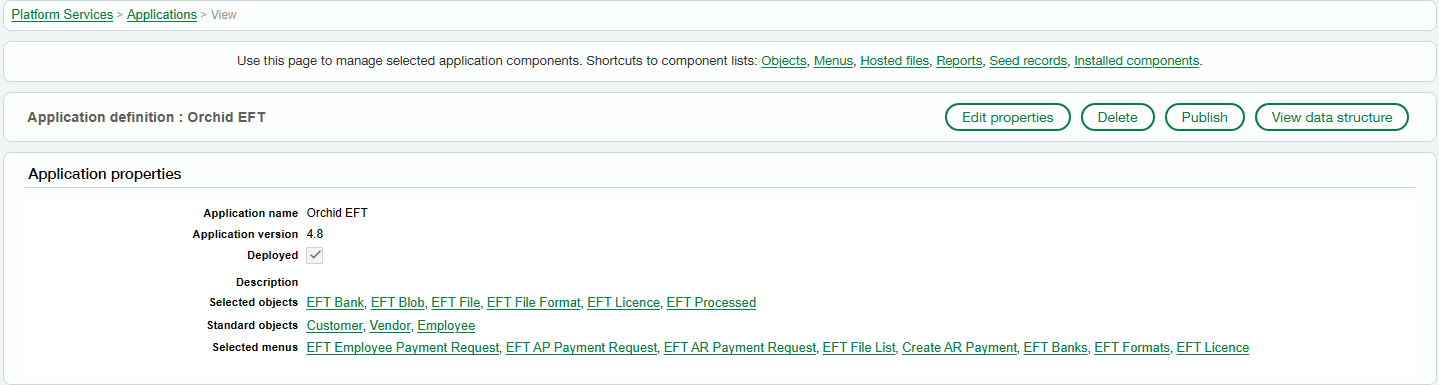
 Click to view the detailed list of tables, menu items and user-defined fields:
Tables
-
EFT Bank
-
EFT Blob
-
EFT File
-
EFT File Format
-
EFT Licence
-
EFT Processed
-
EFT Permissions
Menus Items and custom screens
-
EFT Employee Payment Requests
-
EFT AP Payment Requests
-
EFT AR Payment Requests
-
EFT File List
-
Create AR Payment
-
EFT Licence
-
EFT Permissions
User-Defined Fields (19 on each of AP Vendor, AR Customer and T&E Employee)
-
: Account Name, Account Number, Bank Name, BIC, Bank/Branch, Extra, Extra 1, Extra 10, Extra 2, Extra 3, Extra 4, Extra 5, Extra 6, Extra , Extra 8, Extra 9, IBAN, Payment Reference, EFT File Format
-
: Account Name, Account Number, Bank Name, BIC, Bank/Branch, Extra, Extra 1, Extra 10, Extra 2, Extra 3, Extra 4, Extra 5, Extra 6, Extra , Extra 8, Extra 9, IBAN, Payment Reference, EFT File Format
-
: Account Name, Account Number, Bank Name, BIC, Bank/Branch, Extra, Extra 1, Extra 10, Extra 2, Extra 3, Extra 4, Extra 5, Extra 6, Extra , Extra 8, Extra 9, IBAN, Payment Reference, EFT File Format

Step 4. Create Web Services user
Create the “Ajax” Web Services sender id
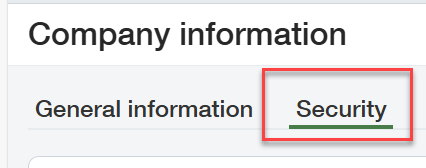
Select Company \ Setup \ Company from the Main Sage Intacct Menu
Select the Security Tab, scroll down to “Web Services authorizations” and insert the sender id “Ajax” if you do not already have one.

Step 5. Setup Roles and User Permissions
Detailed steps depend on whether you are importing the module as an External or an Internal User
Refer to Create Orchid EFT Roles
Step 6. Log out and log back in
and log back in the Sage Intacct session after the steps above have been completed.
You should now see the Orchid EFT Menu
Tip: You can move the Orchid EFT Menu and add some menu options to your Favorites Menu using standard Sage Intacct functionality.
If you don't see the Orchid EFT menu, refer to Troubleshooting Installation
If you just close the browser, the Sage Intacct roles and user permissions may not be refreshed and you will not see the Orchid EFT menu immediately.
In most cases, the Orchid EFT menu will be displayed after a few hours when the Sage Intacct permissions are refreshed. Or you can go and recreate the Orchid EFT Roles.
Next steps
Before you can configure and use EFT Processing, you need to configure security in Sage Intacct roles and permissions, enter EFT License and permissions in Orchid's custom screens.
Step 7. Configure security
For details, refer to:Create Orchid EFT Roles
Step 8. Enter EFT licence
For details, refer to: EFT Licence
Step 9. Set EFT Permissions
For details, refer to:Add EFT Permissions