Add EFT Permissions
In addition to the Sage Intacct permissions on the EFT Processing objects, you need to give some users permissions for specific EFT functions.
-
Permissions to create EFT files (download to their machine or upload to the configured SFTP).
-
Permissions to access the Orchid EFT Tabs for Vendors, Customers and Employees.
For details on permissions required in Sage Intacct, see Create Orchid EFT Roles.
Permissions to access Orchid EFT tabs
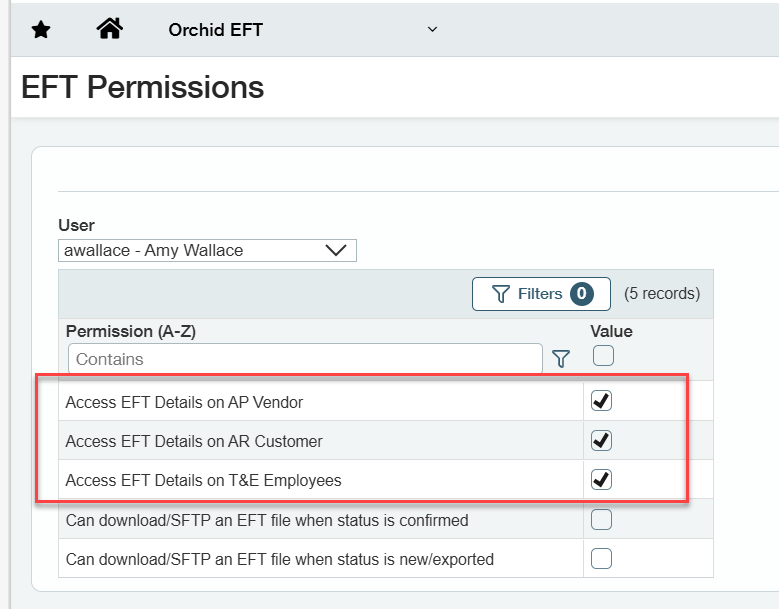
By default, permissions to access EFT Details on AP Vendor, AR Customer and T&E Employees are selected for all users.
You can remove access for users who do not need to view or update the EFT details on the Orchid EFT tabs.
Note: Users who have security rights to AP Payment requests in Sage Intacct security can generate EFT files, even if they do not have permissions to view EFT Vendor details.
How to configure EFT Permissions to download files
-
In the Orchid EFT Menu, select EFT Permissions
-
Select a user who needs permissions to download or upload EFT files
-
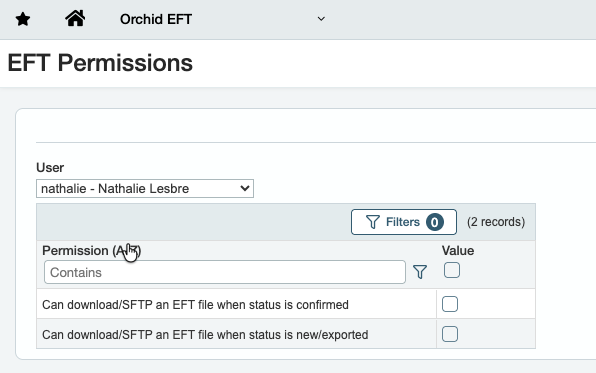
Select their permissions:
-
If a user is allowed to download or upload to SFTP a file after it is confirmed (i.e. to recreate an EFT File), select the permission:
-
Can download/SFTP a file when status is Confirmed -
Tip: Typically, you confirm the file in EFT after the bank has processed it successfully and most users don't need to download / upload a confirmed file. This permission applies to admin users.
-
-
If a user is allowed to download or upload to SFTP a file that hasn't been confirmed in EFT, select the permission:
-
Can download/SFTP a file when status New or Exported
-
-
-
Repeat steps 2 and 3 for all users who need permissions to download/upload files.
-
Log out of Sage Intacct and back in to refresh permissions.
If there is no Save button on the top right of the screen, check and re-save the Sage Intacct permissions on the Orchid EFT objects.
For details, refer to: Troubleshooting Installation
EFT Permissions and EFT File List
EFT Permissions controls the download and upload functions on the EFT File list.
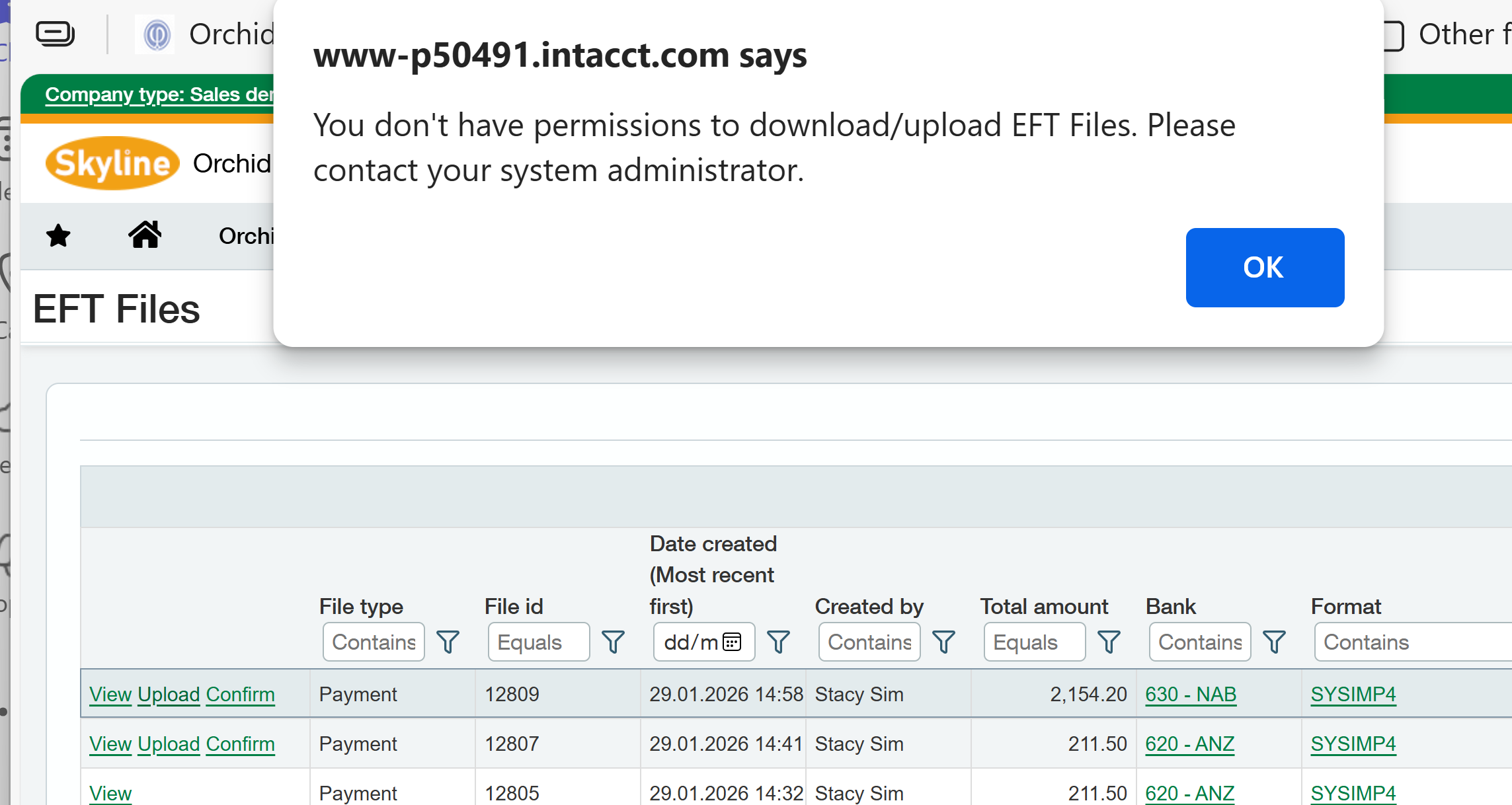
Users who do not have permissions to download / upload a file will see the download /upload button, and they will receive an error message if they use it.
If no users have permissions to download/upload, files cannot be downloaded / uploaded on the EFT File list. All users will view an information message, prompting an Administrator to configure the EFT Permissions.
If no users are configured in EFT Permissions
-
All users see a banner message on the EFT File list
You need to configure the EFT Permissions to enable users to save the EFT File (download or upload to SFTP site). Please contact your system administrator.
-
No files can be downloaded or uploaded.

If users are configured but the logged-in user lacks permission
- The Download/Upload button is visible.
- An error message appears when clicked.
- The file is not processed.