Sage Intacct Security Roles
Users who need access to Orchid's EFT Processing require specific security roles in Sage Intacct.
Re-saving permissions
In some cases, you need to re-save the permissions in Sage Intacct. For example, if the Orchid EFT Tab doesn't appear or you cannot save the EFT Licence details.
Use the following steps:
-
Deselect the permissions and save the changes
-
Log out of Sage Intacct (click the logout button - i.e. not close the browser)
-
Log back into Sage Intacct and select the permissions again and save the changes
-
Log out of Sage Intacct (click the logout button - i.e. not close the browser)
-
Try again
For detailed steps, see Troubleshooting Installation
Company permissions
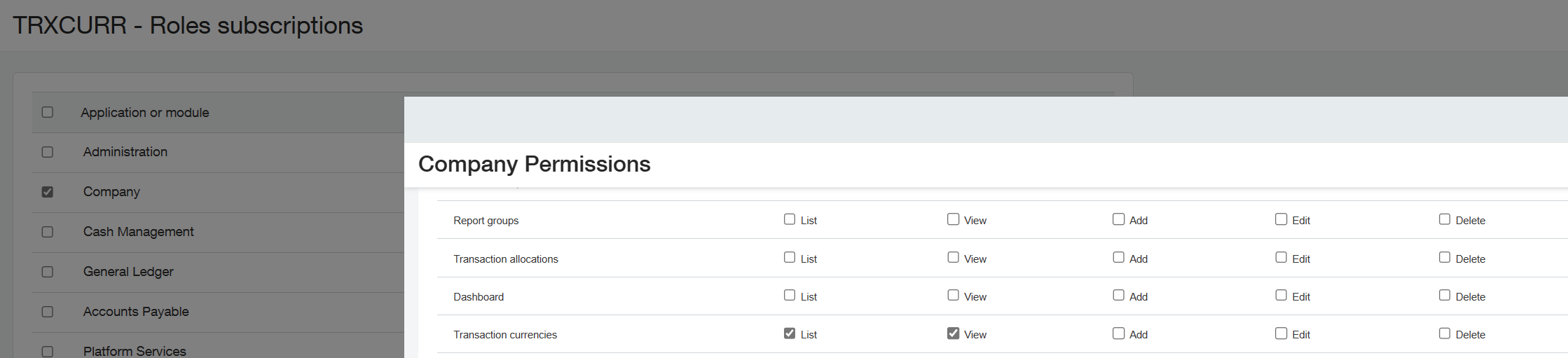
If you get an Error: You do not have permission for API operation READ-BY-QUERY on objects of type trxcurrencies, grant the user Company Permissions > Transaction currencies.
GL permissions
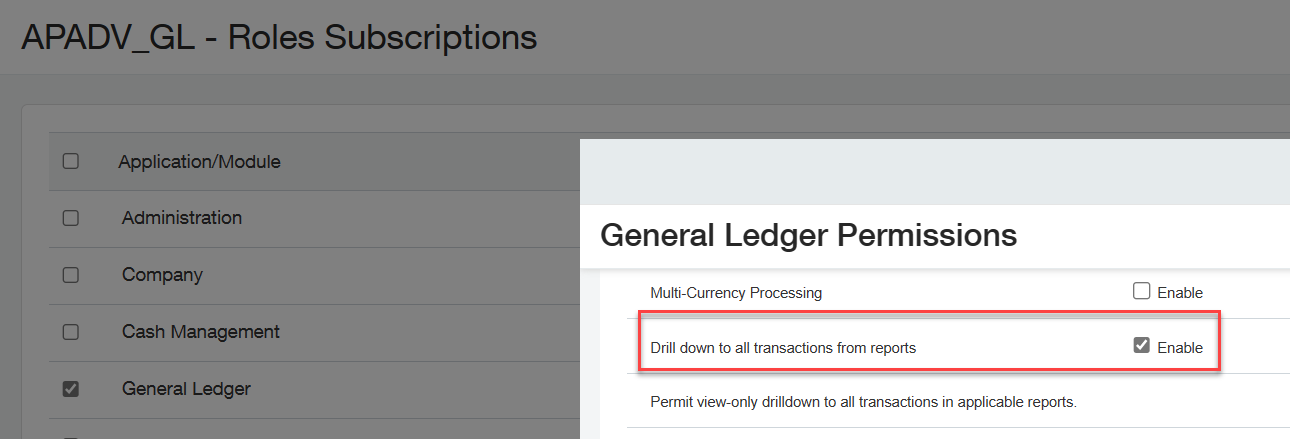
You need to grant the user GL Permissions – Drill down to all transaction from reports as shown below in order to view AP Advances at the Top level.
Cash Management permissions
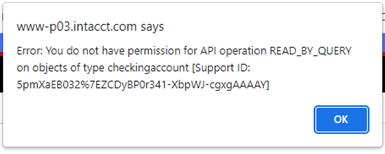
If you get an Error: You do not have permission for API operation READ-BY-QUERY on objects of type checkingaccount, grant the user List and View in Cash Management Permissions > Checking accounts / Cheque Accounts (depending on the user's language and region).


Limited Admin rights
Users don't need Limited Admin rights to use EFT Processing for Sage Intacct.
In earlier updates, Limited Admin was required to check if a user had access to EFT Banks.
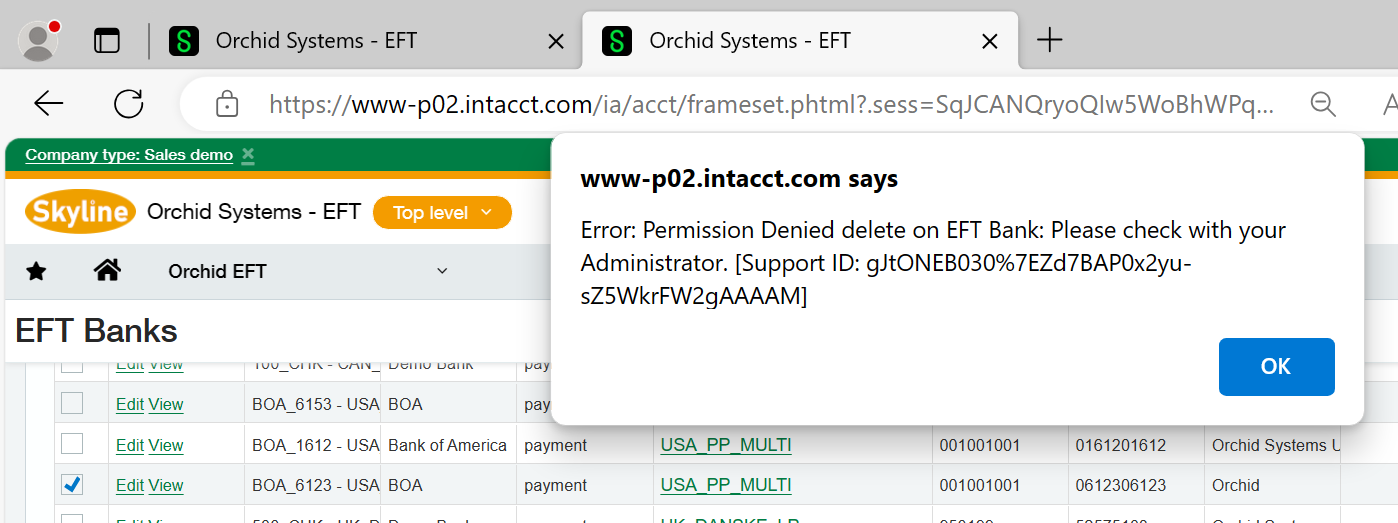
If a user doesn't have rights to EFT Banks and uses a file format that requires FSN, they may get an error message like below when generating or refreshing a file:
Permission Denied on EFT Bank. Please check with your administrator.
Permission Denied on EFT Bank. Please check with your administrator.