Troubleshooting Installation
Common errors
| Issues | Solutions |
| No buttons e.g. “Add” or “Delete” | Check the Ajax Web Services User has been created |
| No Menu |
Check Permissions Restart the browser. In some cases, you may need to wait a little while for the new permissions to propagate. See Refresh Orchid EFT Roles |
| Uncaught Error Exception when installing |
Check that you are using Platform Services > Install Application. You must not use Platform Services > Custom packages to install the ORCHID_EFT.XML file. |
Refresh Orchid EFT Roles
You may need to refresh Orchid EFT Roles, subscriptions and Permissions. This sometimes happen if you have closed the browser without logging out of Sage Intacct.
When to use
In some cases, the required permissions look OK when you check all the screens, but you cannot access all the functionality. You may need to re-save all the permissions in Sage Intacct.
This generally happens after importing the Orchid EFT XML file to install or update the application.
There is no SAVE button on the EFT Permissions screen or the EFT Licence screen.
After entering the Orchid EFT activation code then you click on Save, the license does not save, and there are no error messages.
The Orchid EFT Tab does not show on the Vendor or Customer screens, or it briefly shows and immediately disappears.
Check Roles and permissions on EFT objects
-
Check the permissions for the roles associated with your user ID.
-
Even if the permissions look OK, you need to turn them off, save and log out, turn them back on, log out of Sage Intacct to refresh the permissions on the EFT objects.
Detailed steps to refresh roles
Amend your Orchid EFT Permissions as follows:
-
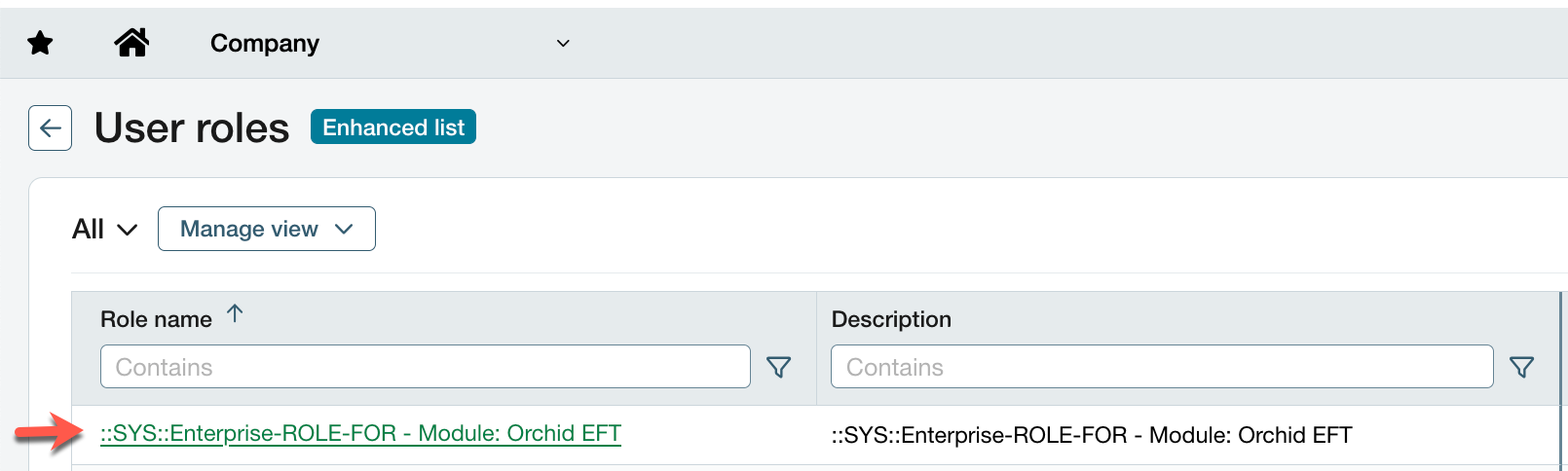
Select the Company \ Role(s) containing Orchid EFT Permissions for your user id.
-
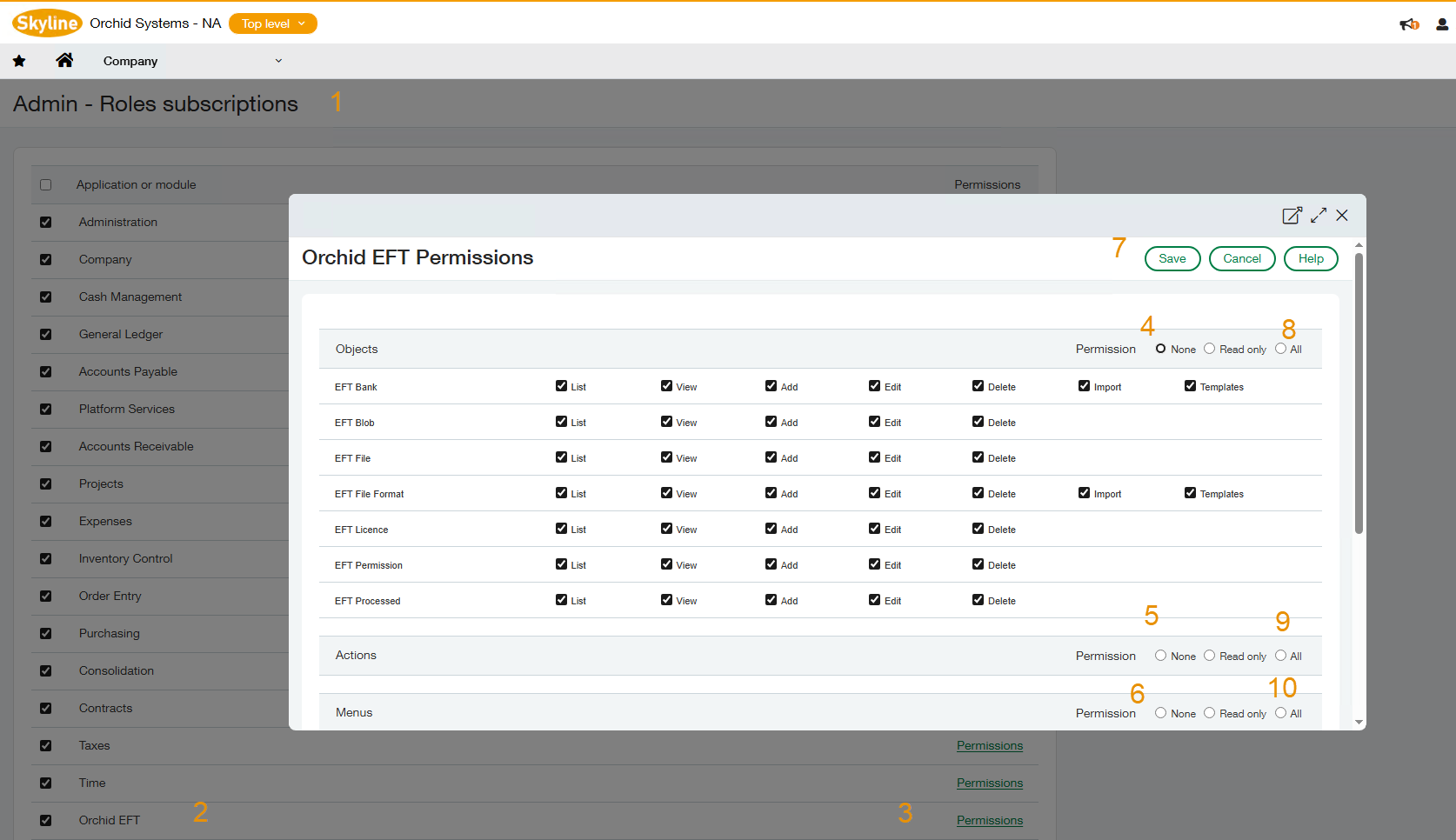
For each Role select Subscriptions (1) \ Orchid EFT (2) and Permissions (3)
-
Deselect all options, i.e. Select “None” for Objects (4), Actions (5) and Menus (6) and Save (7)
-
-
Log out of Sage Intacct and log back in (don't just use the Close button on the browser)
-
Go back into Subscriptions (1) \ Orchid EFT (2) and Permissions (3)
-
Select “All” for Objects (8), Actions (9) and Menus (10) and Save (7)
-
-
Log out of Sage Intacct and log back in (don't just use the Close button on the browser)
This should refresh your permissions to access the Orchid EFT objects (mainly EFT Permissions and EFT Licence screens) and you should have the Save button.
Tip: Sometimes it takes a few minutes to refresh the permissions.