Create Orchid EFT Roles
In Sage Intacct, you need to create at least one User Role and add the role to the users who need access to EFT Processing.
Refresh the browser
After installing and updating the security, close the browser and log back into Sage Intacct.
If you don't force the refresh, it can take a while for the Orchid menus to display.
Steps to create Roles and Subscriptions
The default EFT Security role will be created and assigned to the Sage Intacct internal user who imported the Orchid_EFT.xml file.
After importing the module, you can check the security in Company > Admin > Roles ::SYS::Enterprise-ROLE-FOR-Module: Orchid EFT. Check Subscription > Permissions and Role Assignments > Permissions.
You need to assign this Security Role to all other users who need to access EFT processing.
The default role created when you import the EFT Module as an internal user is SYS:Enterprise-ROLE FOR Module: Orchid EFT.
You can also create new security roles for EFT.
Step 1. Check / create security role
-
Select “All” for Objects, Actions and Menus and Save
-
Double check by re-opening the Role \ View Subscriptions \ Permissions and re-save if necessary
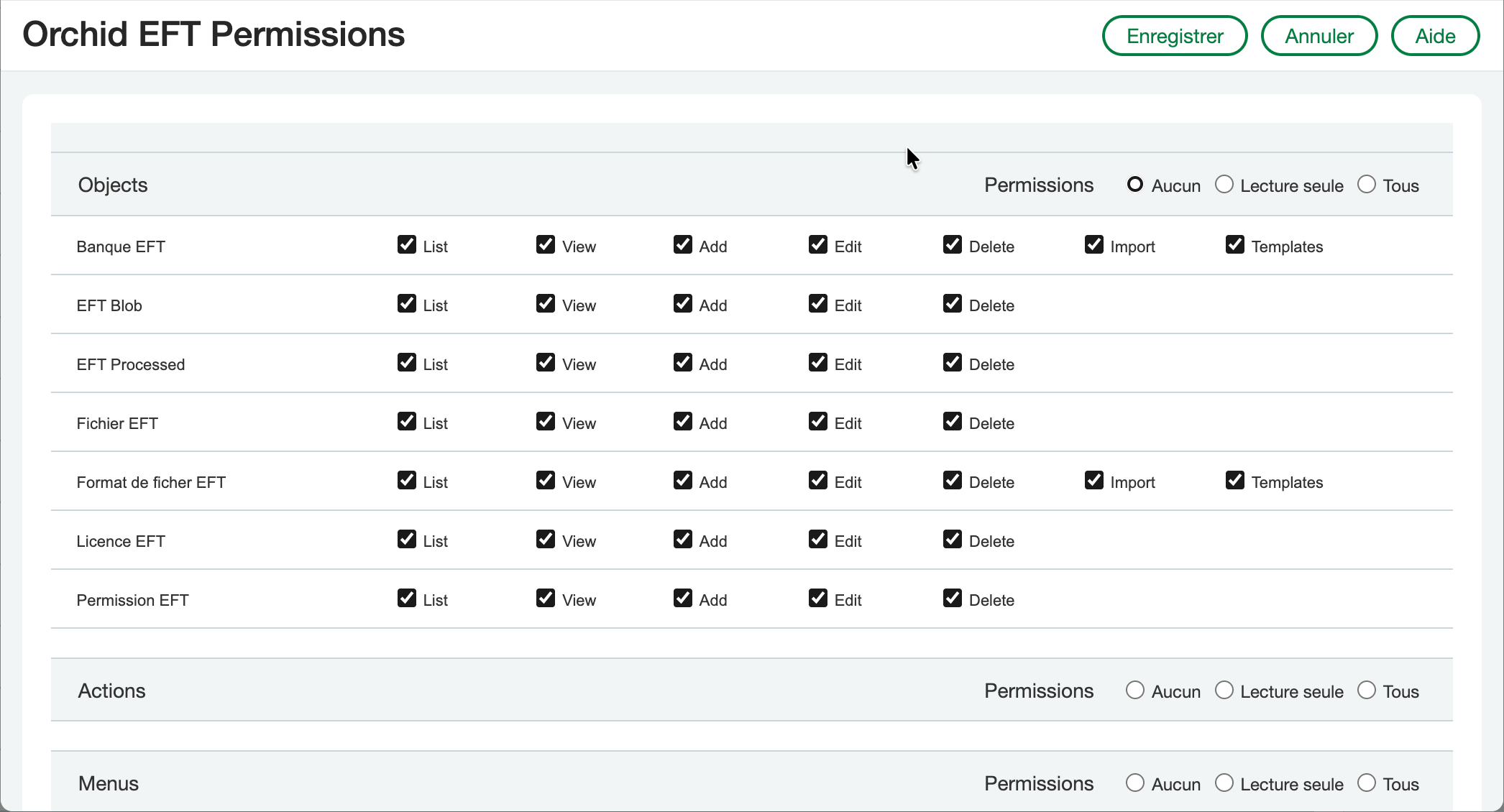
-
You can choose Roles > Role Assignment to see which users are assigned to the EFT Role.
Step 2. Assign Security Role to users
-
Select Company \ Users from the Main Sage Intacct Menu
-
Select the User \ Edit \ Roles Information and add the required role.
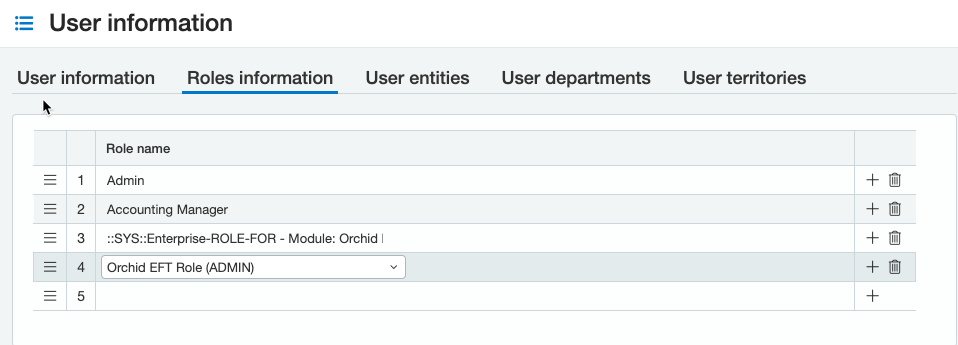
Step 3. Log out to refresh roles
You need to log out of Sage Intacct and back in for the new roles and permissions to take effect.
Note: Closing the browser is generally not sufficient to refresh the permissions.
Security roles and permissions per EFT task
For a more detailed description of the roles and permissions by entity and troubleshooting tips, refer to Orchid EFT Roles Detailed Description
For users who setup EFT
All users need at least List, View permissions for the EFT Licence, EFT File Format and EFT Permissions objects.
| Task | Object Permissions Required | Menus | EFT Permissions in Orchid EFT custom object |
|---|---|---|---|
| Admin user | View, List, Add, Edit, Delete on all objects and menus in Orchid EFT | All | Select All |
| Add and Update EFT Bank details |
EFT Banks: List, View, Add, Edit EFT Licence: List, View EFT File Format: List, View EFT Permissions: List, View |
||
| Add and update EFT File Formats |
EFT Licence: Read EFT File Format: List, View, Add, Edit EFT Permissions: List, View |
||
|
View EFT tab on AP Vendors |
EFT File Format: List, View EFT Licence: Read EFT Permissions: List, View |
Access EFT Details on AP vendor |
|
| View AP Vendors |
EFT File Format: List, View EFT Licence: Read EFT Permissions: List, View |
Do not select Access EFT Details on AP vendor |
|
|
View EFT tab on AR customers |
EFT File Format: List, View EFT Licence: Read EFT Permissions: List, View |
Access EFT Details on AR Customer |
|
| View AR customers |
EFT File Format: List, View EFT Licence: Read EFT Permissions: List, View |
Do not select Access EFT Details on AR Customer |
|
|
View EFT tab on Employees |
EFT File Format: List, View EFT Licence: Read EFT Permissions: List, View |
Access EFT Details on T&E Employees |
|
| View Employees |
EFT File Format: List, View EFT Licence: Read EFT Permissions: List, View |
Do not select: Access EFT Details on T&E Employees |
For users processing EFT transactions
You need to select List and View permissions for the EFT Licence, EFT File Format and EFT Permissions for all users who use EFT Processing.
Other permissions are described in the table below:
| Task | Object Permissions Required | Menus | EFT Permissions in Orchid EFT custom object |
|---|---|---|---|
| Generate EFT File (AP) , but not view, download / upload the file |
EFT File: Add EFT Processed: List, View, Edit EFT Blob: All EFT Bank: List, View, Edit EFT Licence: List, View EFT File Format: List, View EFT Permissions: List, View |
EFT AP Payment Request | Do not select the "Download/Upload" options in EFT Permissions |
| Generate EFT File (AR) |
EFT File: Add EFT Processed: Add, Edit EFT Blob: All EFT File Format: List, View EFT Licence: List, View EFT Bank: Edit EFT Permissions: List, View |
EFT AR Payment Request | |
| Generate EFT File (Employee) |
EFT File: Add, Edit EFT Processed: Add, Edit EFT Blob: All EFT File Format: List, View EFT Licence: List, View EFT Bank: Edit EFT Permissions: List, View |
EFT Employee Payment Request | |
| View EFT File |
EFT File: List, View EFT Blob: View EFT Bank: View EFT File Format: List, View EFT Licence: List, View EFT Permissions: List, View |
EFT File List |
Do not select "Download/Upload" |
| Download EFT File |
EFT File: List, View, Edit EFT Blob: List, View EFT Bank: View, Edit EFT File Format: List, View EFT Licence: List, View EFT Permissions: List, View |
EFT File List |
Can download/SFTP an EFT file when status is new/exported Optionally: Can download/SFTP an EFT file when status is confirmed |
|
SFTP EFT File Requires separate licence for SFTP. |
EFT File: List, View, Edit EFT Blob: List, View EFT Bank: View, Edit EFT File Format: List, View EFT Licence: List, View EFT Permissions: List, View |
EFT File List |
Can download/SFTP an EFT file when status is new/exported Optionally: Can download/SFTP an EFT file when status is confirmed |
| Delete EFT File |
EFT File: List, View, Delete EFT Blob: List, View, Delete EFT File Format: List, View EFT Licence: List, View EFT Permissions: List, View |
EFT File List | |
| Create AR Payment |
EFT File Format: List, View EFT Licence: List, View EFT Permissions: List, View |
Create AR Payment |
Examples:
Some detailed examples are described in Roles and Permissions Examples
Next Steps
Before you can use EFT Processing, you need to enter the Orchid EFT Licence and set the permissions.
Step 4. Enter EFT licence
For details, refer to:EFT Licence
Step 5. Set EFT Permissions
In addition to Sage Intacct permissions, EFT Processing includes its own permissions options.
Users need to be configured in the EFT Permissions table (in the Orchid EFT menu):
-
To download and upload EFT files
-
To view and update bank details in Orchid EFT tab on the Vendor / Customer and Employee screens.
For details, refer to:Add EFT Permissions