When to use this screen?
Use this screen to view, download, upload to SFTP, confirm or reject EFT files.
This applies to EFT Files for AP Payments, AR Payments and Employee Expenses Reimbursements (EE payments). Available features in the EFT Processing application depend on your License code.
Permissions required
Users need permissions on the EFT File in Sage security. Create Orchid EFT Roles
Users who need to download a file on the browser or upload a file to SFTP also need permissions in EFT Permissions. Add EFT Permissions .
Users who do not have permissions to download / upload a file will see the download /upload button, and they will receive an error message if they use it.
If no users have permissions to download/upload, files cannot be downloaded / uploaded on the EFT File list. All users will view an information message, prompting an Administrator to configure the EFT Permissions.
How to use
Filtering records
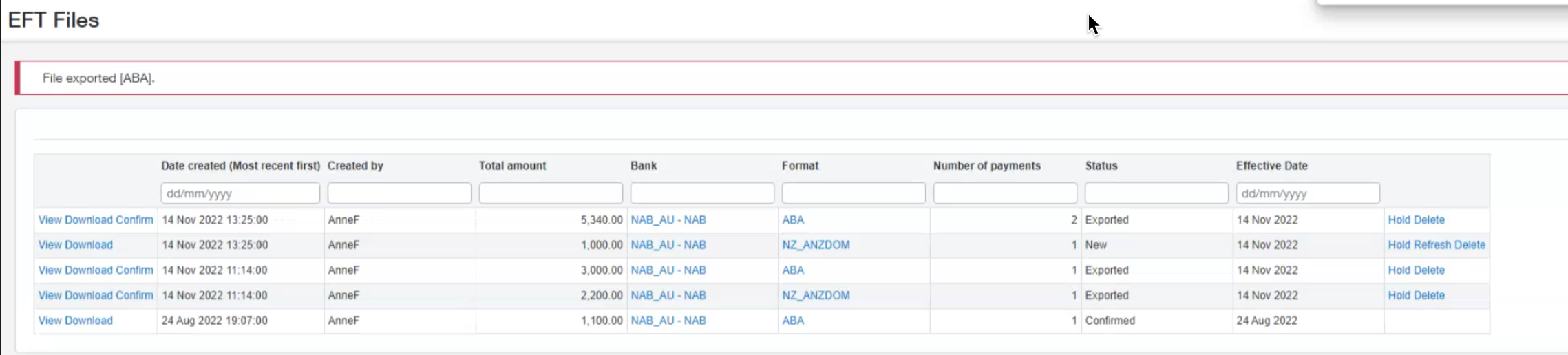
You can filter by all fields at the top of the screen: Date Created, Created By, Total Amount, Bank, Format, Number of Payments, Status and Effective Date.
There are no default filters on the screen, but once you enter one, the screen remembers it for next time you go there.
Using Effective Date
You can update the Effective Date of the transaction if your bank file format supports sending a file in advance.
In the format, the DetailAP date would be [EffectiveDate]
e.g. [EffectiveDate:DDMMYY] including the date formatting

Using File Description
The EFT File List includes the File Description. This is applicable to some bank formats.
It defaults to the File Description entered on the EFT Bank and can be overridden for the selected EFT File. This allows to include fields defined at the time the file is downloaded in the file and is required for some bank formats.
License required for SFTP
To upload to SFTP, you need a valid SFTP licence from Orchid.
In EFT File list, the file will be downloaded in the browser until you get a valid SFTP licence, even if you have configured the bank to SFTP upload.
Example: This can happen if you let the SFTP subscription lapse, and only have a subscription for AP, AR or Employee Expenses.
How to Generate an EFT File
Refer to EFT AP Payment Request for details to select payments and generate the EFT Files (Steps 2 and 3 in the flow chart below).
Refer to EFT AR Payment Request for details to select AR Customer Payments and generate the EFT Files
Refer to EFT Employee Payment Request for details to select Employee Expense Reimbursements payments and generate the EFT Files
(Steps 2 and 3 in the flow chart below).
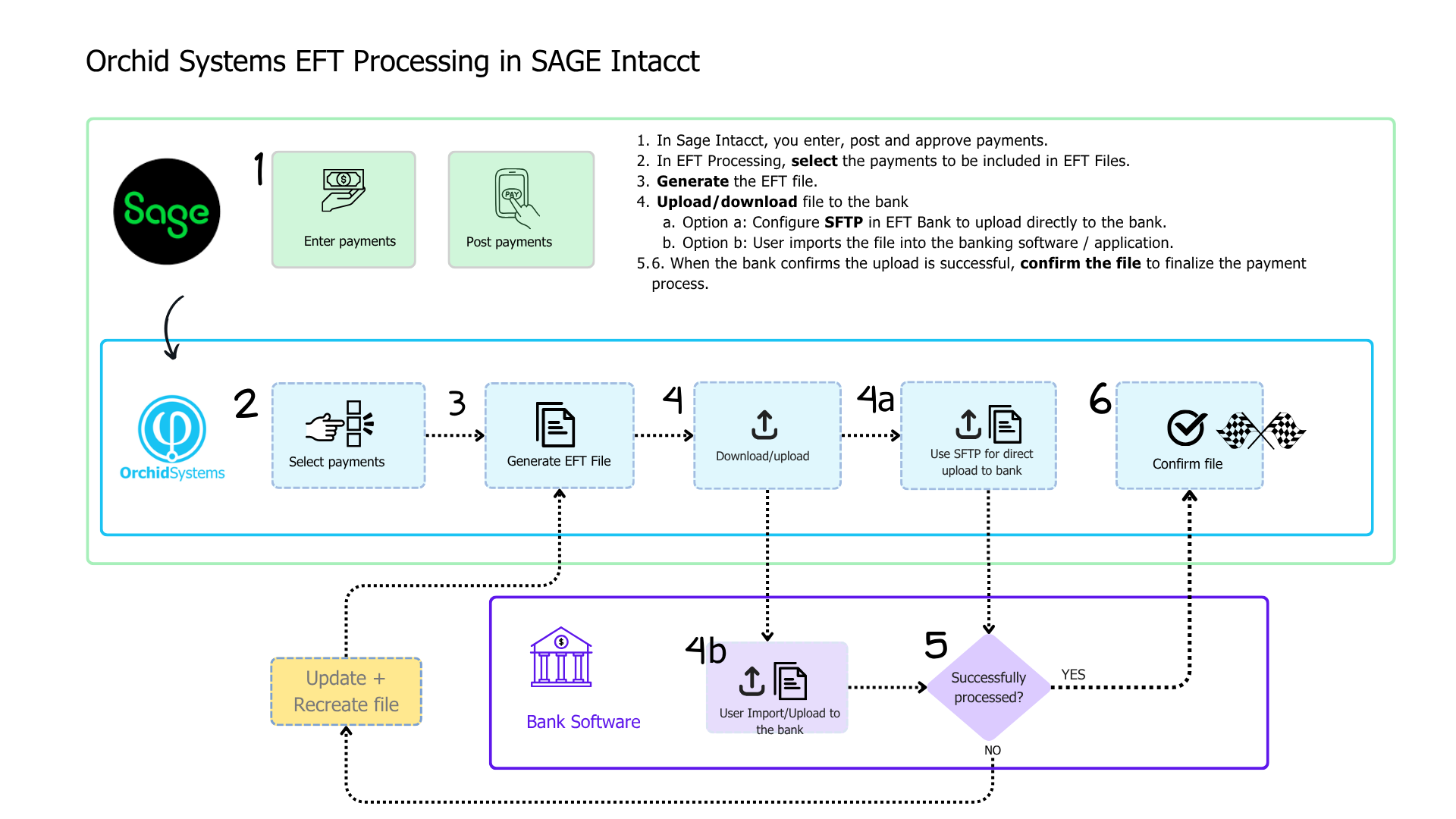
EFT File Status description
Available actions and EFT File Status
Different actions are available depending on the EFT File status and the EFT Bank configuration.
| View |
View on the EFT File list allows you to see all the payment records included in the file. Always activeYou can use the action to check the details before uploading the file to the bank or to review completed files. |
| Download |
Creates the EFT File as per the file format configured on the EFT bank. If the EFT bank is configured to upload to SFTP in , the Download button is not available. See Upload below Depending on the browser configuration, downloads to the default download folder or prompt the user for a path to download. Only active if status is New, Exported or Confirmed.
|
| Upload |
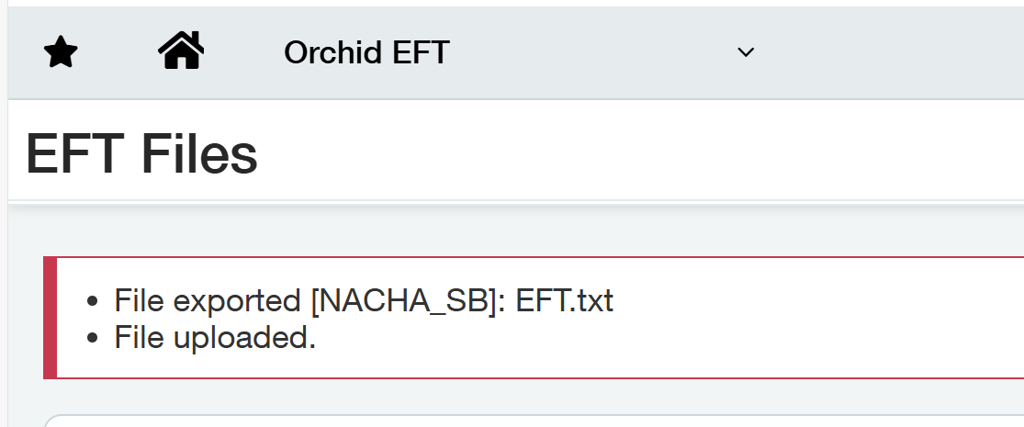
Upload creates the EFT File as per the file format configured on the EFT bank and uploads the file to the SFTP server with the details entered in EFT banks. If the EFT bank is configured to Download in , the Upload button is not available. See Download above. Only active if status is New, Exported or Confirmed. For details, refer to:Upload EFT files to SFTP
|
| Confirm |
Updates file status to and marks all records as Confirmed. This is generally used after the bank confirms the file has been processed successfully. Only active if status is Exported. |
| Hold |
Hold updates the EFT file status to on the EFT File list. For example if the file is rejected by the bank, you can set the file to on-hold, update the relevant details, refresh the file and download again. Only available if the status is New or Exported. |
| Refresh |
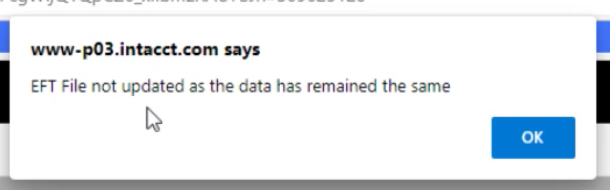
If data has changed, creates a new EFT file with status NEW and updates existing EFT File status to . If data has not changed, displays a message.
To force a refresh, update at least one value, for example the Effective Date. Only available if the status is On-Hold Note: Use the History button Next to the New or Exported Status to view the previous files. |
| Refresh after File Format changes |
If you change the underlying format in EFT Formats, (not the format code assigned to a vendor, but something in the format itself), you do not need to hold/refresh to update the file. Close the EFT File screen and reload it, or use F5 to refresh the screen. You can then download the file again. The new file will include the rules in the updated file format. |
| Delete |
Updates the EFT File status to Deleted. AP Vendor Payments will go back to the EFT AP AP Vendor Payment Request screen Only available if the status is New, Exported or On-Hold |
Filtering records - Examples
You can filter records using the Filter icons next to each column and the Advanced Filter icon.
See examples in Filtering records in EFT Processing
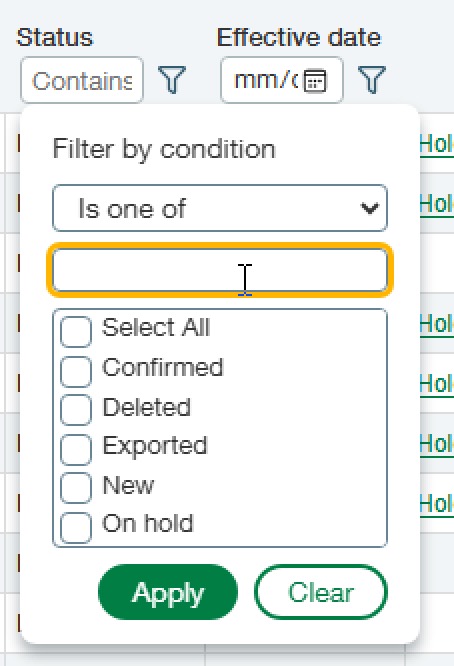
In the EFT File List, you can filter based on the Status field - Choose and select all options you want to view.
Troubleshooting
Refer to Troubleshooting Create EFT File