Using Workflow Console on the Web Screens
The Workflow Console displays pending workflow instances, assigned to Workflow Users.
The Console lets you progress the workflow to the next steps if you have the appropriate security rights.
The Workflow Console includes the same functionality on the desktop and the web screens.
For a detailed description of all the fields, refer to Using Workflow Console
License Prerequisites
The Workflow Console is only available on the web screens if you have an active Subscription license for Extender.
Requirement! You need to be a Workflow User to open the Workflow Console screen. Refer to Understanding Workflow Users
Installation
The web console assumes that the Web Screens are configured in running in Sage 300. There are no specific Extender installation steps.
Filtering on the Workflow Consolewhen using the Web Screens
The filtering preferences you select are saved for the next session.
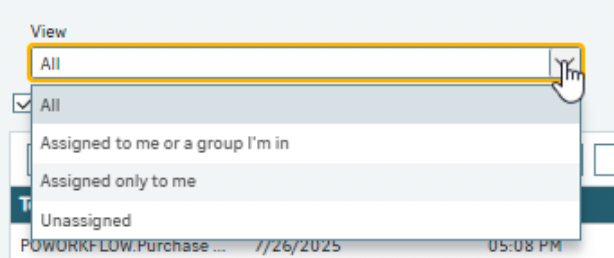
Viewing workflow assigned to me
By default, you see the workflows Assigned to me or a group I'm in
You can select Assigned only to me.
If you have View all security rights, you can select Unassigned or All
Filtering by color
You can filter by up to 5 colors on the console. To configure colors on the console, refer to Workflow Colours
Filtering on the grid
You can right-click on the grid to filter on any fields.
Example: Select the Template column on a row on the console, right-click and select Template = "AR Credit Limit workflow". This will display only Workflow records for the AR Credit Limit workflow.
You can use the Filter button on the right hand side to Clear filter to remove all filters and view all records.