Extender Web Screens
Overview
Extender transactions screens are available on the Sage 300 Web Screens.
-
Extender Workflow Console: The console lets users monitor workflow instances, drill down for detail, and progress workflows that have been assigned to them.
-
Workflow Detail Inquiry: Displays the history of all workflow approvals and rejections.
If you use Extender and Information Manager Notes, you can also run Extended Notes, the ability to run Extender scripts to display information in Orchid Notes.
Workflow configuration is done on the Sage 300 Desktop Screens.
If you configure a workflow template for Sage 300 views, the workflow will trigger when you use the Web Screens or the Desktop Screens. (as well as the Sage 300 import and API functionality).
Web Screens for Extender are only available if you are running Sage 300 version 2024 and above.
Sage 300 Prerequisites
Extender Subscription License
Requirement! Web Screens for Extender are only available if you have a valid subscription license for Extender.
You can review your existing codes on the Extender License screen. If you have a subscription code, the expiry date will be visible and the Serial Number will start with 19, 29 or 39.
For details see: Extender License Screen
Tip: If you have a current perpetual license and want to run the web screens, your Sage 300 business partner can organize a switch to a subscription license. Pricing is available on request.
Workflow User Licence
To view and use the Extender Workflow Console, the logged on user needs to be added as a workflow user in theExtender License Screen .
Install the latest update for Sage 300 System Manager
The web screens require the latest Sage 300 System Manager product updates (PU), as they include
changes to the web SDK required for Orchid's web screens.
Note: Extender Web Screens rely on the core Web Screens being installed and configured in Sage 300.
Installation
There is no specific installation program to run the Web Screens. You install the latest product updates for Extender and have a valid subscription license.
Using Extender with the Sage 300 Web Screens
Before you can use Extender with the Sage 300 web screens, you need to log on to the Sage Desktop Screens at least once.
This applies after installing Extender for the first time, installing an Extender product update or adding new scripts to new Sage 300 views in View Events, Scripts and Workflow.
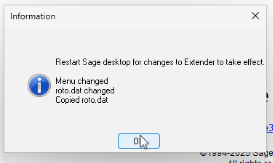
If prompted, restart the Sage desktop and check you can view the Extender menu before logging onto the Web Screens.
In most cases, you will see a message to Restart the Sage desktop for changes to Extender to take effect. It is recommended to restart as soon as you can after seeing the message. The Extender menu is not available until you restart the Sage desktop.
Using Workflow Console on Web Screens