Cash Management FAQs
Once Inter-Entity is configured, you can use the Sage 300Web Screens to enter transactions that trigger the Inter-Entity automation. This includes Inter-Entity Transactions, including Cash Management and Inter-Entity Trade for A/P-A/R and O/E-P/O transactions.
However, there are currently no web screens available for Inter-Entity. You need to use the Sage 300 desktop for Inter-Entity setup and inquiry screens.
Bank Transfers
-
Process bank transfers between companies. When you post a bank transfer in the source company, a bank transfer is automatically created in the target company.
AR Receipts across companies:
-
Allocate a receipt to a customer in one company and have the receipt go into a bank account in another company
-
Bank a receipt into a bank account in one company and allocate it against A/R transactions which originated in other companies.
-
Allocate a miscellaneous receipt to G/L accounts in one or more companies whilst receipting the funds into a bank account in another company.
-
Combined A/R Trial balance across multiple companies.
AP Payments across companies
-
Process a payment against a vendor in one company and have the payment come out of a bank account in another company.
-
Process an A/P payment out of a bank account in one company and allocate it against A/P transactions which originated in other companies.
-
Allocate a miscellaneous payment to G/L accounts in one or more companies whilst drawing the funds from a bank account in another company.
-
Combined A/R Trial balance across multiple companies Bank transfers between bank accounts across companies.
Cash Management 1-step processing caters for bank reversals done in Bank Transactions. If using 1-step processing, Cash Management will generate the bank entries for the reversal in the source and the target companies.
If you use 2-step processing , Cash Management doesn't cater for A/P and A/R Reversals done in Bank Transactions. When A/P or A/R Transactions relating to a bank configured in Inter-Entity (Cash Management) two-step processing are reversed, A/P and A/R Credit Notes need to be manually entered in the target databases and applied to the A/P and A/R Invoices generated by Inter-Entity.
Inter-Entity Cash Management Audit Inquiry displays the history of the Inter-Entity Cash Management transactions.
This screen displays transactions that are waiting to be processed (pending), those that have been processed successfully (exported) and those that have not been processed due to an error (error). Batch information and error messages also appear on this screen.
Use Cash Management Periodic Processing to process transactions in error after fixing the underlying cause of the error.
Common XAPI errors and resolutions
|
Error Message |
Resolution |
|
Unable to open XAPI session to Organisation XXXXXX – no available LanPak |
Wait for a LanPak to become available before re-processing. |
|
Unable to open XAPI session to Organisation XXXXXX – bad User ID or bad password |
Correct the User ID and/or Password for the target company in the IET setup screen. Use:
|
| Cannot connect to Accpac - XAPI_USER_ERROR - 78 | This generally means that the password has expired. Check the user ID and password for the target company in IET setup. |
|
Unable to open XAPI session to ORGANISATION XXXXXX – cannot create session |
Ensure the Database Setup ORGID matches the ORGID in the appropriate IET Setup screen:
|
|
Unable to open XAPI session to Organisation XXXXXX – no available IAP |
Deselect “This workstation uses IAPs for external applications” on all workstations. Refer to . |
The Consolidated AP Aged Trial Balance Report provides a consolidated Open Aged Payables view across all on-line databases as defined in Inter-Entity Database Mappings icon.
Requirement! Inter-Entity Transactions Multi Edition
The Consolidated AR Aged Trial Balance Report provides a consolidated Open Aged Receivables view across all on-line databases as defined in Inter-Entity Database Mappings icon.
Requirement! Inter-Entity Transactions Multi Edition
In Cash Management, the bank entry is created with the standard Transaction numbering setup in Bank Services.
You can map some additional fields in Inter Entity Setup > Options > Cash Management.
You can only map fields for bank entries.
Cash Management 2-step processing creates A/P and A/R documents, using all the values 1-1 from the source transactions in A/P and A/R. You cannot map additional fields for Invoices, Credit Notes or Debit Notes.
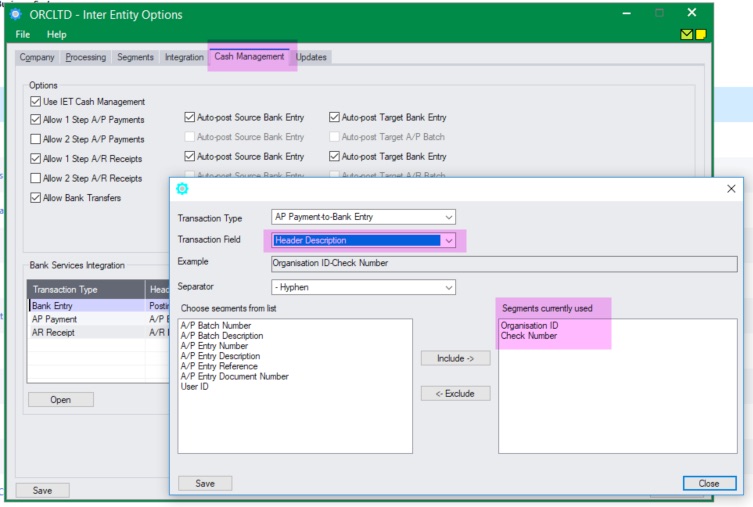
You can map the Check Number to the resulting bank entry Header description to facilitate reconciliation.
In Inter Entity Setup > Options > Cash Management Tab, go to Bank Services Integration.
-
Choose AP Payments to Bank Entry
-
Choose Header description and include Organization ID and Check Number.
-
Save
Transaction routes are used by Inter-Entity to generate the balancing transactions with the configured loan accounts between entities.
See details in : Transaction Routes
The default values in the Common Services -> Bank Services -> Bank Setup -> Bank Options > Processing tab should be blank as Cash Management will set the G/L Accounts based on the Inter-Entity transaction routes.
The G/L batches resulting from bank entries created by Cash Management can be auto-posted, depending on the G/L Integration options in Bank Services.
Bank Setup G/L Integration Tab
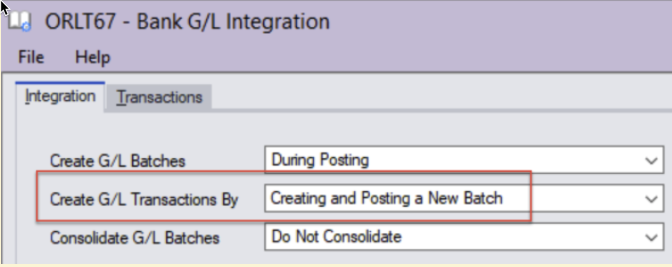
Option 1: Configure the Create G/L Transactions by option to Creating and Posting a new batch
The resulting G/L Batches for all Bank Entries (both auto-created by Inter-Entity Transactions and manually entered Bank Entries) are auto-posted, except G/L Batches resulting from reversal bank entries created by Cash Management.
When posting a reversal in Bank Services, you get the error message "No active transactions allowed for auto-post."
This is because you have configured the G/L Integration option in Common Services > Bank Services > Bank Setup to "Create G/L Transactions by" to "Creating and Posting a New Batch".
Although you get the error above when posting an A/P or A/R reversal in Bank Services, Cash Management is actually creating the bank entries according to the configuration for banks configured in Cash Management. The resulting G/L Batch is created correctly. But you need to post the resulting G/L Batch manually.