Setup DML (Network Folder) for O/E screens
Example: 1- Contracts with clients stored in a folder per customer, with sub-folders to track prior contracts. All documents displayed when using OE screens, documents renamed sequentially.
Example: 2- Display OE Order confirmation on OE Order Screen only- Order Confirmation PDF files are saved in a single folder called "Order Confirmation". (for example created by a custom program)
Example: 3- OE Invoice documents are stored in a folder by Customer, All Invoices can be viewed when looking at a customer activity screen. When viewing an OE Invoice or Order screen, single invoice is displayed
Key Steps
1. Determine where the documents will be stored and in what folder structure. Consider the Document Management Process
Documents can be viewed in DML if generated / saved in the appropriate folder manually or can be dragged into the correct folder when viewing a Sage 300 document.
Options include: A folder per document type where file name matches the Sage 300 document number, A folder per customer / Order number combination, or a folder per customer only and filter based on the document number.
In some cases, for example where a custom program generates the OE PDF Files and names the files following a standard convention, you may have all Order confirmation in a single folder and use DML to display the appropriate document against the Order / Invoice as required.
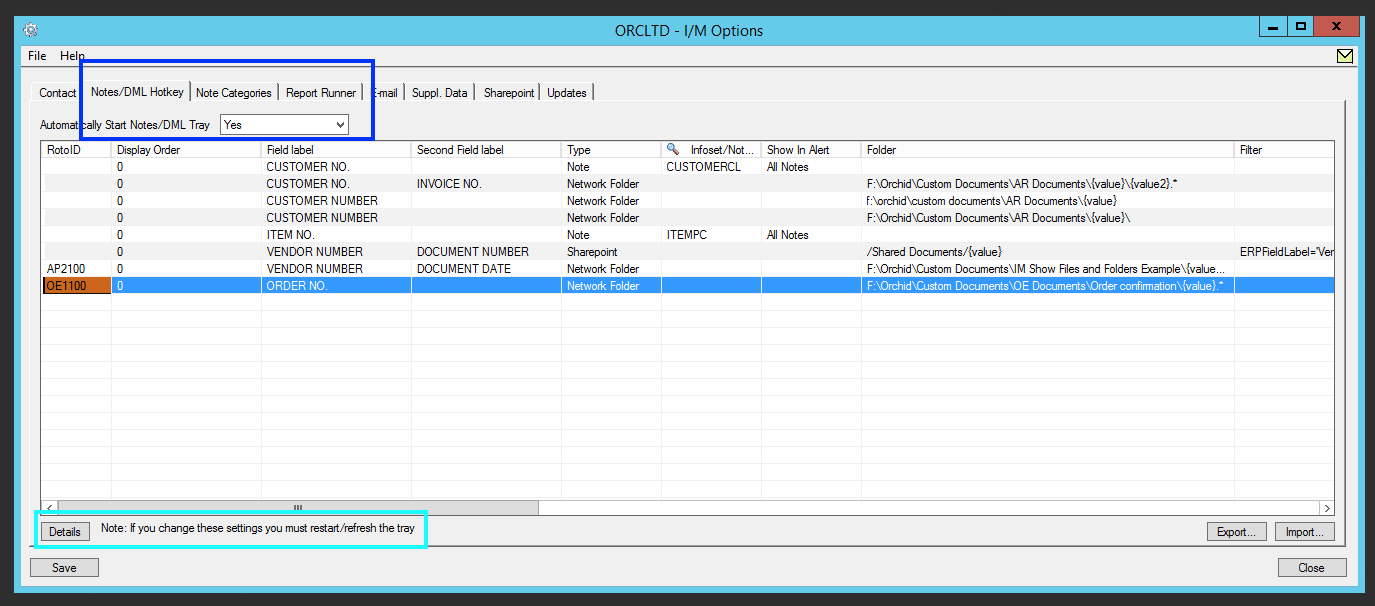
2. Define what screens / fields in Sage 300 will launch Document Management Link (I/M Options - Notes/DML/Extender Tray Tab)
a. Automatically Start the Notes/DML Configure Tray Icon to display Extender Logs and Workflow
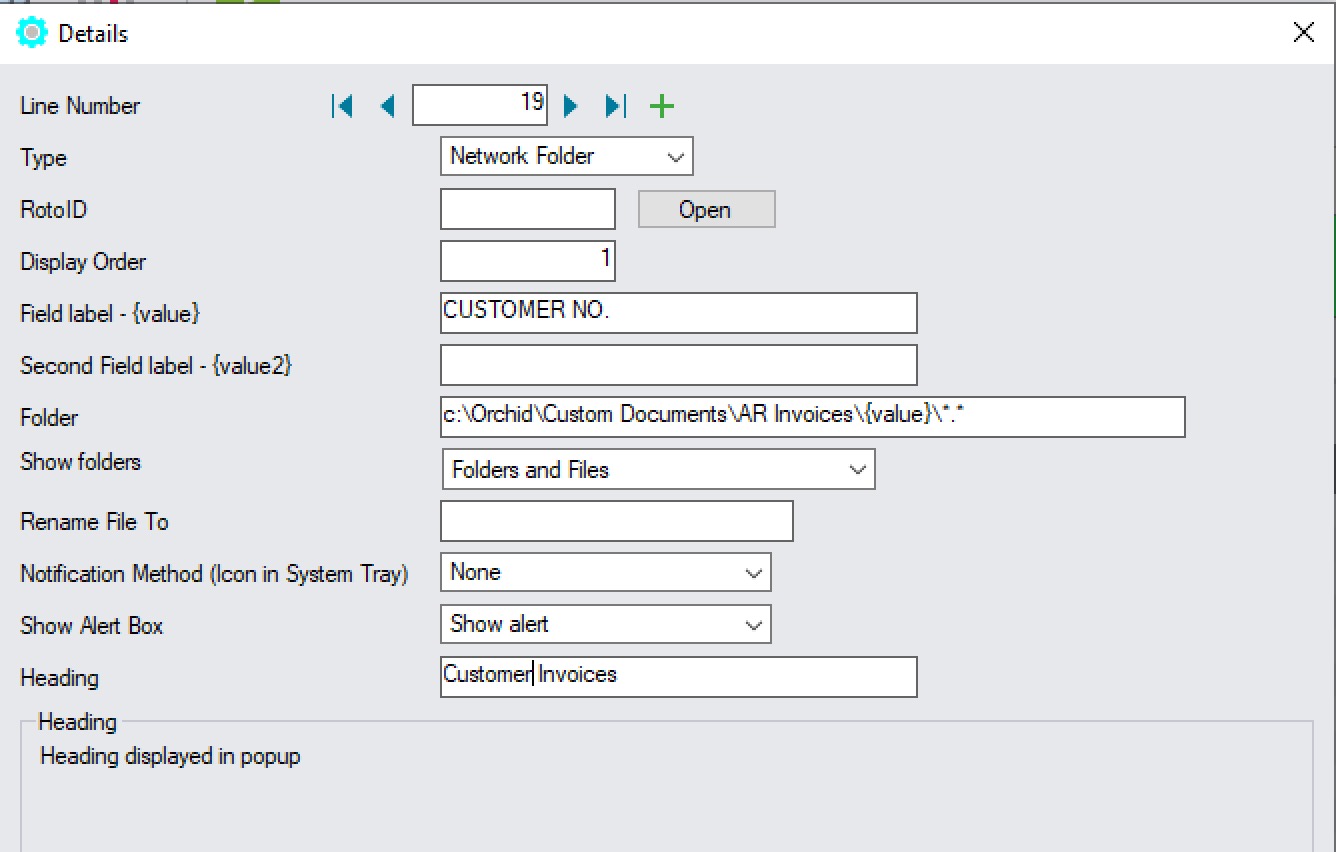
b. Add a detail line for "Network Folder" to configure which Sage 300 Fields/Screens display document lists - See Examples below.
Use the F9 / Detail screen to setup Notes and DML as this will show you the required fields. For Documents, the key elements to configure are the Field labels and the folder fields.
- In most cases you would set = None and = Show Alert to display the Alert Box on all screens that have DML configured.
- Select a meaningful heading to distinguish the various document types, in particular if some screens have multiple document types.
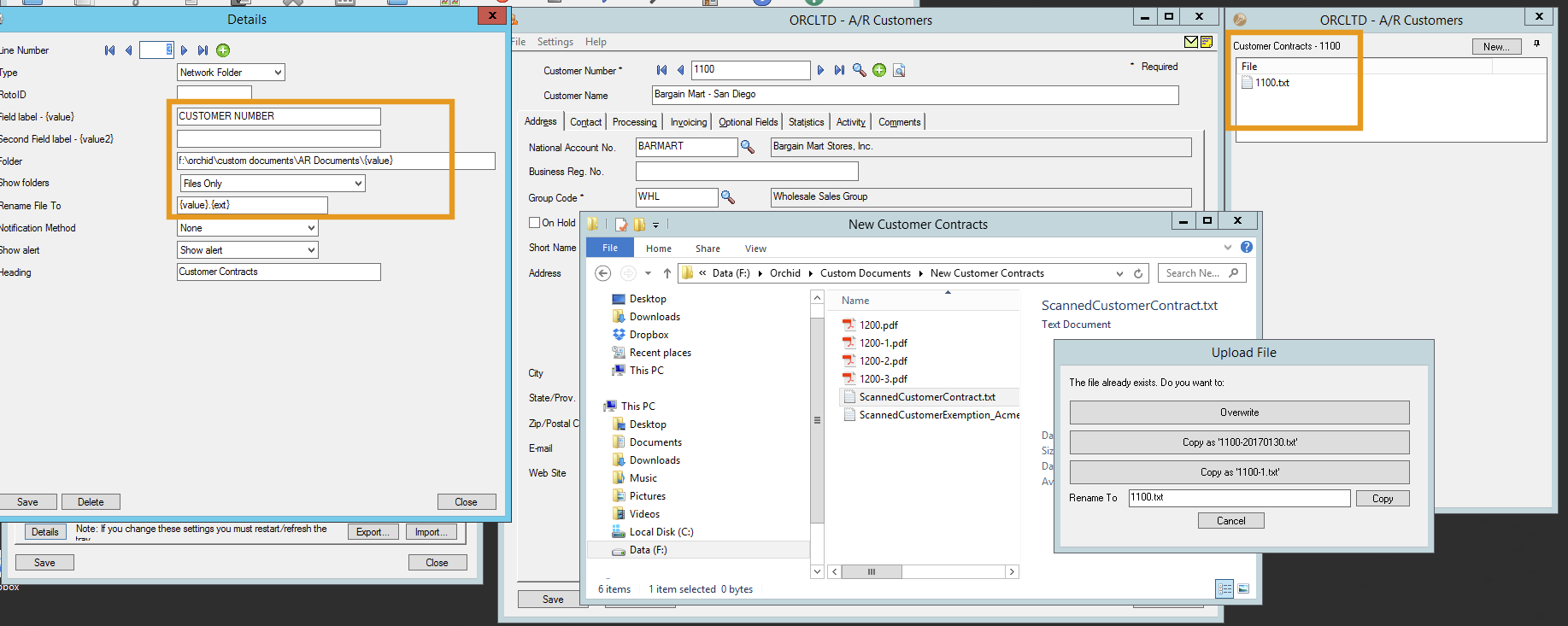
Example 1 - contract documents in a folder per customer
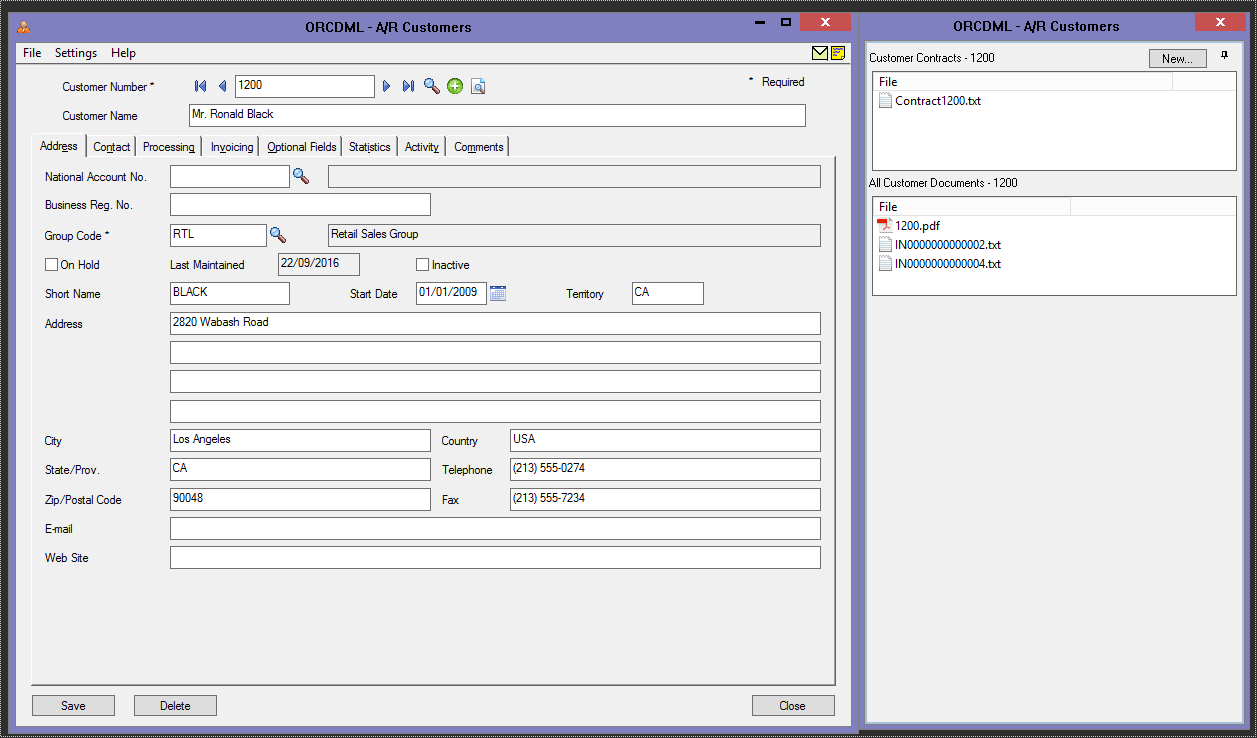
Configure DML to create a folder per customer to store customer contract documents.
Files should be named consistently "ContractCustNo.pdf" . Users need to save prior versions and view them in DML.
Users can drag Contract documents into DML from a folder storing all scanned documents. DML will rename documents on the fly.
Users can also save documents directly into the configured customer folder. Documents are then visible in DML on the Sage 300 screens for all users.
AR Customer with Customer Contracts
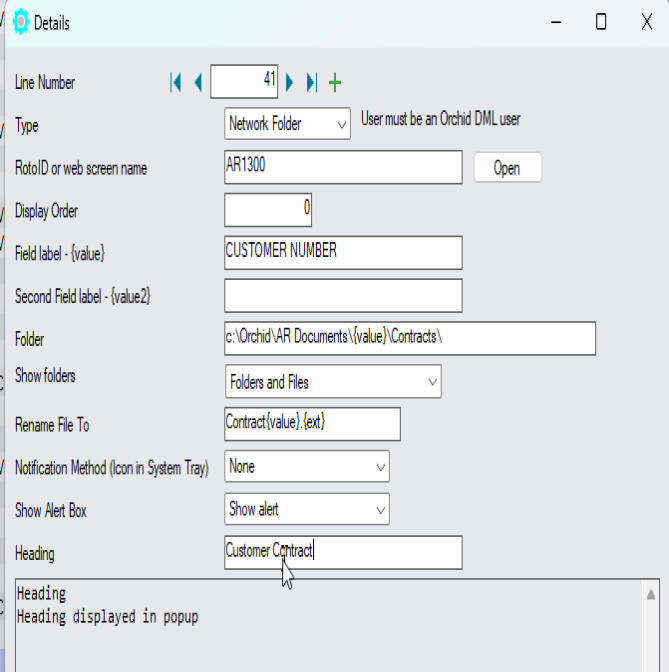
I/M Options - DML setup - CUSTOMER NUMBER, folder {value} and RENAME
Field label : “Customer Number.” to show all documents in the folder using the customer number in the folder name.
Rename: configuration includes a constant name "Contract" and the customer number. The original file extension remains.
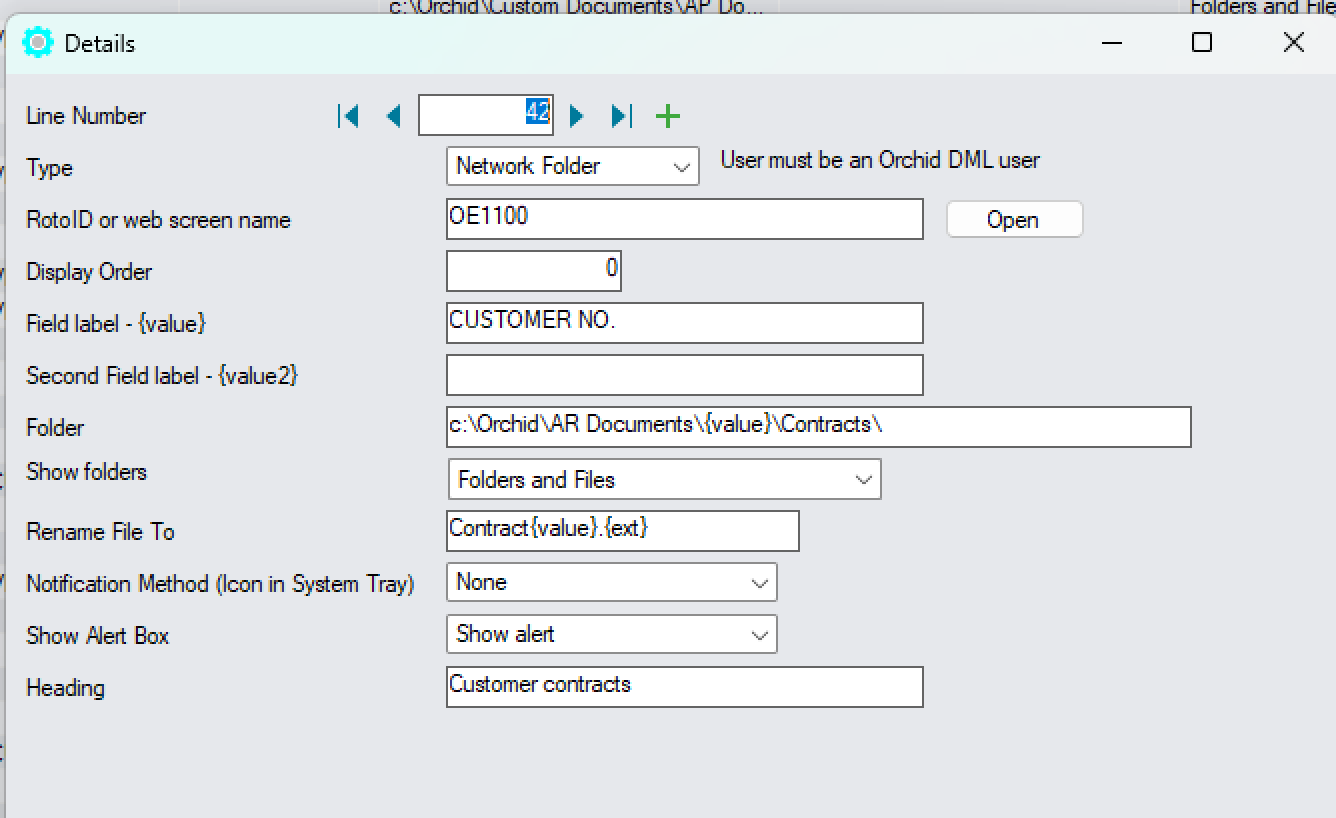
If you want to show the same documents in OE, Configure label “Customer No.” to show all documents in the folder using the customer number in the directory name. This is because the same field may have a different label on different Sage 300 screens.
Renaming Files.
You can enforce consistent naming of the documents by letting DML rename the files
{value}.{ext} will rename the files based on the customer number and keep the extension of the original document.
Renaming files and version control
If you drag another document for the same customer, you will be prompted to overwrite or set the name based on the current date or add a sequence to make the filename unique.
Example 2 - Order Confirmation on OE Order Screen
OE Order Screen displays documents stored in an "Order Confirmation" folder. DML filters the relevant document based on the document name and the Order Number.
Files are only displayed on the OE Order Entry screen.
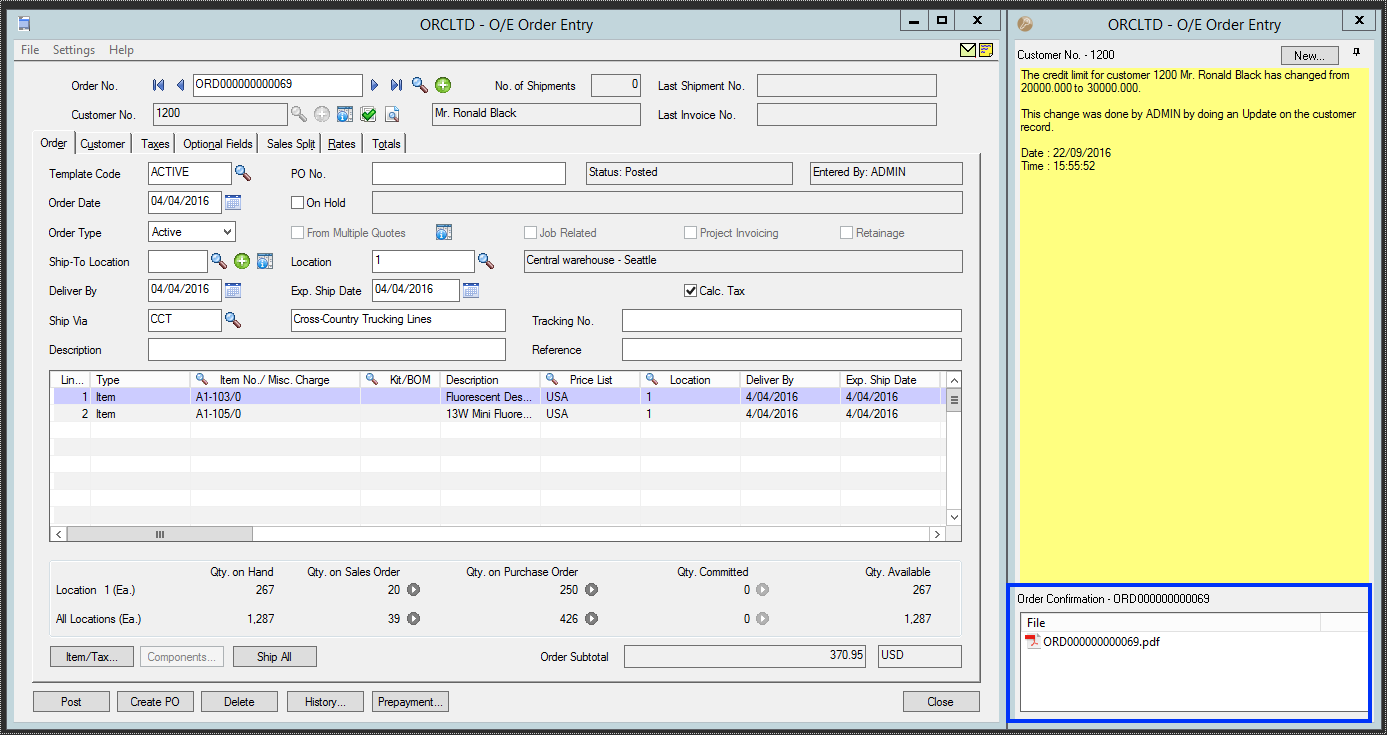
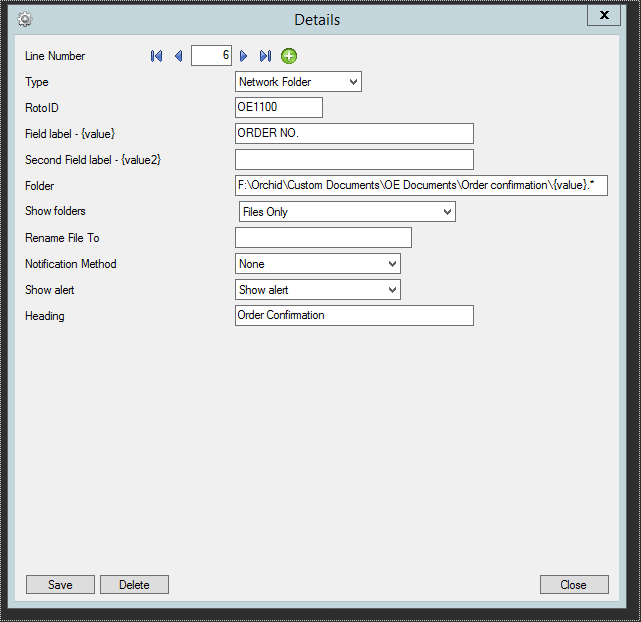
- This setup will only display files named with the Order Number (any extension). This assumes that the files will be saved (manually or automatically) in the given folder with the Order Number as the file name as no renaming is configured.
- Type OE1100 in the RotoID to show the documents only on the Sage 300 Order Entry Screen.
Note: To find the unique identifier of the screen on the Sage 300 Desktop, right click on the icon and selec Properties. You can also use the Tray to find the RotoID of the screen.
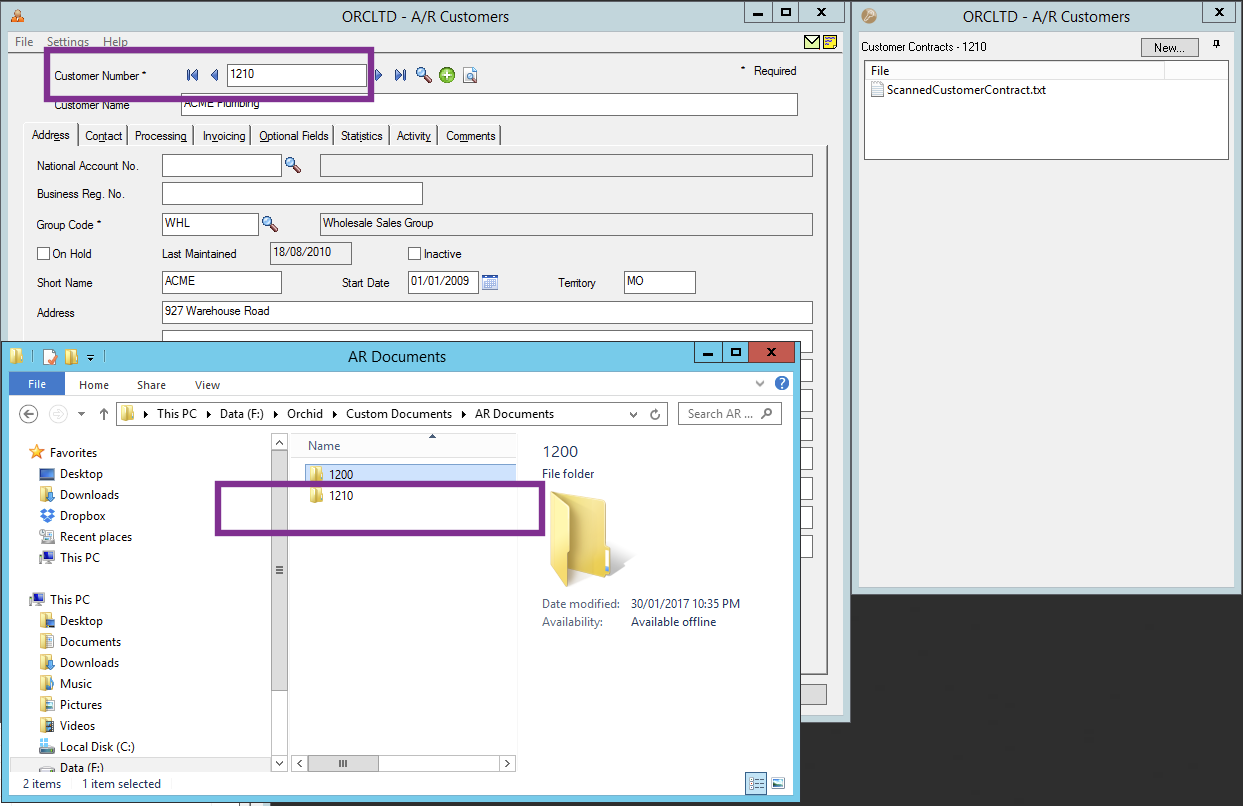
Example 3 - Invoices in a separate folder by customer
Users need to view all Invoices when looking at a customer in A/R, but only the selected invoice on the O/E Invoice screen.
When all documents are in a single folder for the customer, you can also add a Hotkey configuration to show all documents on the customer screen (label CUSTOMER NUMBER) .
If you leave the RotoID field blank, the documents will show on finders that include "Customer number". Use specific RotoID in I/M Options to display only on AR Customer or AR Customer Activity, but not on all finders.
Folder path
{value}\*.* :this puts all documents in a single folder per customer.
This will display all customer documents.
Tray icon configuration
Refresh the Tray icon if you have made any changes on the IM Setup>Options in the current session as the Tray icon reads the current setup when the company is first opened.
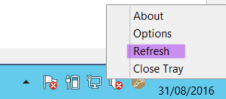
Tip: If you have multiple Tray icons, Close the Sage 300 desktop and re-open to refresh the configuration.
Enable Users who require access to DML
Add all users who need access to documents in the I/M License screen.
See details: Enable a Sage 300 user as a DML User