O/E Sales Order Approval
Sales Orders (O/E Order Entry) are reviewed and authorized by management based on criteria like amount, vendor, or item before being issued to suppliers.
If the Order's properties (e.g., total amount, department, specific items) meet one of the defined conditions, the Sales Order Approval workflow triggers.
Note: The process described below is similar for other transaction records in Sage 300, such as Purchase Requisitions and O/E Sales Order.
What is Sales Order Approval?
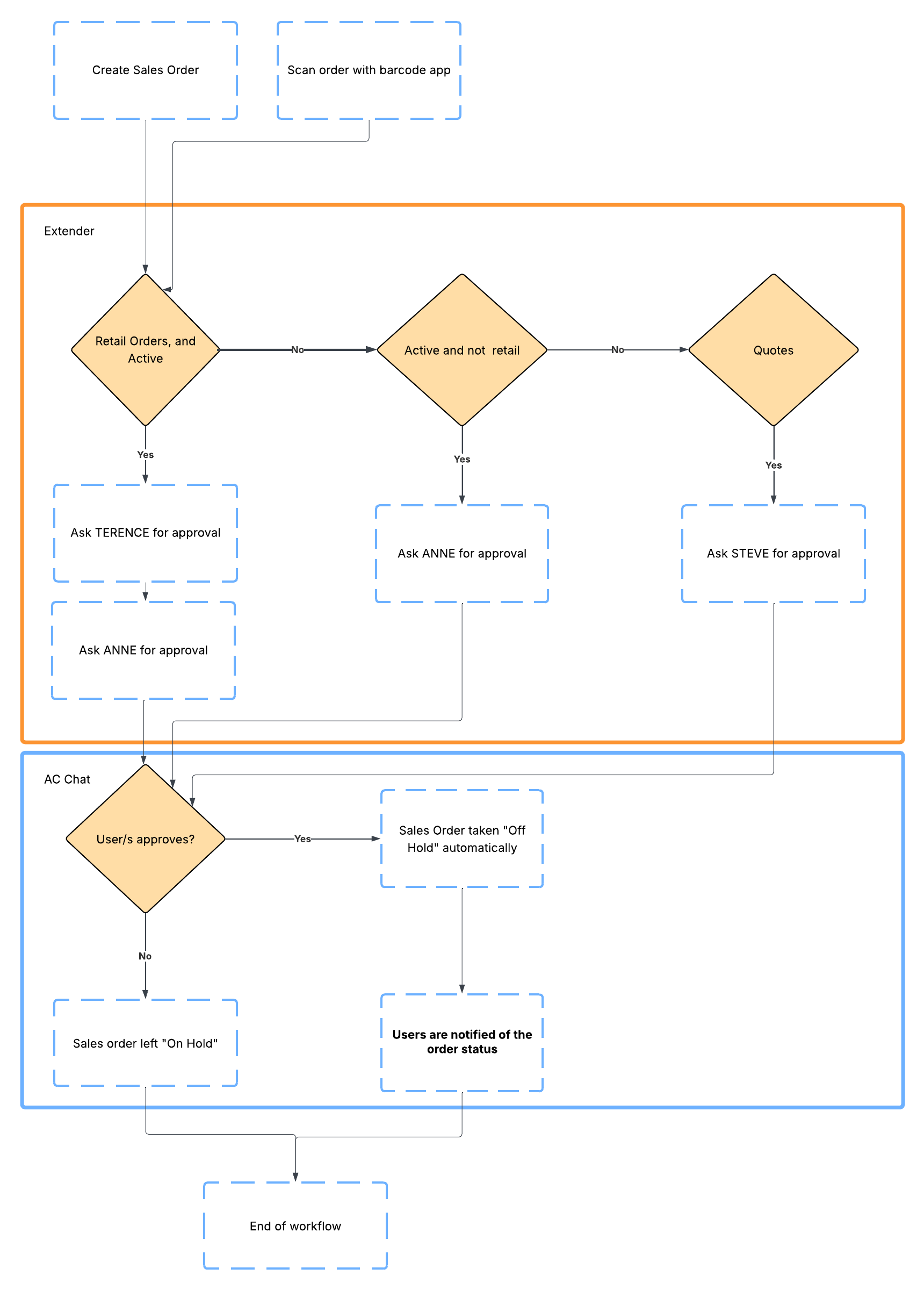
When a user posts a Sales Order , the workflow evaluates the Workflow Rules. If no approval is required, the workflow auto-completes. If the O/E requires one or more approvals, the O/E remains on hold until all users have approved.
-
When all users have approved, the O/E is released, set off hold and the form can be saved as a PDF in the configured folder.
-
When one user rejects, the workflow completes and the O/E remains on hold.
-
Users need to adjust and start the approval process again by taking the O/E off hold.
*Note the below diagram is an example of a process flow, but will be a different example in the instructions/tutorial for Sales Order Approval.
How to set up Sales Order Approval?
You need to import the Extender Module and configure the Workflow Rules.
Before you start
Step 1: Import Extender Module
Import and enable the module in Extender Setup > Modules. This imports the workflow templates and related message templates for Sage 300 Sales Order .
Step 2: Add a A/C Chat template for O/E Sales Order . Include preset users if required.
See details in How to Install TeamWork
Setting up workflow rules:
Rules can be based on any combination of fields on the Sales Order , Sales Order optional fields (header) and the first line of the Sales Order .
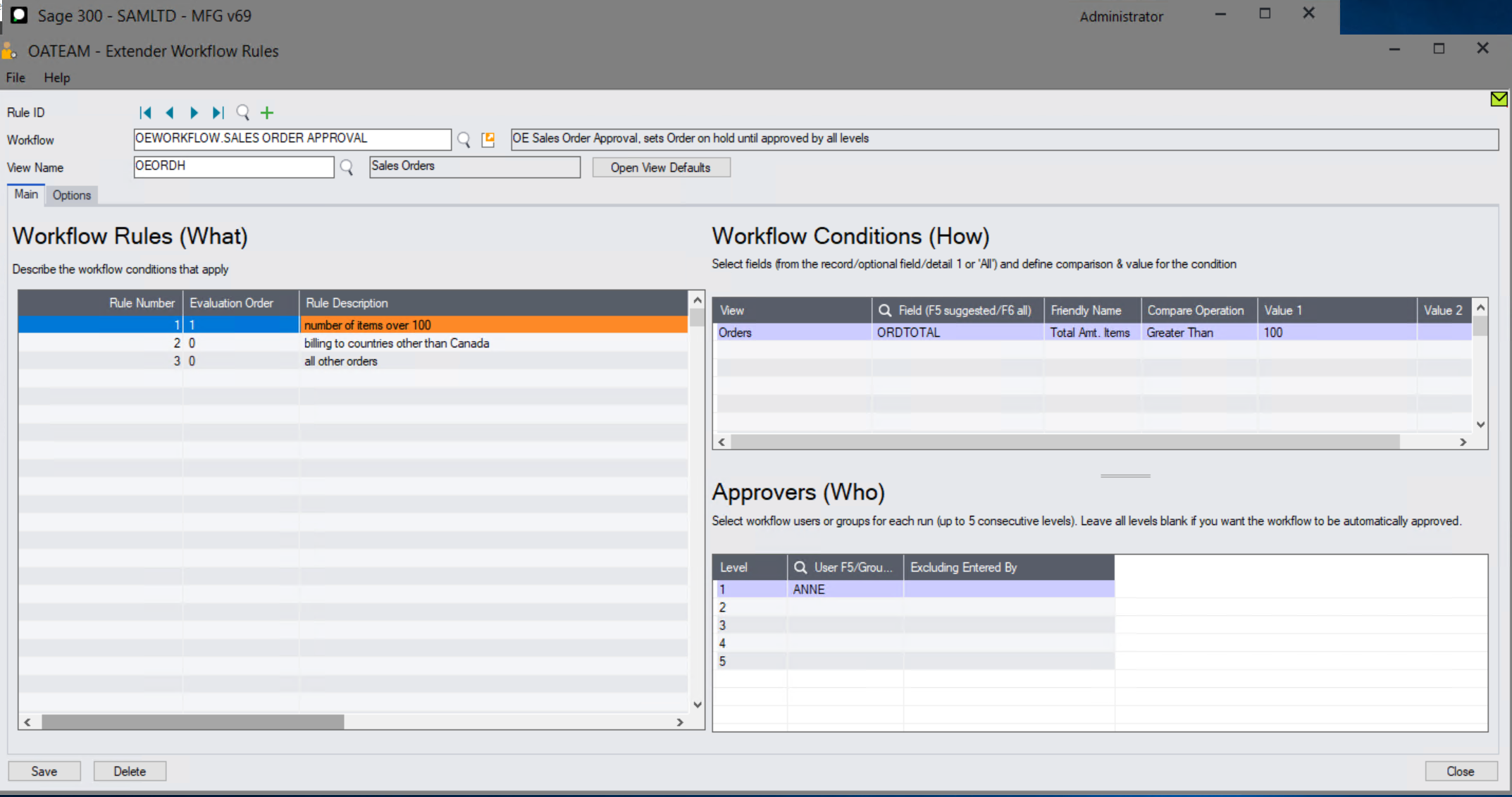
In the example below, the rules are based on the O/E Total Amount and the Customer's country.
In Extender Setup > Workflow Rules,
Step 1: Search for your required workflow template. Select OEWORKFLOW.Sales Order Approval and OEORDH as the View name.
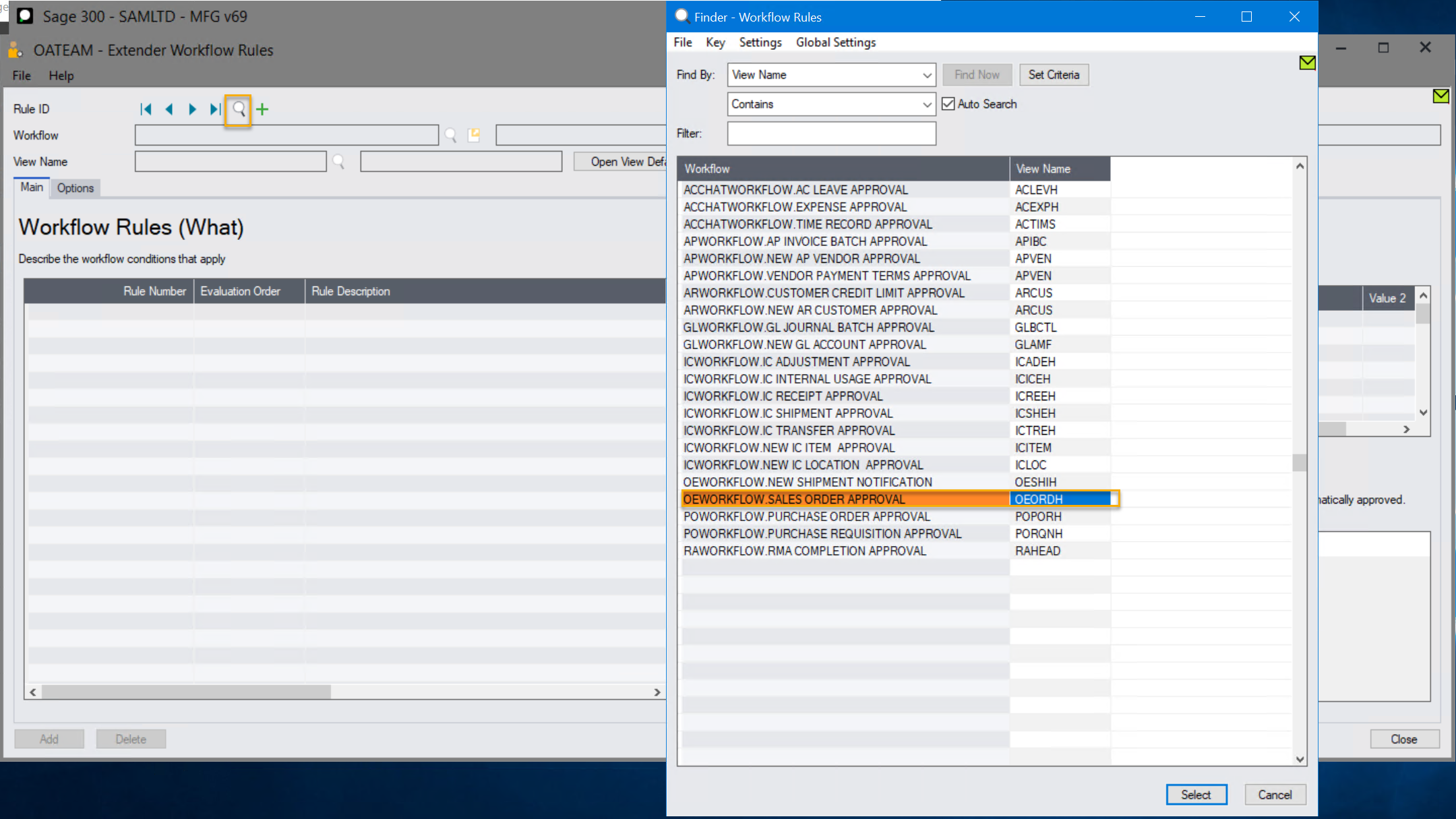
Step 2: Set up Workflow Rules :
Rule 1: ORDTOTAL > 100, the approver is Anne
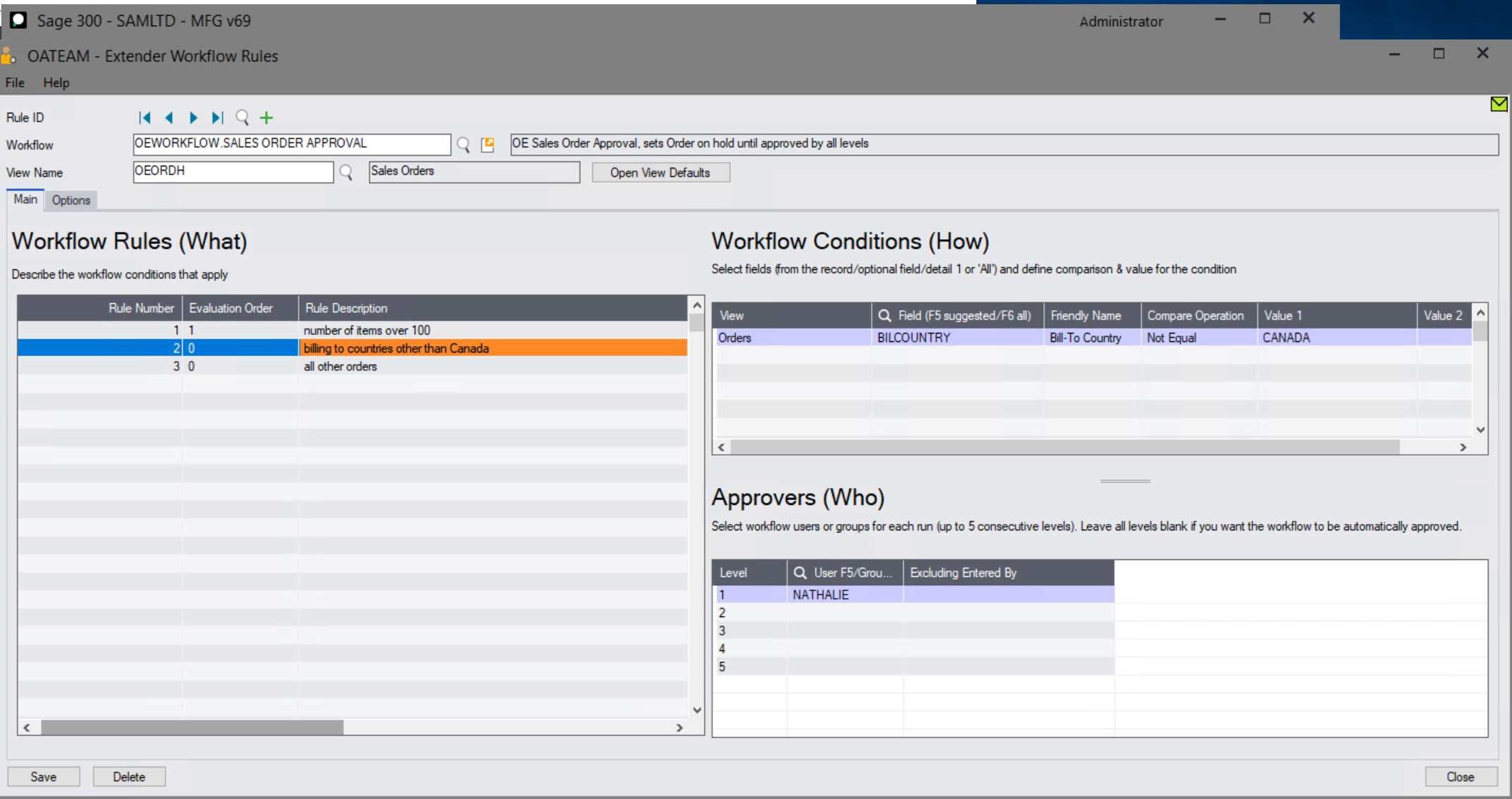
Rule 2: BILCOUNTRY it NOT equal to Canada, then Nathalie approves.
The list of countries is configured in a Sage 300 optional table for ease of maintenance.
For details, see Workflow Rules: Conditions (How) setup
Note: You could also use the IN compare operation, and list the countries in Value 1. This would work if you have a short list of countries, it isn't used in other rules or Sage 300 screens and it doesn't change often.
Rule 3: All other Sales Order s are approved by Terence.
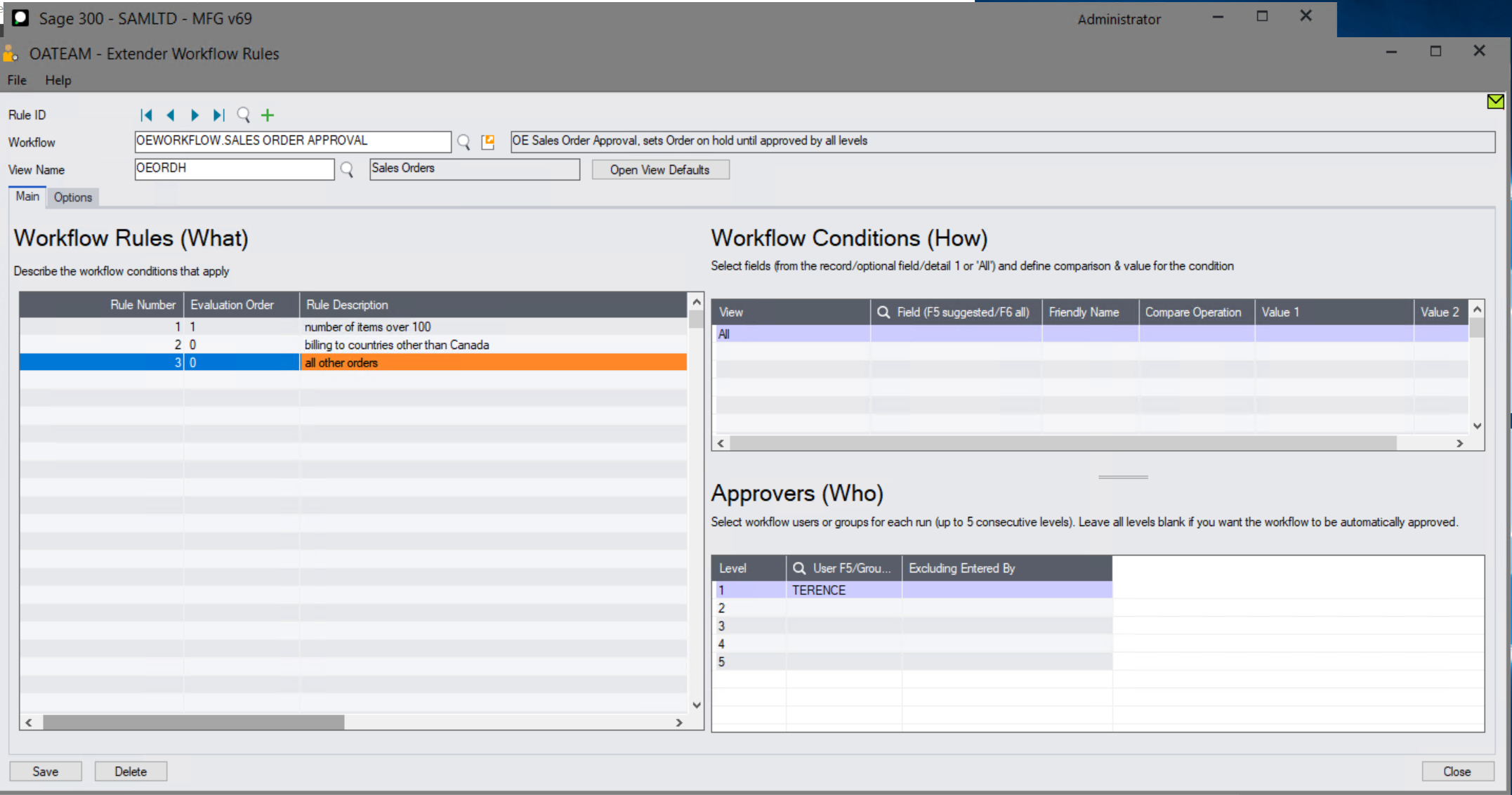
Step 3: On the Options Tab, select the A/C chat template
Step 4: On the options Tab, select the PrintPurchaseOrder report if you want the workflow approval step to save the O/E as a PDF in the configured folder.
Note: This requires to configure the folder and the Crystal report to use in the TeamWorkO/E configuration table.
Step 5: Save the workflow rules page to save your configuration of the workflow template.
Using the Sales Order approval workflow
Starting the workflow
Step 1: Sales Order Creation:
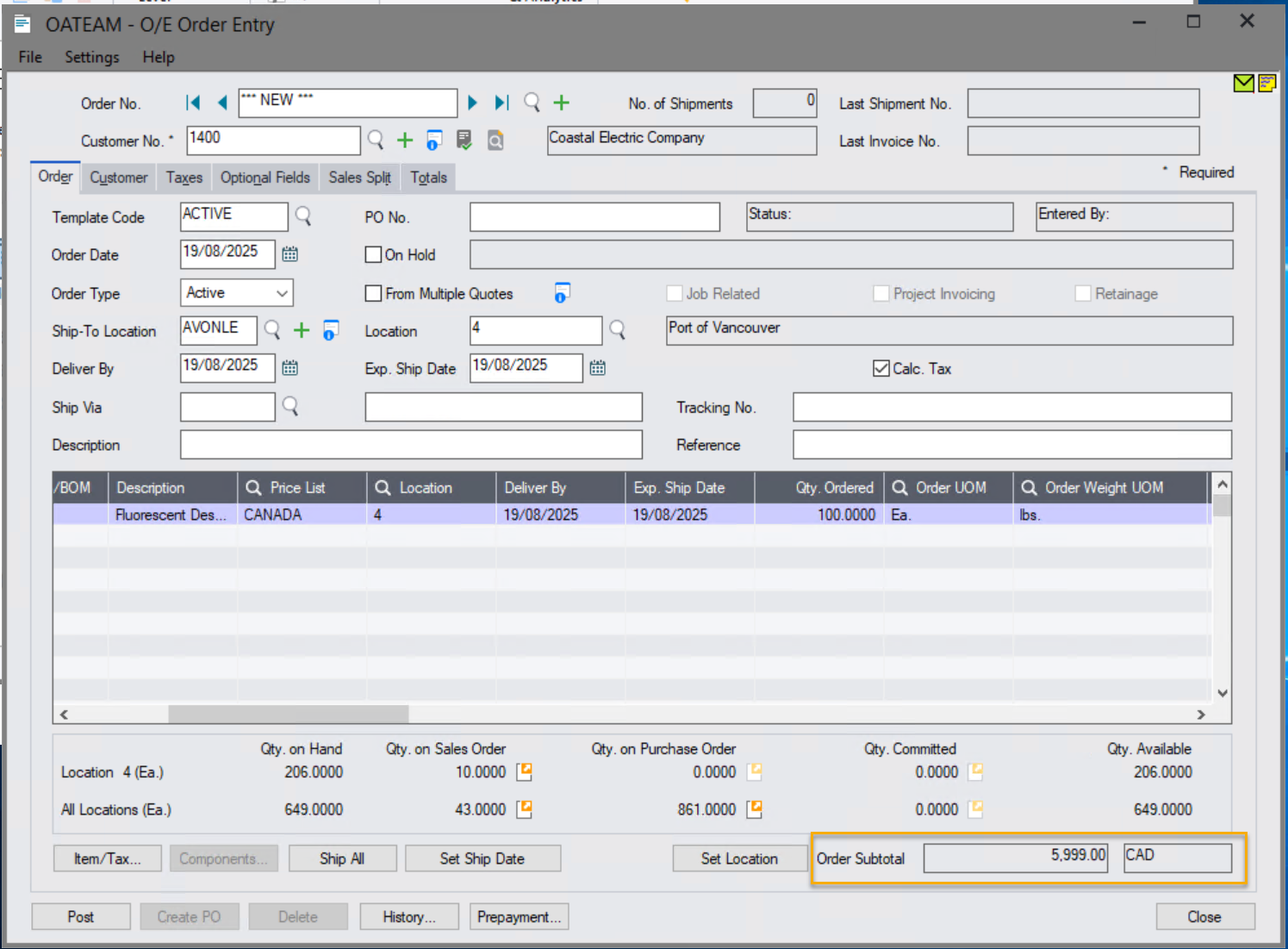
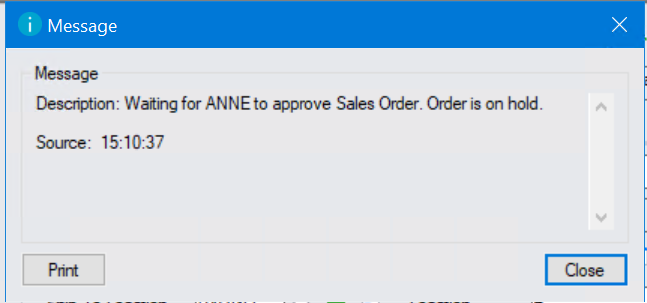
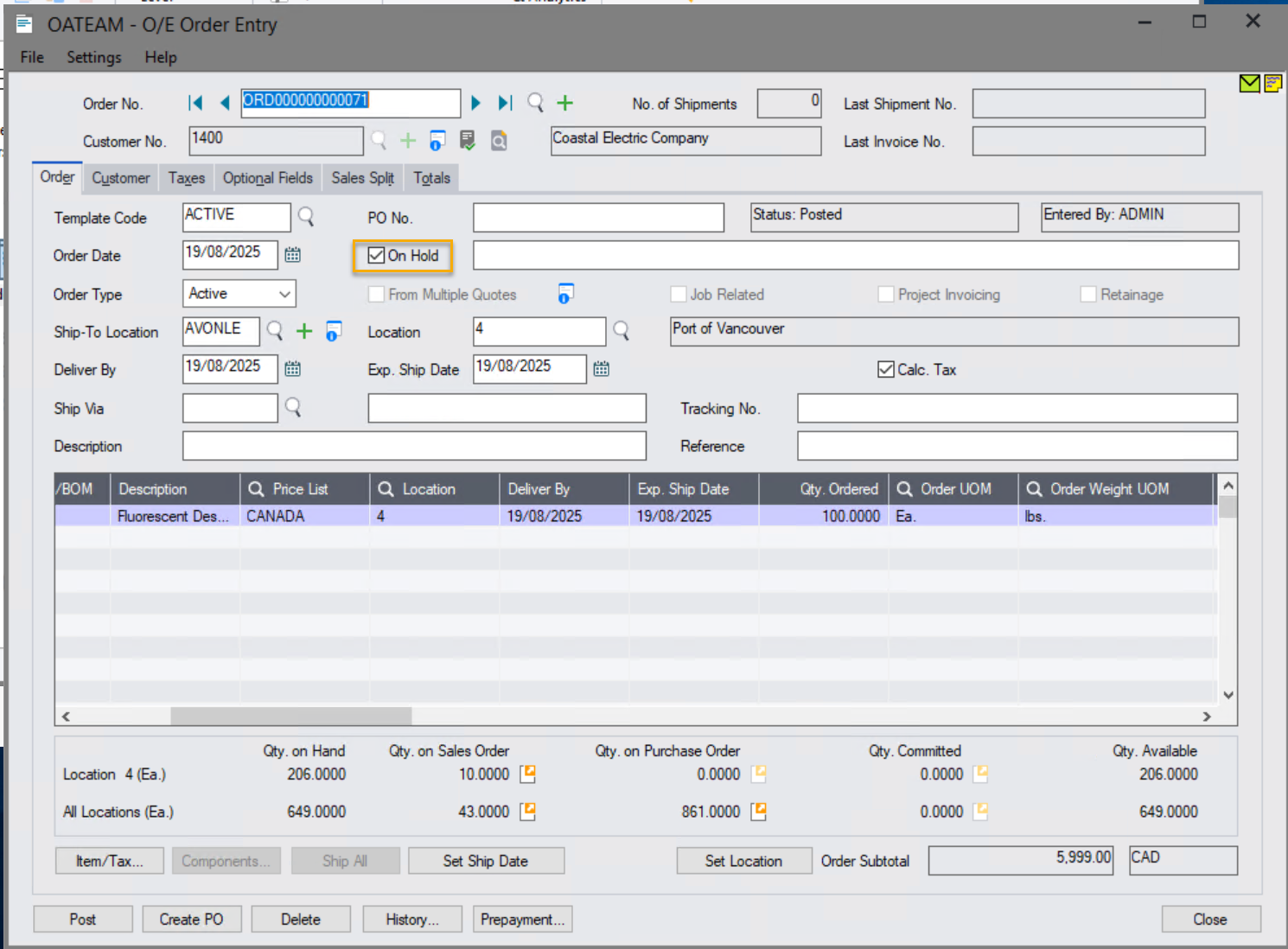
A user creates and saves a new Sales Order with ORDERTOTAL over 100, and another with international billing (outside of Canada) in the system. T workflows are triggered. Sales Order is on hold. The system notifies the user of the workflow starting.
Users can only take the O/E off hold by approving the workflow. The screenshots below will demonstrate the situation with over 100 ORDERTOTAL.
Step 2: Approval Request:
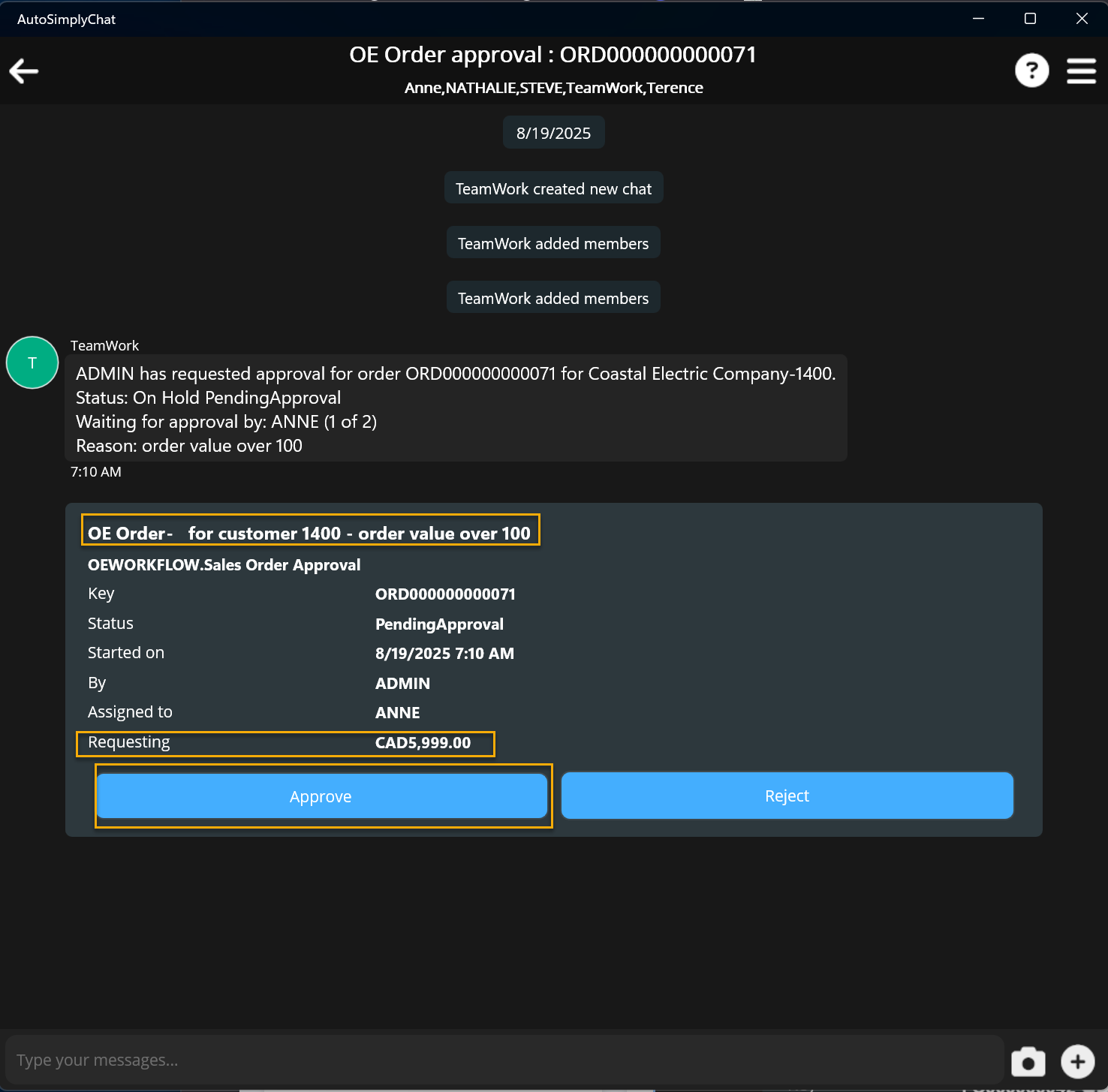
The workflow evaluates the conditions in the rules and sends an approval request to the assigned approver(s) (e.g., department head, procurement manager, finance).
Step 3: Review & Action
Approver reviews the O/E details, cost, and necessity, then approves or rejects. Approvers can approve in A/C Chat app (if using TeamWork) or in the Extender workflow console.
Step 4: Workflow Completion:
-
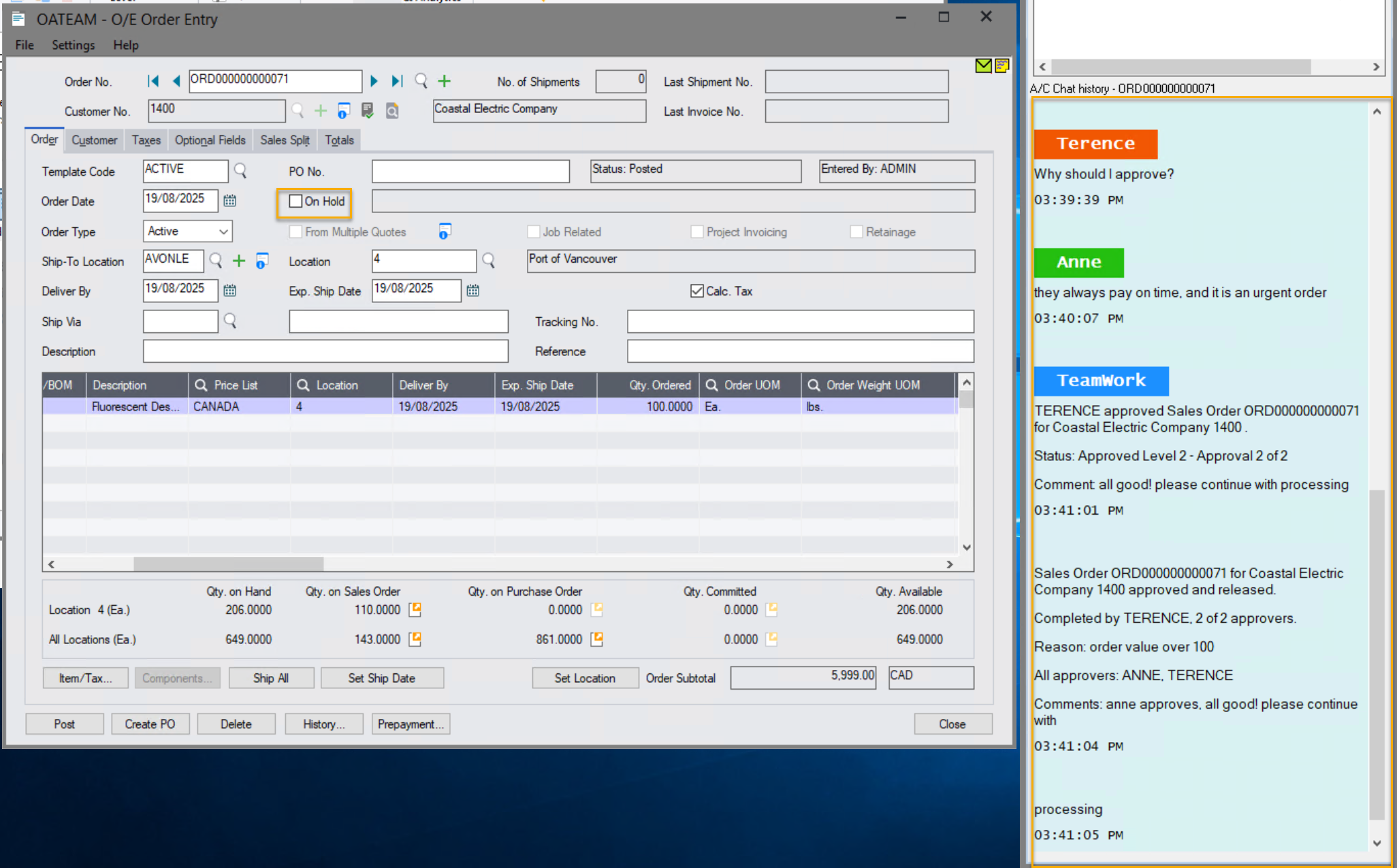
Approved: The Sales Order 's status updates to allow issuing to the Off Hold,
If the Print Report option is configured, the O/E PDF document is created.
-
: As soon as one user rejects, the workflow completes. The Sales Order remains on hold , and it's returned for modification or cancellation. The workflow status indicates rejection.
Viewing chat and status
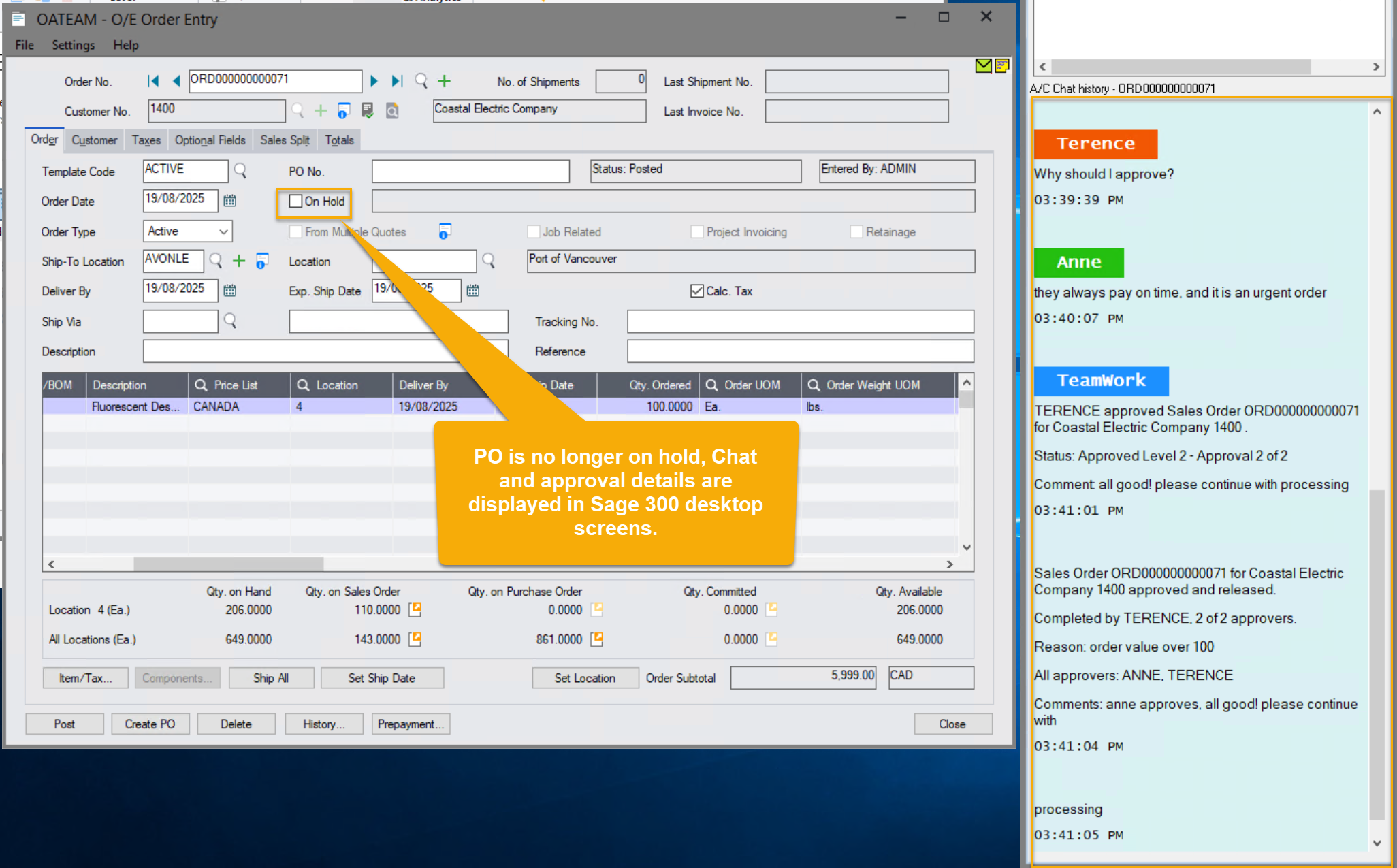
When TeamWork is enabled, users can view the chat messages and the workflow approval status, using the Notes tray configured for the P/O Purchase Order screen (using the Sage 300 desktop screen).
Workflow history and audit logs
Extender logs all workflow steps: Use the Workflow Inquiries > Workflow Detail log to view the approvers and their comments. The Workflow Detail log also includes auto-completed workflow for audit purposes.
Workflow Inquiries and Reports
TeamWork users can use A/C Chat Inquiries to view all chats related to the approvals.