Configuring the Python Path for Script Execution
Problem
Running scripts and installing packages with pip requires write access to your local data folder. By default, Extender uses the %LOCALAPPDATA% environment variable. For most users, this requires no action.
You need to change the path if any of the following apply:
- You run the application under IIS, using IUSR or ApplicationPoolIdentity.
- You use Terminal Services and receive a different LOCALAPPDATA path on each login.
- Your LOCALAPPDATA folder is deleted daily, or at login.
- Your LOCALAPPDATA folder is located on a network drive.
- You sometimes Run as Administrator and sometimes don't.
Default Setup
By default, the application reads %LOCALAPPDATA% to locate your local data folder. This variable is set per Windows user, so each user gets a separate, writable folder without any setup. A standard desktop session needs no configuration at all.
Extender and IIS applications
Under IIS, ApplicationPoolIdentity creates a hidden Windows user, for example IIS AppPool\DefaultAppPool. For this user, LOCALAPPDATA points to:
C:\WINDOWS\system32\config\systemprofile\AppData\Local
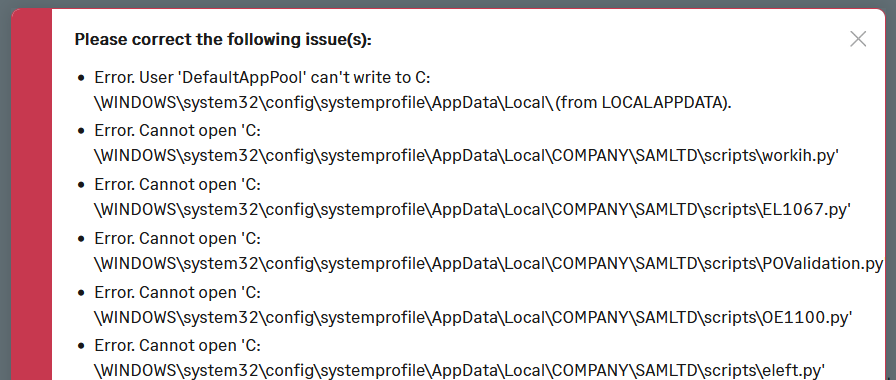
This account does not have write access to that folder. As a result, it can't check out scripts, can't run them, and can't install pip packages. You end up with errors opening screens or views
Example: When using Sage CRM, AutoSimply Barcode, A/C Chat or TeamWork, you will encounter the issue if IIS authentication is configured to use IUSR or LocalSystem. While this is not common on production servers, it is more common with sample data on demo machines. We need to allow the user to specify where to check out the scripts so they can set folder permissions.
Options to Change the Path
If the default LOCALAPPDATA path doesn't work for your setup, you have two options: add a viconfig.ini file or update the registry. We suggest you use viconfig.ini for new configurations going forward.
Option 1: Registry
This is the existing method. You set a fixed path in the registry, and every user under that machine or identity uses it.
Changing Extender script path in the registry
Editing the registry requires regedit access. Many users don't have this, which is one reason viconfig.ini was introduced.
Option 2: viconfig.ini
You can add a viconfig.ini file in the SharedData folder to set the path in a plain text file instead of the registry.
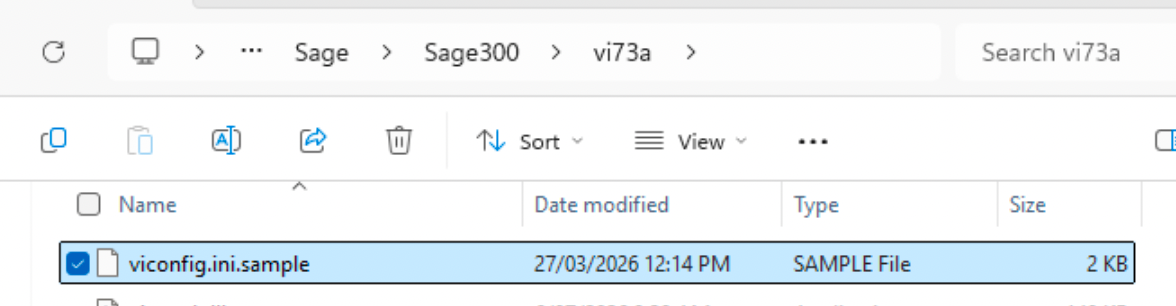
Use the viconfig.ini.sample file in the VIXXA folder for details on the options.
In viconfig.ini, you can set the path at any of these levels:
- Machine
- Company
- Windows user
- Sage user
This lets you, for example, set the path only for the SYSTEM (IIS) user, while every other user continues on the default LOCALAPPDATA behavior.
To configure the path with viconfig.ini:
-
Copy the viconfig.ini.sample file from the VIXXA to the SharedData folder
-
Rename it
viconfig.ini -
In the SharedData folder, edit the
viconfig.inifile. -
Add an entry for the scope you need: machine, company, Windows user, or Sage user.
-
Enter the folder path for that scope.
-
Save the file.
using VI.Config sample file
There is a viconfig.ini.sample file in the VIXXA folder. You can copy it and rename it viconfig.ini.
-
Lines starting with ; are comments.
-
The [] line separates each entry.
-
Set the path relative to the server
-
Ensure all users have access to the configured folder.
;changing the path for all users
[]
path=c:\viscripts\COMPANY\{company}
; set the path relative to the server

;changing the path for the DefaultAppPool user
[]
winuser = DefaultAppPool
path=c:\viscripts\DefaultAppPoolFor terminal server, c:\ would probably be correct since it would refer to the c drive on the server.
It is recommended to set the path to the Sage 300 server. Using a separate server would likely be slower.
Recognizing a Path Permission Issue
If a user doesn't have write access to the configured path, pip installs and script checkouts fail. Look for these signs:
-
Scripts fail to check out or run under IIS, but work fine in a desktop session.
-
pip install commands fail silently or return a permissions error.
-
The failure is specific to one Windows user or identity, such as an Application Pool identity.
Extender (PU14.04 and above) displays an explicit error message when pip install commands fail.
Solution
To resolve a path permission issue, do one of the following:
- Change the Application Pool identity in IIS to LocalSystem.
- Add an entry to viconfig.ini for the affected user or machine scope.
Refer to Options to Change the Path above for the steps for each method.