Changing Extender script path in the registry
Users can configure where to check out the scripts. This only needs to be done if you have security issues on the %LOCALAPPDATA% folder. This is available in Extender PU9 and above.
Default path
Extender caches scripts at runtime in the user's temp folder: %LOCALAPPDATA%. In most cases, this is set to c:\users. The path is also used to check out scripts.
When to change the default folder
You need to change the default path if users doesn't have rights to the default path and get an error when running a script or if a script needs to run pip to save Python packages.
Setting the path in the registry
You can specify where to check scripts out by setting a registry key.
Detailed steps
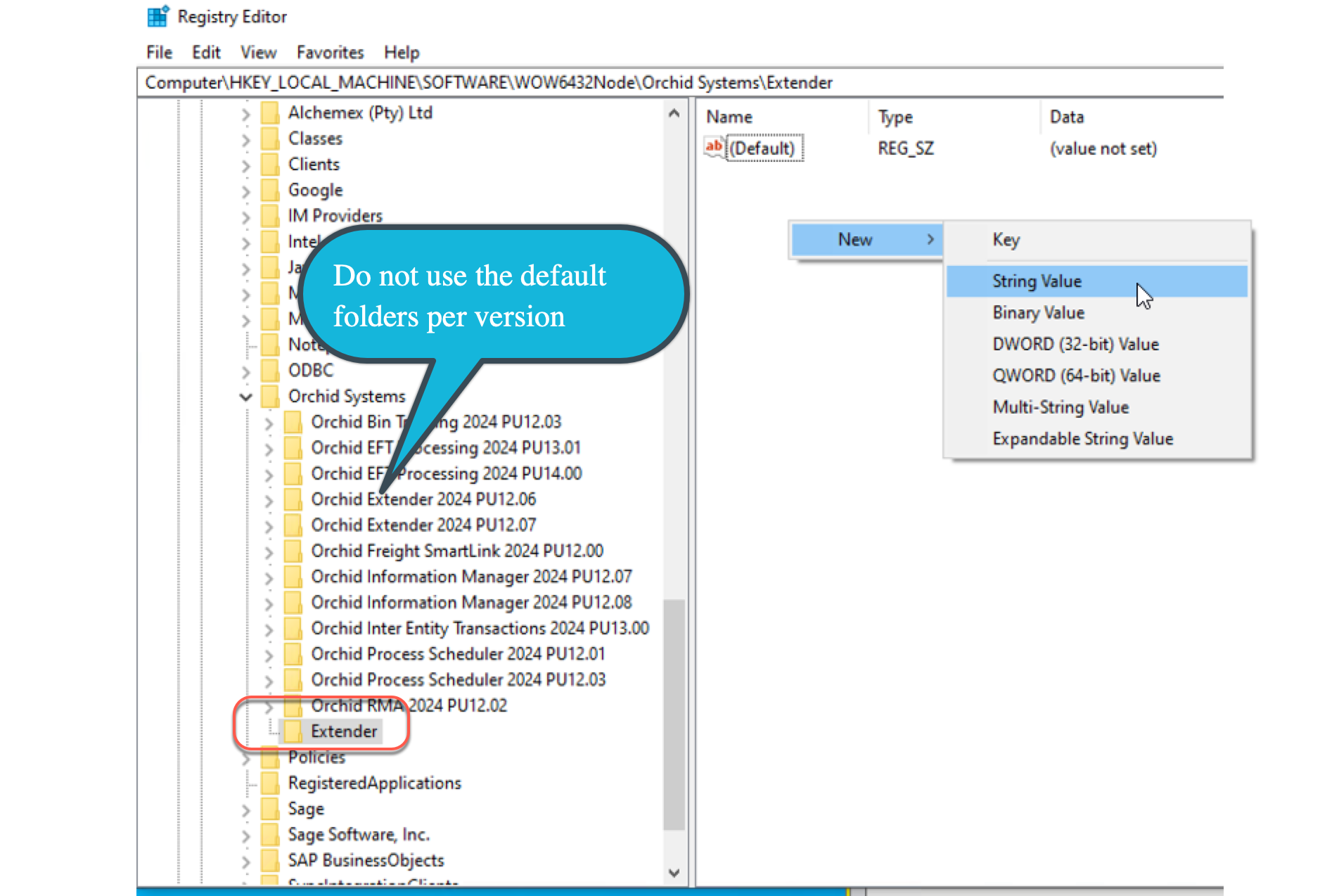
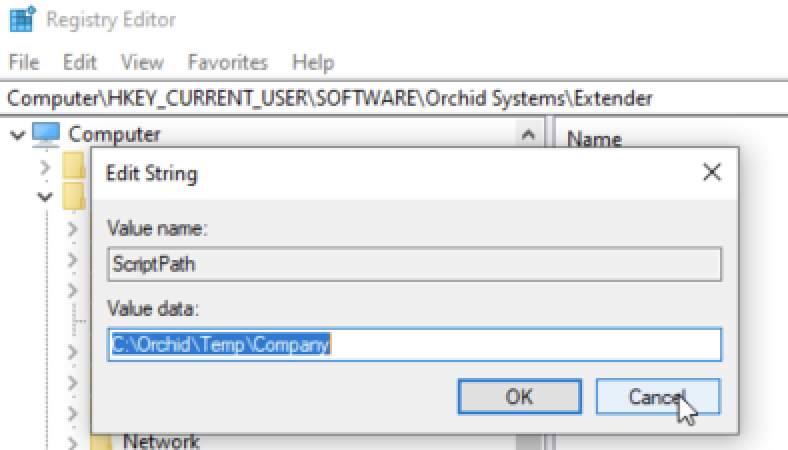
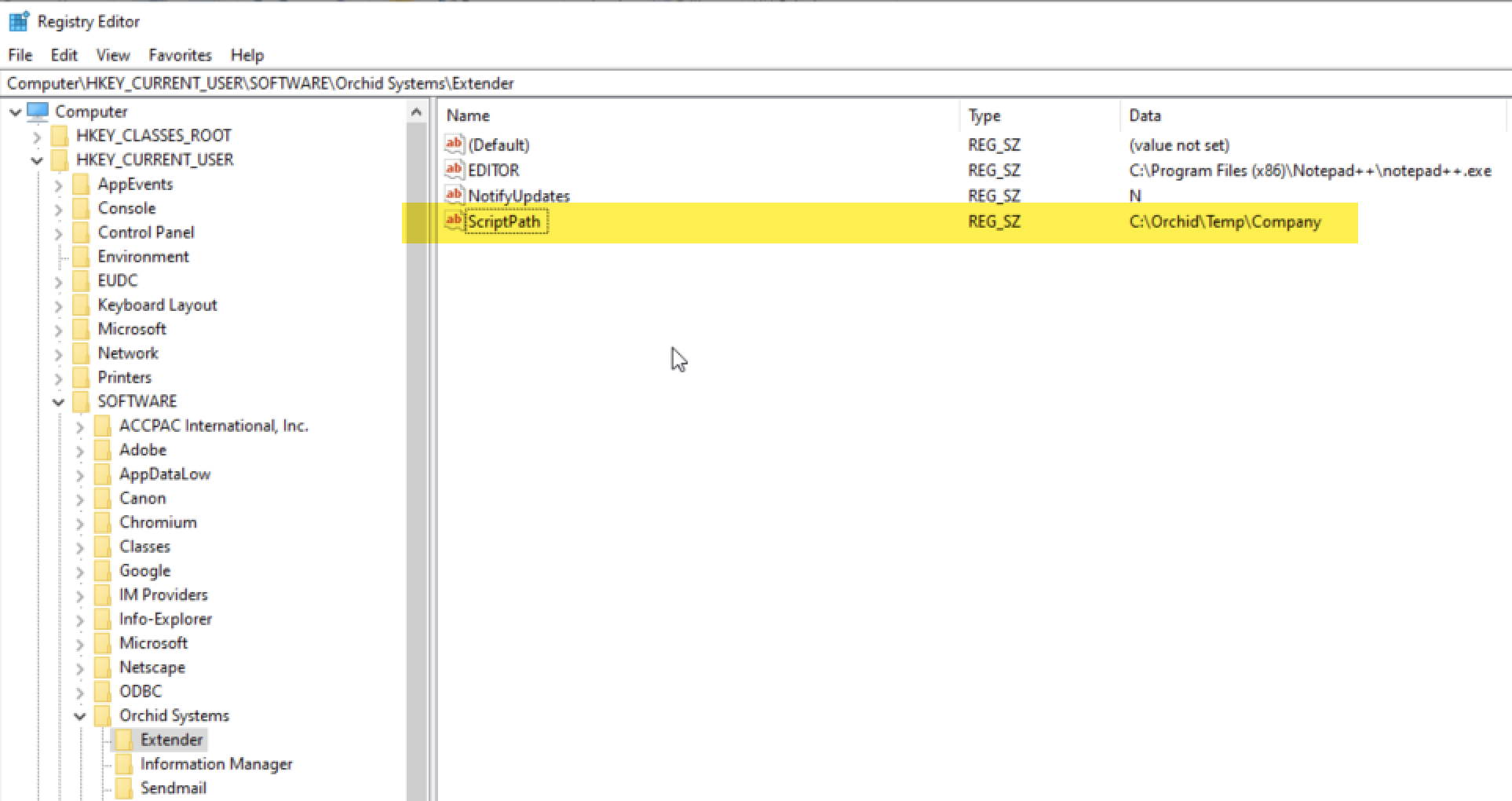
In the Registry Editor, add a new Key called Extender and a new StringValue called ScriptPath in the Extender key.
-
You can use either LOCAL_MACHINE or CURRENT_USER - Extender will first check for CURRENT_USER and only use LOCAL_MACHINE if CURRENT_USER is not set.
-
Set CURRENT_USER if you want the setting to only apply to the current Windows user.
-
Set LOCAL_MACHINE if you want the setting to apply to ALL users.
-
-
Set the value to a path that all users have write access to.
-
If the WOW6432 Node exists, the registry needs to be added to the \WOW6432Node\Orchid Systems node as Windows will use that (ie it silently maps any calls to HKEY\Software\Orchid Systems to HKEY\Software\WOW6432Node\Orchid Systems).
-
If the Orchid Systems node doesn't exist then create it.
-
If the Extender key doesn't exist, create it.
-
Don't use the View Extender or Orchid Extender 2024 PU12.xx existing folders
Restart IIS
Restart IIS to apply the change. This applies to running the EFT Web screens and third party applications such as AutoSimply Barcode or TeamWork.
Test that the scripts run in the Sage 300 desktop and using the other applications.