How to enable TeamWork workflows
Before you start
Refer to the for details.
You install and activate Sage 300 modules (AC Chat, Extender and Information Manager). You setup A/C Chat, Extender and TeamWork.
You can then import TeamWork workflow modules and configure the workflow rules (What, How, Who) in Extender.
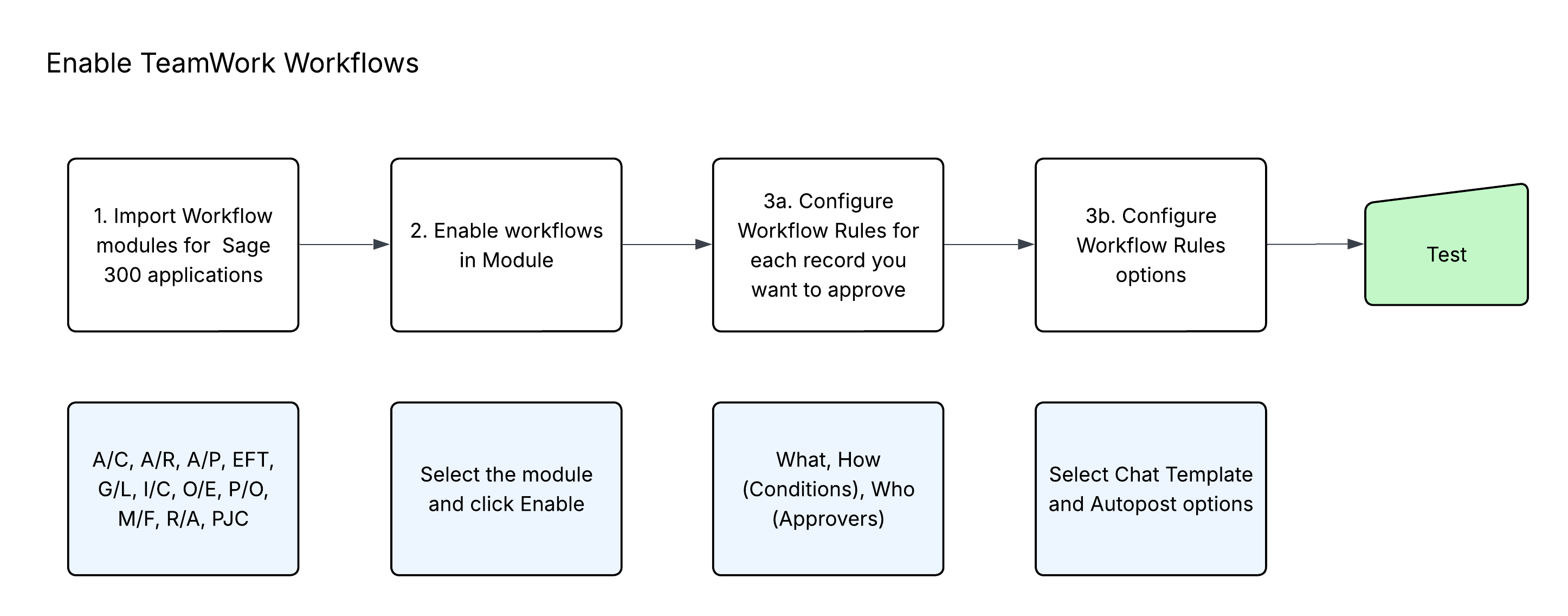
Step 1. Import Workflow modules in Extender
TeamWork includes workflow templates for many Sage 300 processes. You import the modules for the Sage 300 applications and records that apply to your business.
-
Batches (G/L journals, A/P Invoices, A/P Payments, A/R Invoices)
-
Transaction headers (Sales Orders, Purchase Orders, I/C Transactions, RMA, A/C Chat leave requests, A/C Chat Expense claims, A/C Chat Time records)
-
Master files (New customer, new vendor, new item, change of fields, EFT Vendors and EFT Customers)
Example: If you want to approve Purchase Requisitions, Purchase Orders and General Ledger batches, you need to import the POWorkflow and GLWorkflow modules.
Step 2. Enable workflow
You can enable all workflows in the module using the Enable button or you can choose to enable only certain workflows.
For details, refer to Enable TeamWork Modules
Example: If you want to approve Purchase Requisitions only, you import the POWORKFLOW module and enable only the Purchase Requisition workflow on the View Workflows Tab. Other workflows can remain inactive.
Step 3. Configure business rules
-
Add Workflow Rules (What, How, Who) conditions and approvers) for each record type you want to approve.
-
See details and examples Extender Workflow Tutorials
-
Amend message templates (if required).
-
-
Select approval options (TeamWork template and posting options)
-
Test and adjust workflow rules as required
Refer to details on workflow rules: Workflow Rules