Enable TeamWork Modules
You use the Extender Modules screen to import the module for the Sage 300 application you want to approve.
Available Modules
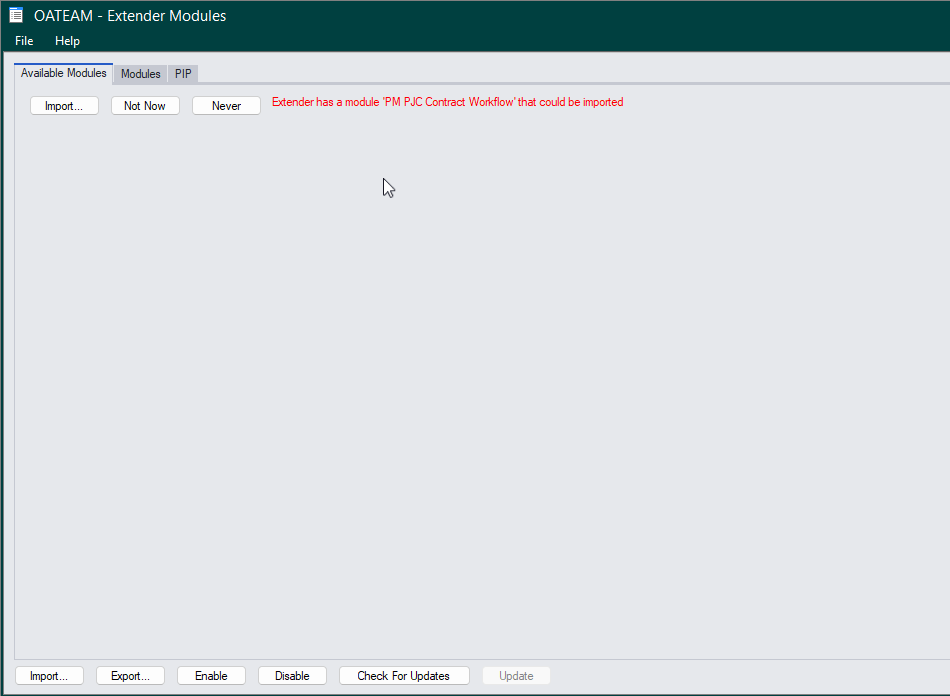
In a new install, you see a list of available modules when you open the Extender Modules screen. The screen lists all the Extender modules included in Extender program files (in the VIxxA folder), that are not yet imported in the database.
In the example below, the PM PJC Contract workflow is available in the VIxxA folder, and not yet imported in the database. You can use the Import button to import.
Import modules
Use the Import button to import an Extender module from the VIxxA folder of your Sage 300 installation. You can also use modules saved on a network folder (e.g. AP Workflow approval.vi).
This will create and update all the components included in the module. It is recommended to restart the Sage desktop after importing a module.

Enable/Disable
After importing the modules, you need to enable them for the configured workflow approvals and notifications to be active.
Use the Enable button to enable all workflow templates in the module.
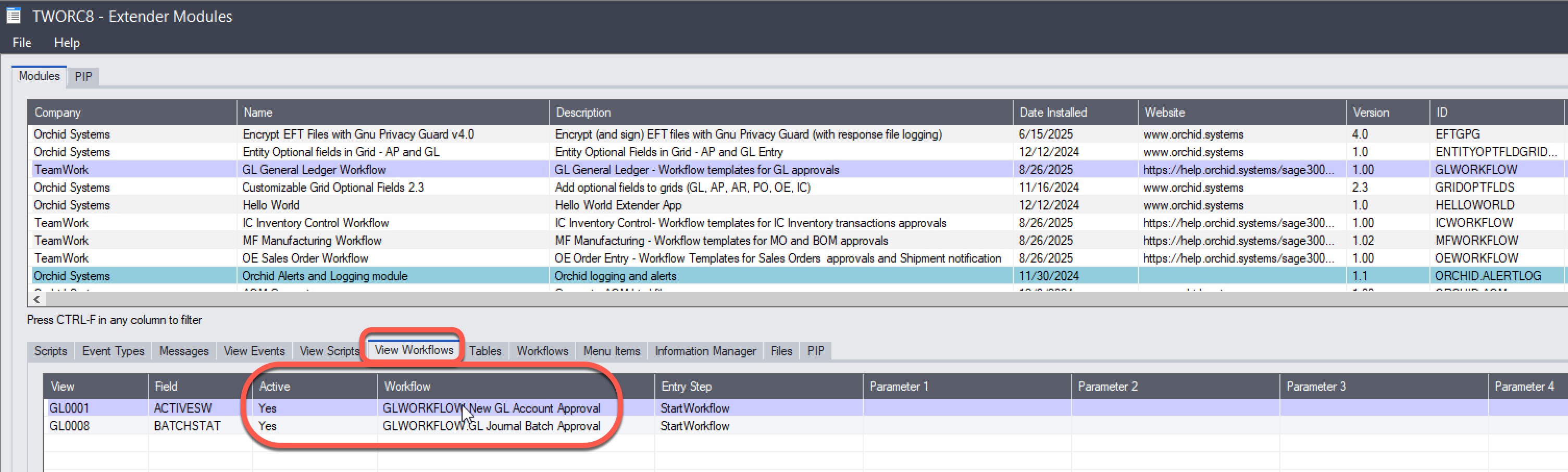
You can see a list of the workflow templates available in the tab on the Extender Module.
If you want to enable only one workflow template, use the to open the list and double click on Yes for the workflow you require.
Configure workflows
Add Workflow Rules
In all cases, the workflow templates included in Extender and TeamWork require customers to configure Workflow Rules for the records they want to approve.
Setup Workflow Rules Options
On the Options Tab, select the TeamWork A/C Chat template and the Autopost options
Amend message templates
Message templates are used to send messages to the Chat when workflows start or progress.
Double-click on the Message Templates to open the email template, modify the details and save the records.