This form lets you:
-
View selected location, bin and item details.
-
Details available per item per location / bin : I/C Location quantity, B/T location/bin quantity and a “yes/no” indicator if these are not in balance .
-
You can filter by either entering the from/to Location, Bin and item details above the grid or
-
Print your current filtered list by clicking File > Print
For details, refer to Item and Bin Inquiry - Field List
CTRL-F to filter records
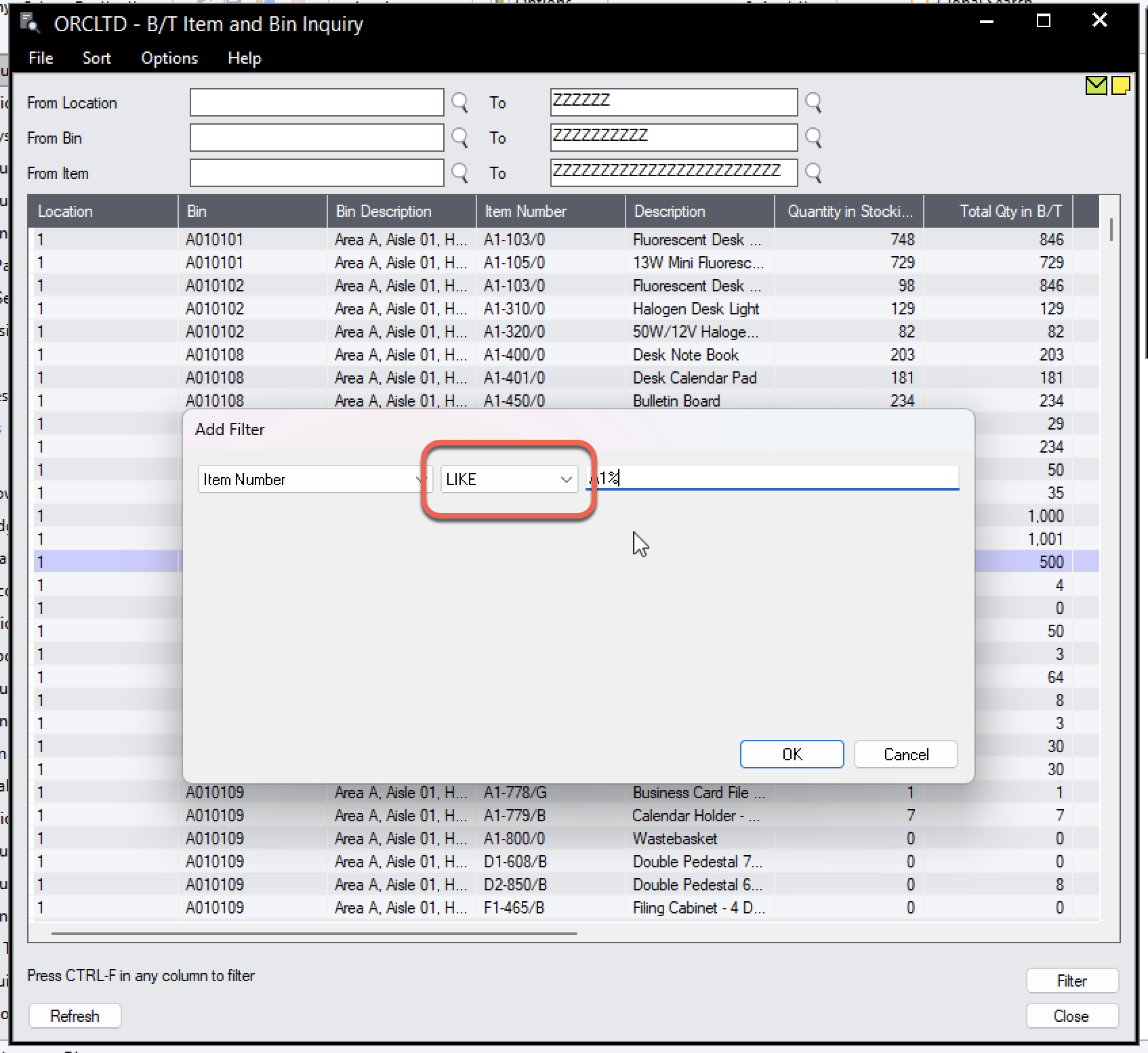
Click CTRL-F in any column to apply a filter – and select the filter.
If a filter is applied to the screen, the filter will be shown along the bottom of the screen.
Use CTRL-F and Clear to remove the filters.
Example: To filter only “O/E Shipment” source documents, click CTRL-F in the “source document” column, and then select the “Source Document = O/E Shipment” source type .
Using the inquiry screen to filter by item
Buttons and Menu
Refresh
Click Refresh to update the bin transfer documents displayed
Filter
Use the Filter button to clear existing filters on the grid.
Select File > Print to print the Item and Bin Report.
If you apply filters to the inquiry screen, the report is filtered accordingly.
Note: This uses a Crystal Report layout different from the one printed from the B/T Reports > Item Bin Report. Item and Bin Report - Features