Masking EFT details
You can now configure EFT formats to mask the vendors, customers and employees bank details on Orchid EFT tabs.
Insert video
How does it work?
In the EFT File format, you can choose to mask the fields on the Orchid EFT tabs for Vendors, Customers and Employees.
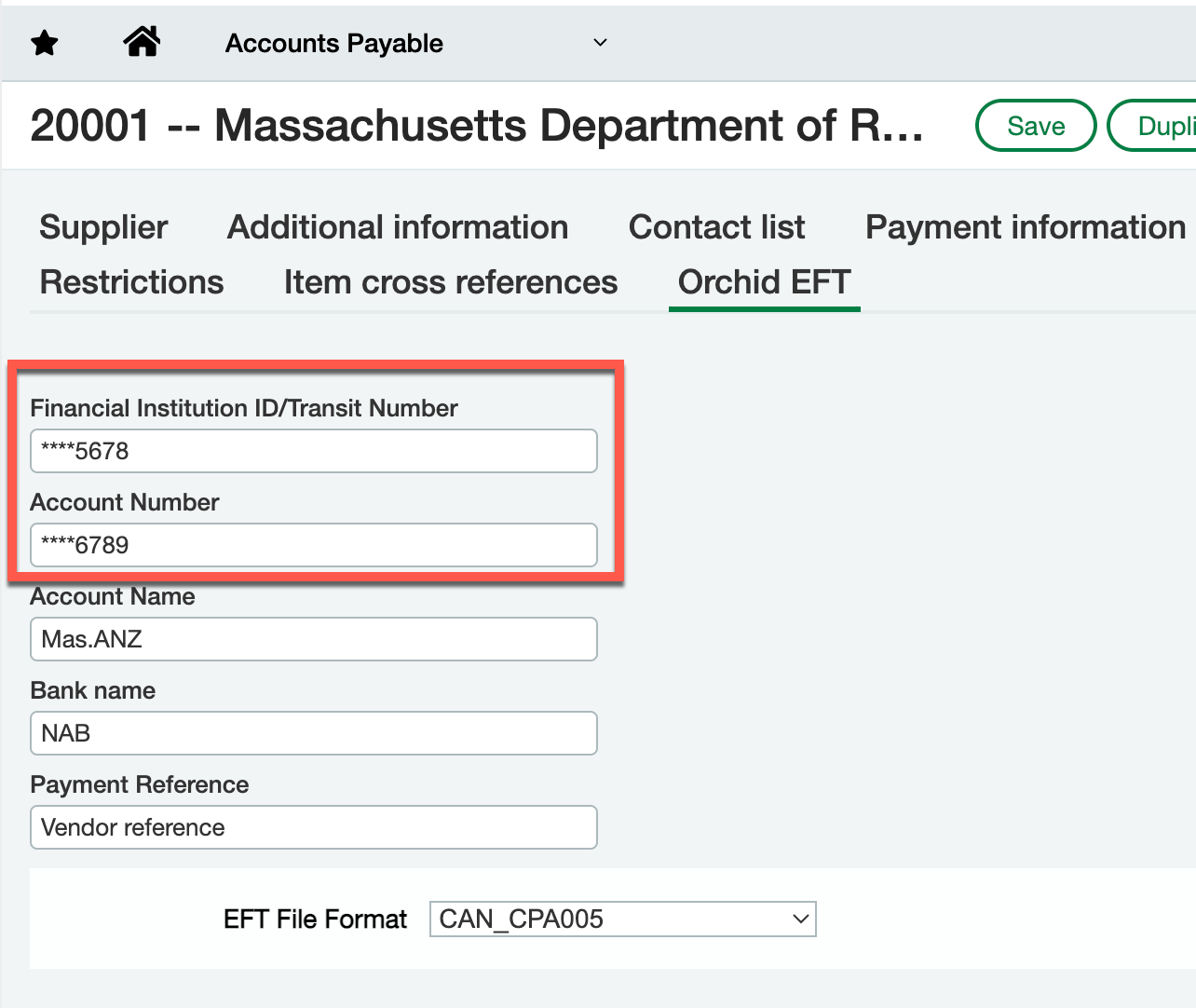
Users will save the bank details as usual. After saving, they will see the first four, the last four or no digits at all, depending on the configuration.
Note: This applies only to the Orchid EFT tabs. When a user exports records or creates a custom view with the relevant EFT Fields, the fields are not masked.
Detailed steps in the file format
In EFT format, select the format you want to change to include masking.
You need to add lines in the format for all fields you want to mask.
The mask can be applied to all the EFT-related fields on Vendors, Customers and Employees: BSB, Account number, IBAN, and all Extra fields.
The value can be:
“*” - mask everything
“x*” - where x is a number, e.g. “4*” - show the first x digits and mask the rest
“*x” - where x is a number, e.g. “*4” - show the last x digits and mask the rest
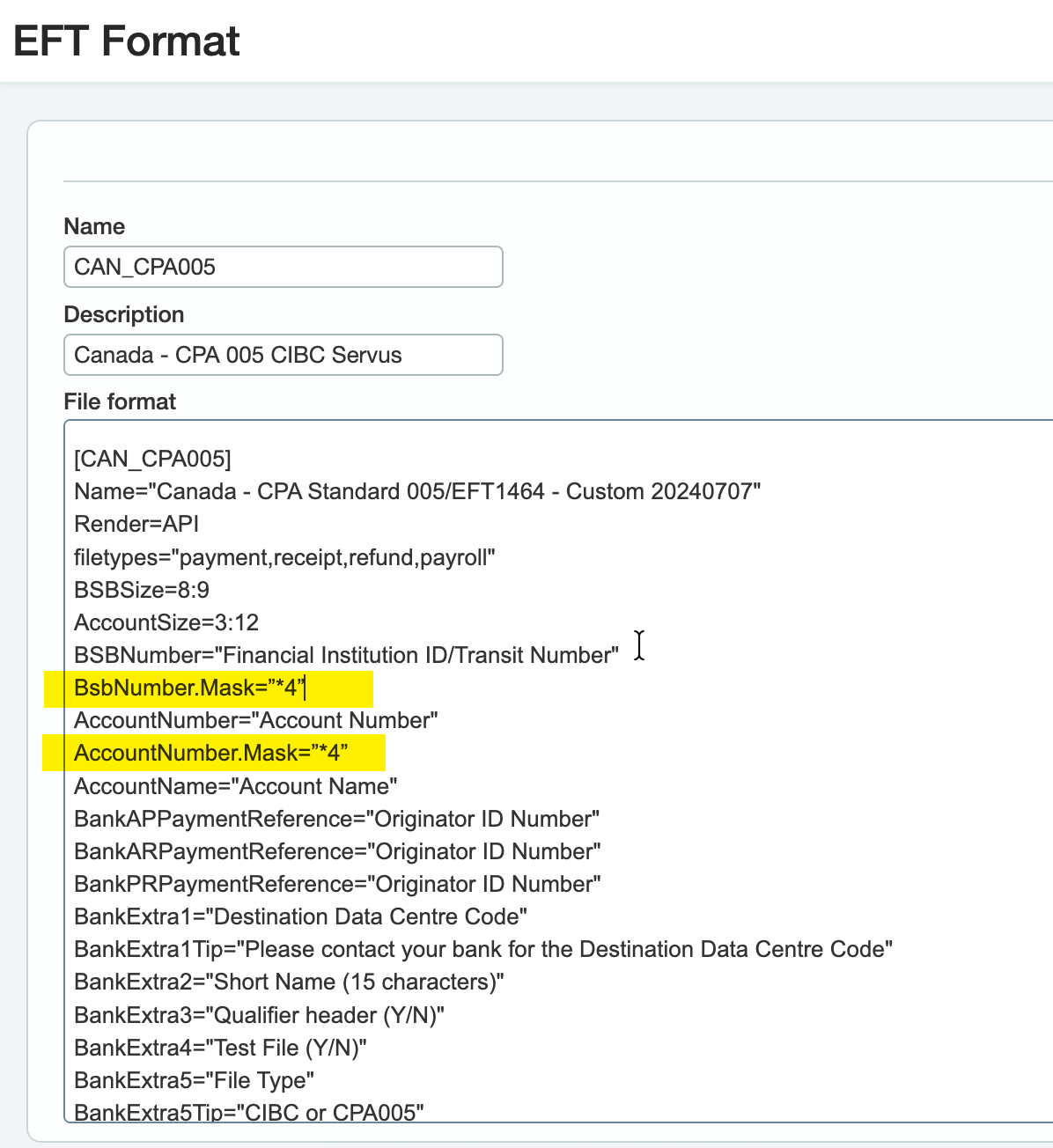
To mask the Bank branch number (BSB of financial institution id) and the account number, add the following two lines to the EFT format:
BsbNumber.Mask=”*4”
AccountNumber.Mask="*4"
When the user enters 123456789 in the field, the screen will display *6789 when you tab off the field.
For details on EFT formats, see EFT Formats