Filtering Extender Scripts
There are three main options to filter scripts on the Scripts screen.
Type values to filter by in the filter box
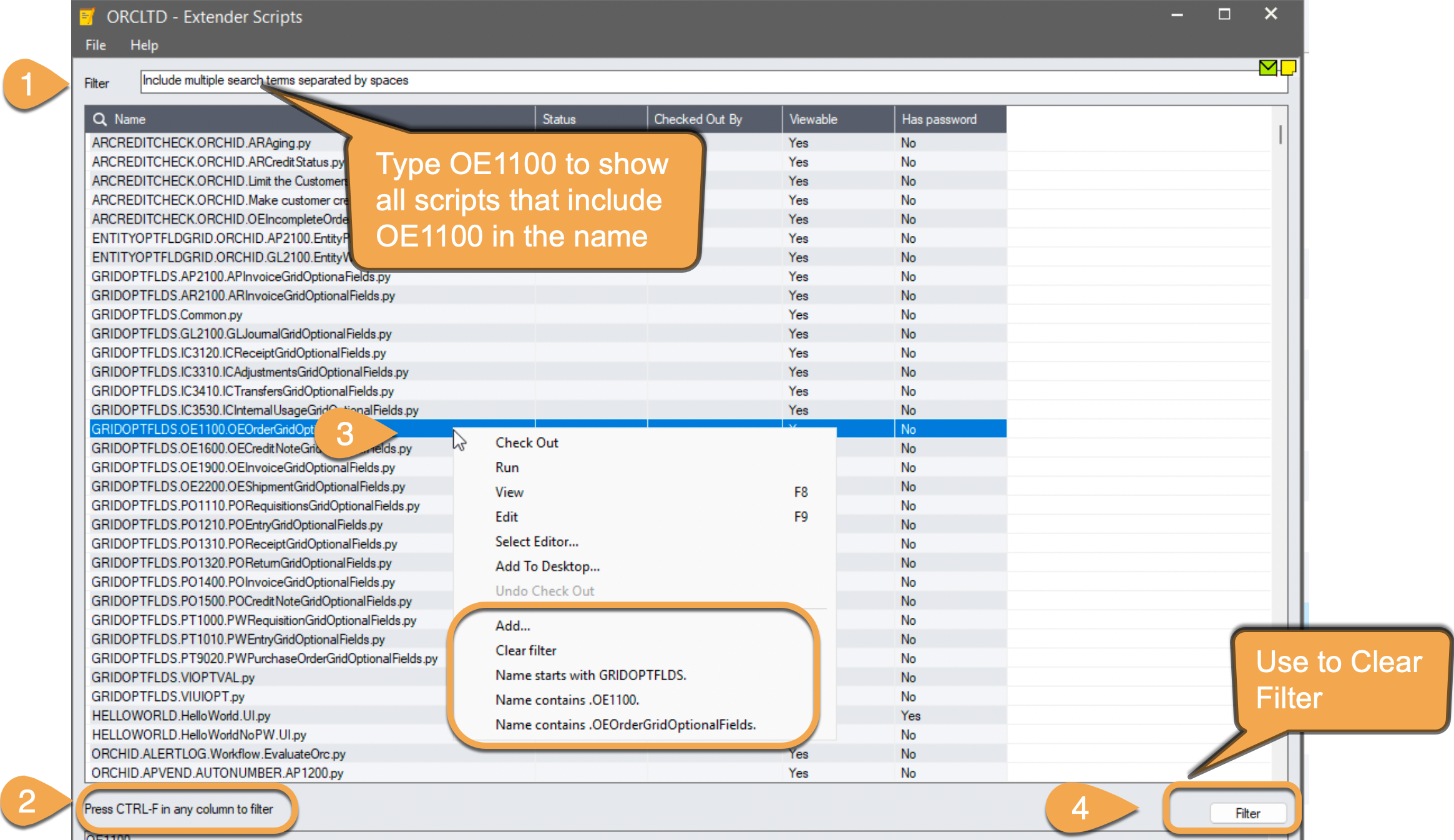
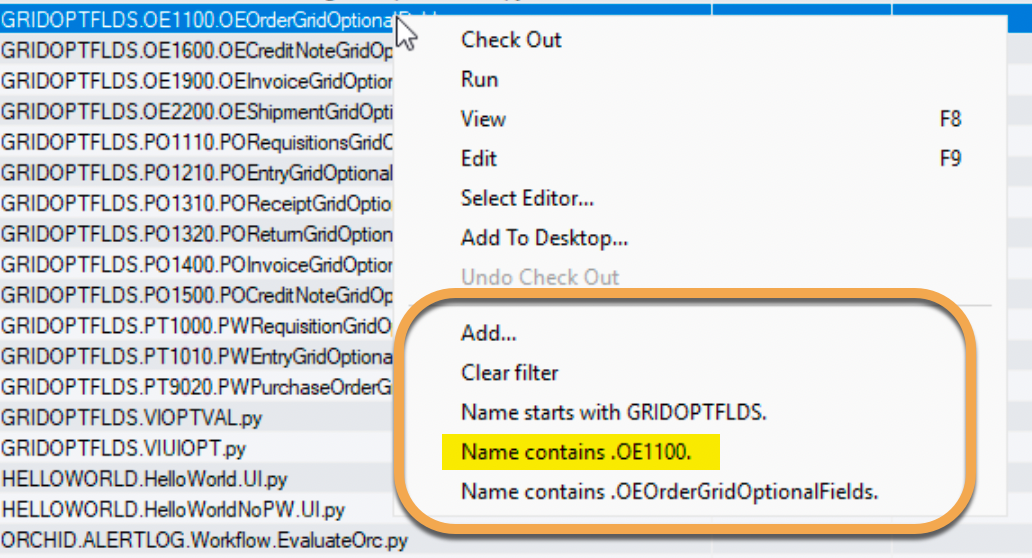
You can type in multiple terms in the Filter box at the top of the screen and it will filter to include only items that include all terms.
-
Change the terms to change the filter.
-
Remove all terms to reset the filter and show all scripts.
Type "orchid ar" to show all scripts where the name includes both orchid and ar
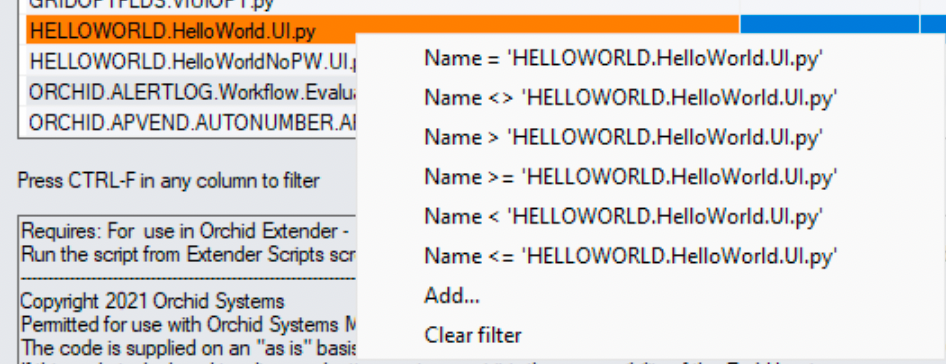
Right-click on a script and choose the filter
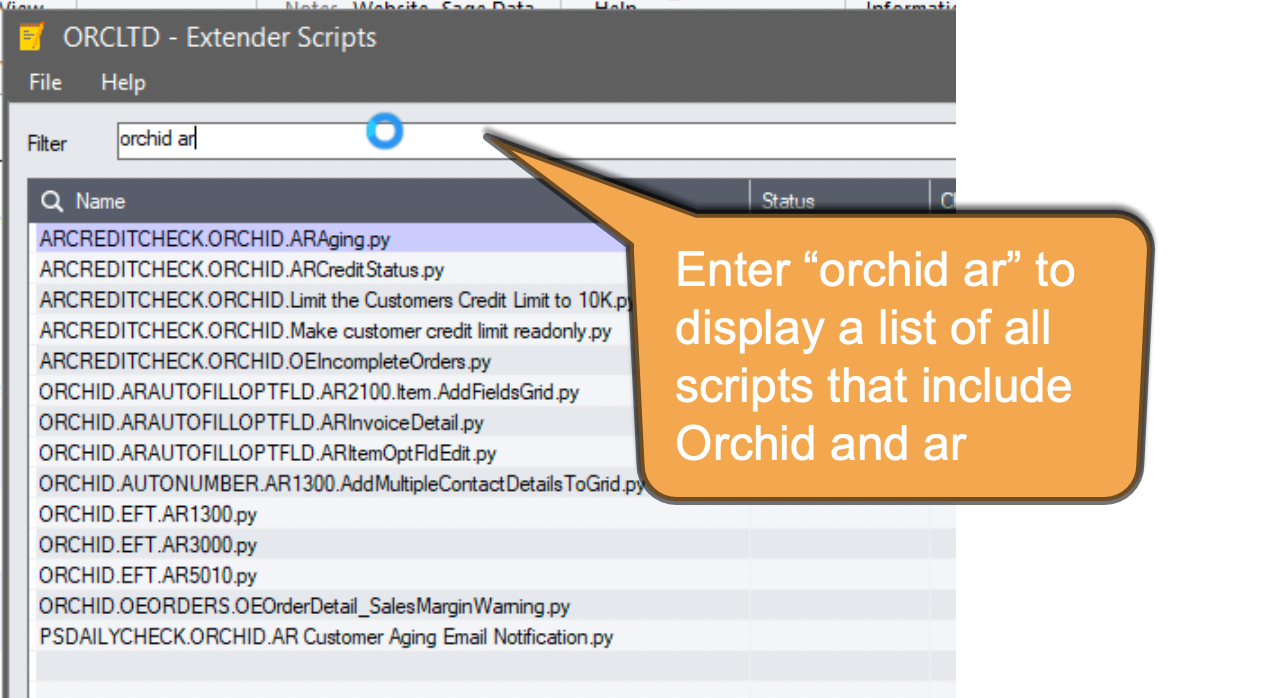
When you right-click on a script, default filter options based on the script you have selected appear. Select the most helpful one.
Name contains .OE1100 will show all the screen scripts that apply to the OE1100 screen.
Use CTRL-F
Use CTRL-F on the list of scripts.
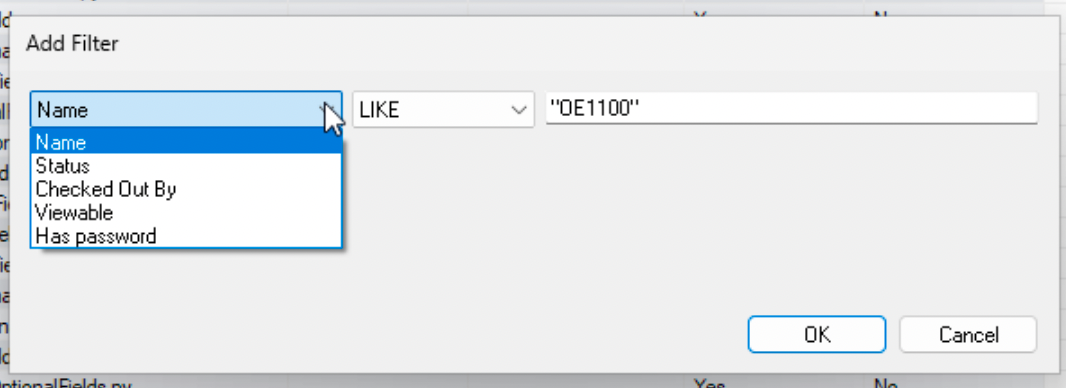
Select a default option based on the script name you have selected or build your own filter with the Add... option
CTRL-F on the Helloworld script lets you filter on all scripts by comparing the name to helloworld.helloworld.ui
Filter button
Use the Filter button to clear the filter or build your own filter.
Click the Filter Button and select Add to filter by script name, status, checked out by, password and viewable columns.