Add and Delete a script from the Sage Desktop Screens
When to use
You can add a script that displays a screen or runs a process to the Sage desktop. This will let all users run the script.
Important! If you want only certain users to run the script, you need to add the validation in the script itself.
Add a Script to the Sage desktop
Select a script, right-click on the script and select "Add the script to the desktop"
This option brings up the tree of the existing menu, and allows you to select which branch the script must be placed.
Tip: If the script is part of an Extender module, you can view scripts added to the desktop in the Modules > Menu items Tab.
Delete a script from the desktop
In Extender Setup > Scripts, as a user with Extender Admin rights, select the script, right click on it, and choose “Add to desktop”.
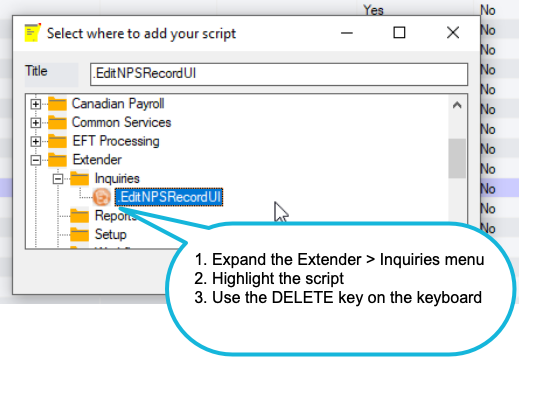
Find the script in the Sage 300 menu where it was added.
In the example screenshot, the script was added to the Extender > Inquiries menu, you need to find the script in that menu.
Then use the DELETE key on the keyboard.
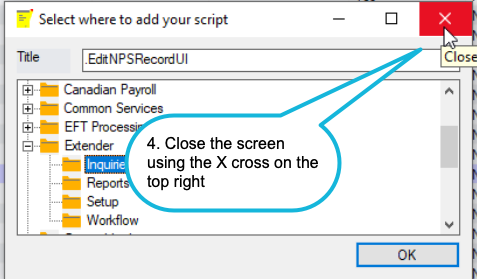
To save, there is a little trick… You need to use the X cross on the top right and Save the changes. Restart the Sage desktop. The script should be removed for all users.