Custom table editor
How to use
Use the Custom table editor to add and maintain records in custom table.
-
Select the custom table you want to work with
-
To add a new record using the Custom Table Editor, you need to use the green + button on the first field. The exact steps depend on the field types of the key fields of the custom table.
Security requirements
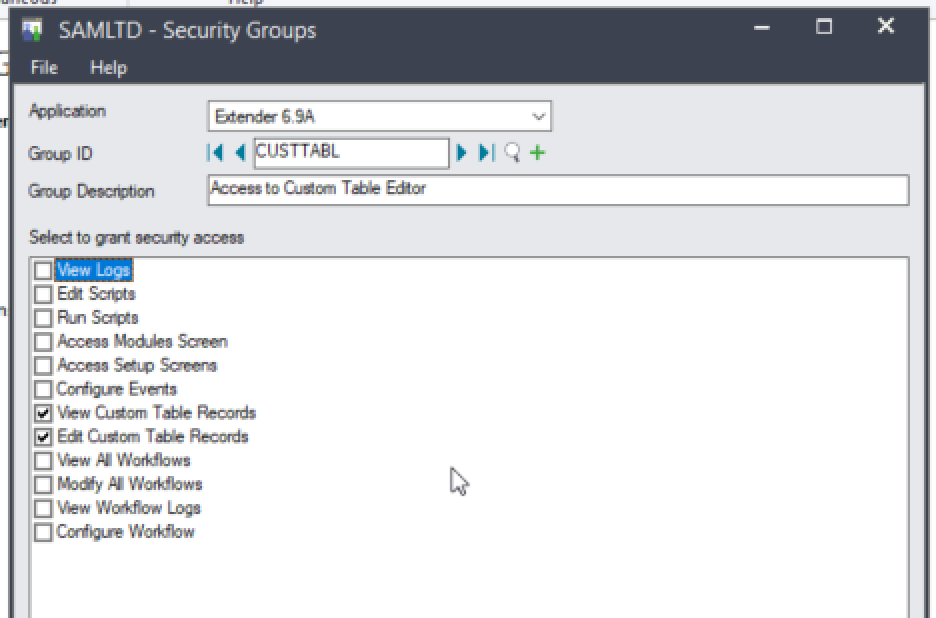
Users need to be in a Sage 300 security groups with rights to View/Edit custom table records
Refer to Adding Security for details
Using a custom script
You may want to write your own custom script to edit records, for example if you want some users to have access to some custom tables only, or if you want to add a shortcut to the desktop for certain tables only.
Tip: The custom table editor is designed with an Extender script, VI1010.py in the VIXXA folder. You can copy it and upload it to your database as a starting point for your own scripts
Registered Sage 300 business partners can also access Extender sample scripts on the Orchid website, including a script to view / edit records for one custom table. You need to edit the script to include your custom table name. -
https://orchid.systems/resources/scripts/custom-screen-template