Orchid EFT Roles Detailed Description
Roles and Subscriptions for EFT users
The default EFT Security role will be created and assigned to the Sage Intacct internal user who imported the Orchid_EFT.xml file.
After importing the module, you can check the security in Company > Admin > Roles ::SYS::Enterprise-ROLE-FOR-Module: Orchid EFT. Check Subscription > Permissions and Role Assignments > Permissions.
You need to assign this Security Role to all other users who need to access EFT processing.
For detailed steps, refer to Create Orchid EFT Roles
Security roles and permissions overview
Entity Permissions
| Object | Permission Needed | Needed by | Error if missing |
| EFT File | Add, Edit | Users generating EFT Files | Generation fails |
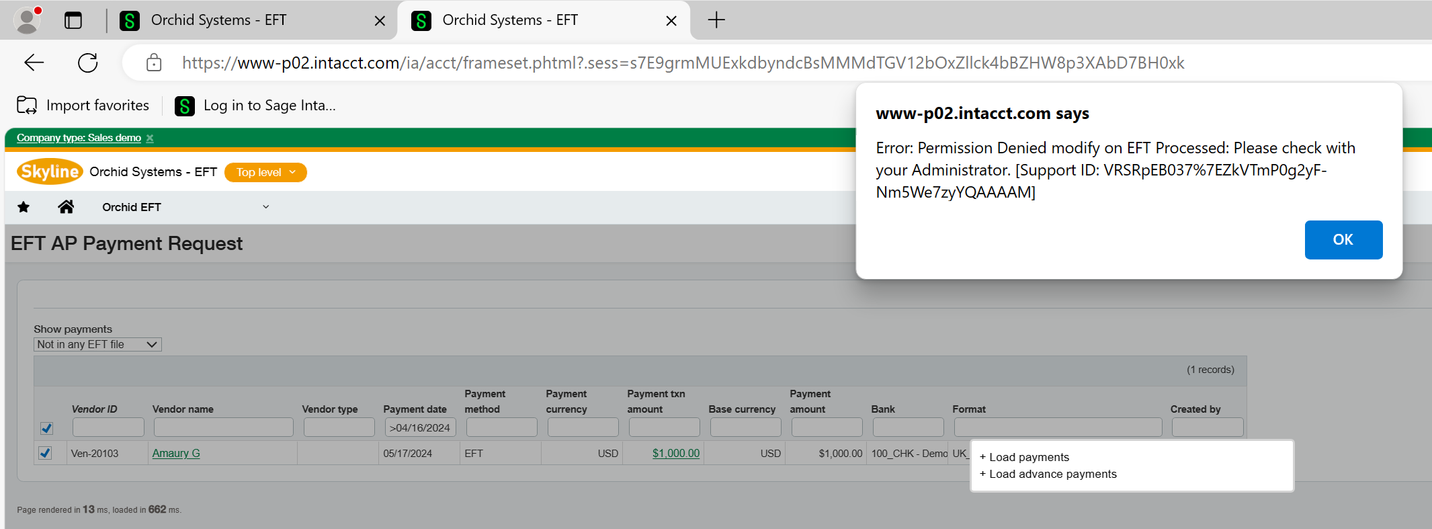
| EFT Processed | Add, Edit | Users generating EFT Files | Permission denied modify on EFT Processed |
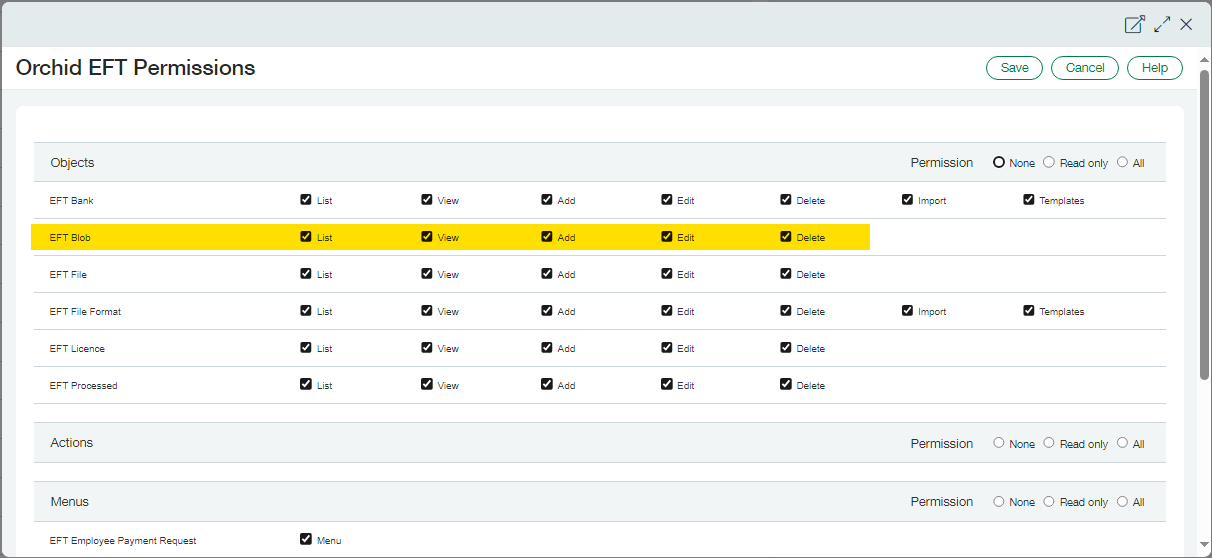
| EFT Blob | All | Users generating EFT Files | Generation, download / upload fail, silently or with a generic error message. "error loading file" |
| EFT Blob | List, View | Users only downloading EFT Files |
Download blocked Also needs access to Download/upload in EFT Permissions in Orchid EFT menu |
| EFT Blob | Delete | Users deleting EFT files | Delete blocked |
| EFT Bank | Edit | Users generating EFT Files |
Permission denied delete on EFT bank. Please check with your administrator. This is because generating EFT files updates the file sequence number (FSN) on the bank setup |
| EFT Licence | List, View | All users accessing EFT Processing. |
Permission denied and no access to the EFT Screens. Error: Permission Denied readonly on EFT Licence: Please check with your Administrator. |
| EFT File format | List, View | Any user opening AP vendor, AR Customer or Employee screens (even without EFT access). |
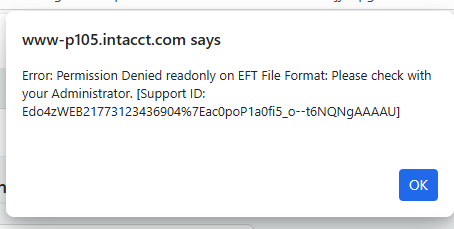
Users cannot access the AP vendor, AR customer or Employee screens (not just the EFT tab) Error: Permission Denied readonly on EFT File Format: Please check with your Administrator. |
Security roles Troubleshooting
Permissions for EFT Processed
Users who generate EFT files need Add and Edit Permissions to both entities: (Add, Edit) and (Add, Edit).
Warning! If not, you may get the following error: "Permission Denied modify on EFT Processed. "
Permissions for EFT Blob
-
If a user needs to generate EFT files, they need All permissions
-
If they are only downloading the EFT File, they need List and View
-
If a user needs to delete a file, they need Delete permissions on the EFT Blob object.
Permissions for EFT Bank
Users who Generate the EFT File need to have security rights to update EFT Bank (View, Edit role in Sage Intacct security).
The File Sequence Number (FSN) is stored on the EFT Bank record and updated when generating a file.
If a user doesn't have rights to EFT Banks and uses a file format that requires FSN, they may get an error message like below when generating or refreshing a file:
Permission Denied on EFT Bank. Please check with your administrator.
Permission Denied on EFT Bank. Please check with your administrator.
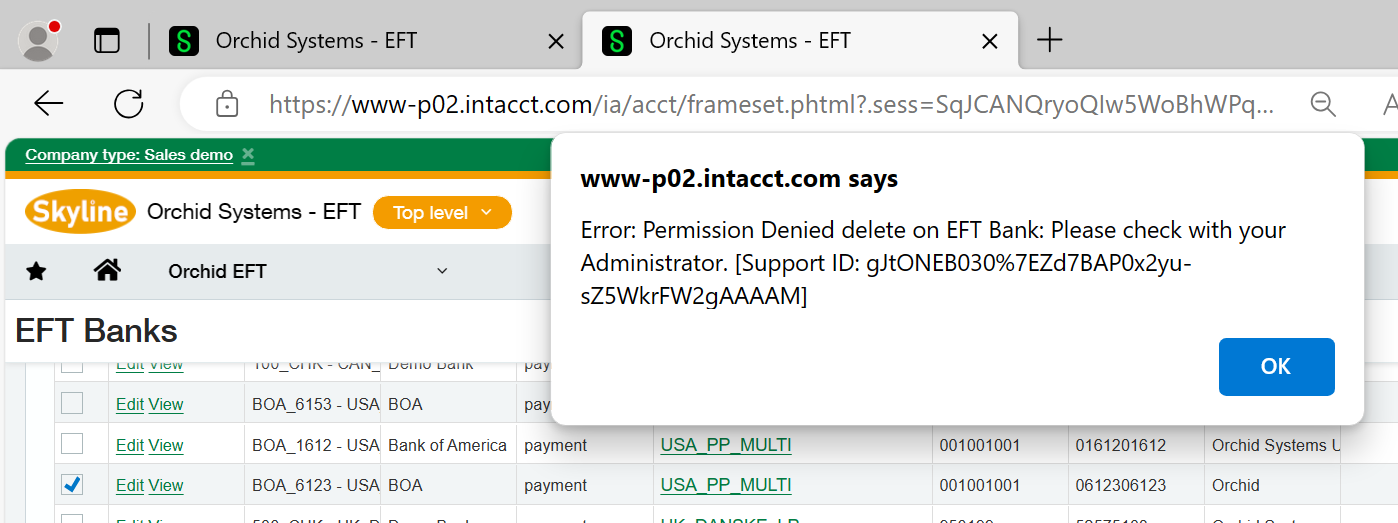
This applies even if the user doesn't generally update the EFT Bank details.
EFT Licence
All users who need to access EFT Processing need at least Read access to EFT Licence.
Orchid EFT Tab on AP Vendors , AR Customers and Employees are hidden if users do not have access to the EFT Licence.
Without Read access to EFT Licence, you get this error when opening the Payment Request screens:
Warning! Error: Permission Denied read-only on EFT Licence: Please check with your Administrator.
EFT File format permissions
Users need at least List and View access to the EFT File Format to view Customers and Vendors in Sage Intacct, even if they don't need any access to EFT Processing.
You can control access to the Orchid EFT Tab in the EFT Permissions on the Orchid menu. For details, refer to: Add EFT Permissions
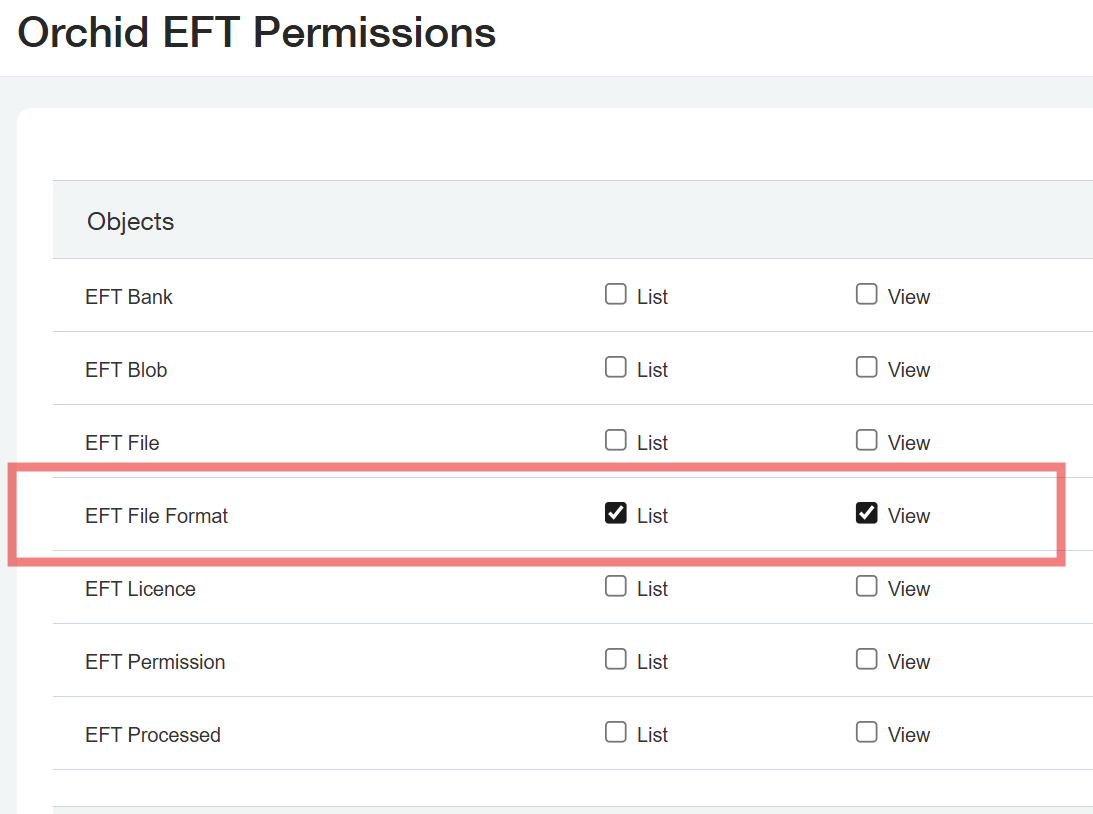
Users who do not have access to the EFT file format : list + view get the below message accessing the AR customer or AP vendor screens.
Menu Security
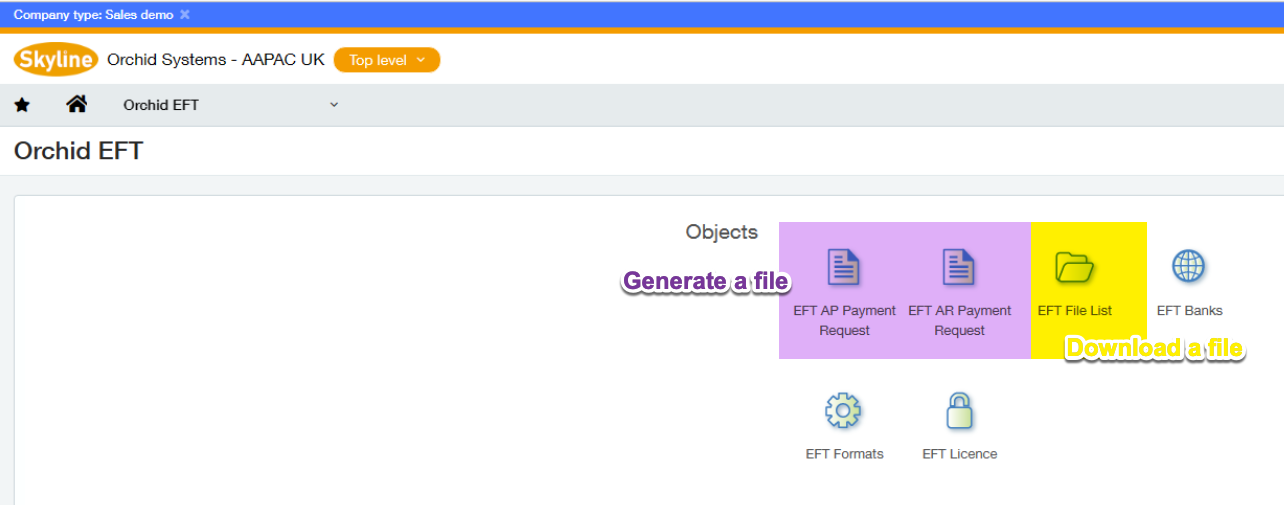
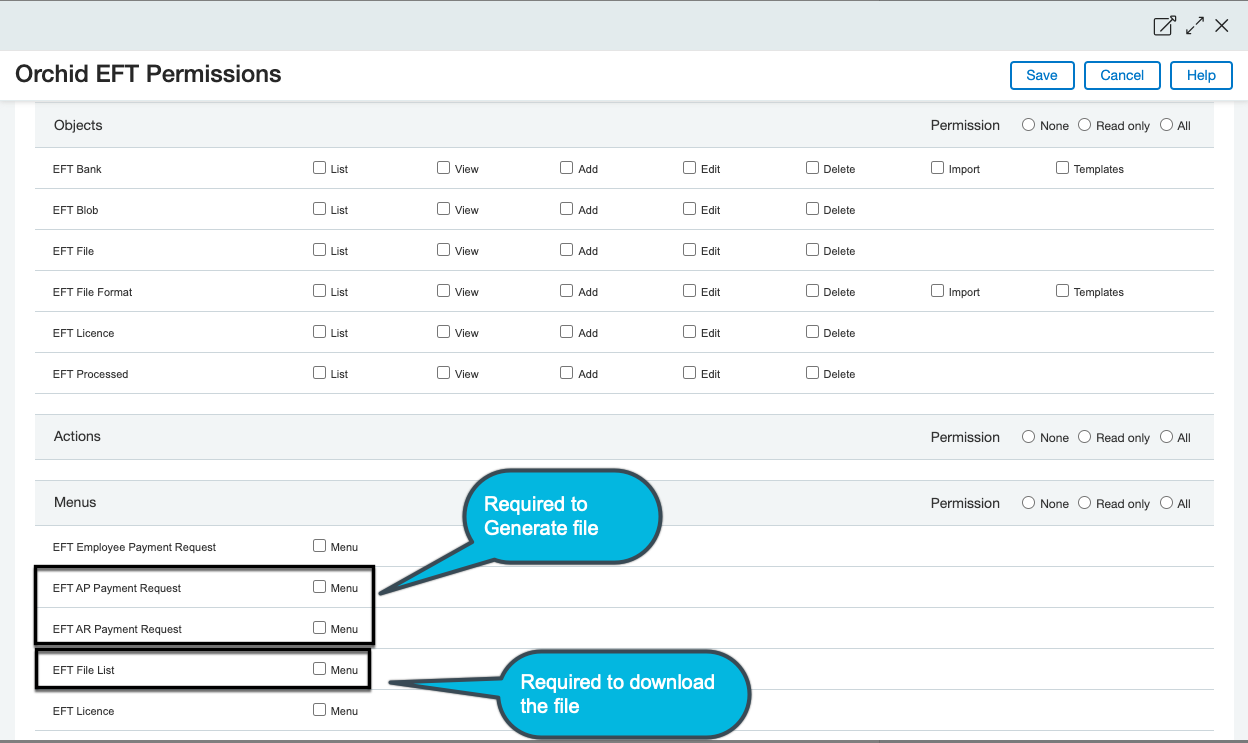
Menu security lets you control which users can generate and download EFT files.
-
Users who Generate the file need access to the EFT AP Payment Request (or EFT AR Payment Request) Menu.
-
To view EFT files, users need access to the EFT File List menu.
-
Users who Download the file or SFTP Upload need access to the EFT File List menu. They also need relevant permissions in the EFT Permissions table. For details: Add EFT Permissions